
Scratched, Blurry and Black and White? The Order to Fix an Old Photo
Old family photos rarely have just one problem. A typical print is scratched, a little soft, faded to grey or sepia, and sometimes all three. Each fix has its own tool, and running them in the wrong order can leave you with an odd result and wasted credits.
Methodhelm editorial teamLast updated: 4 min read
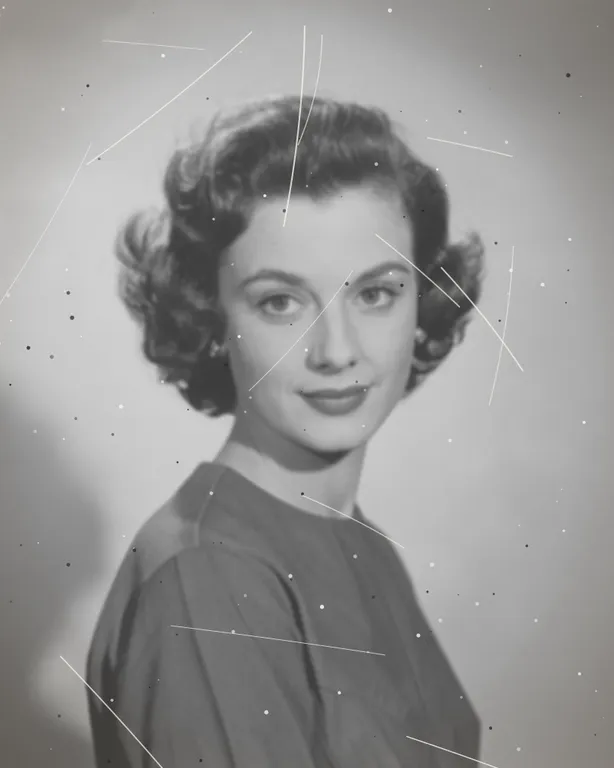
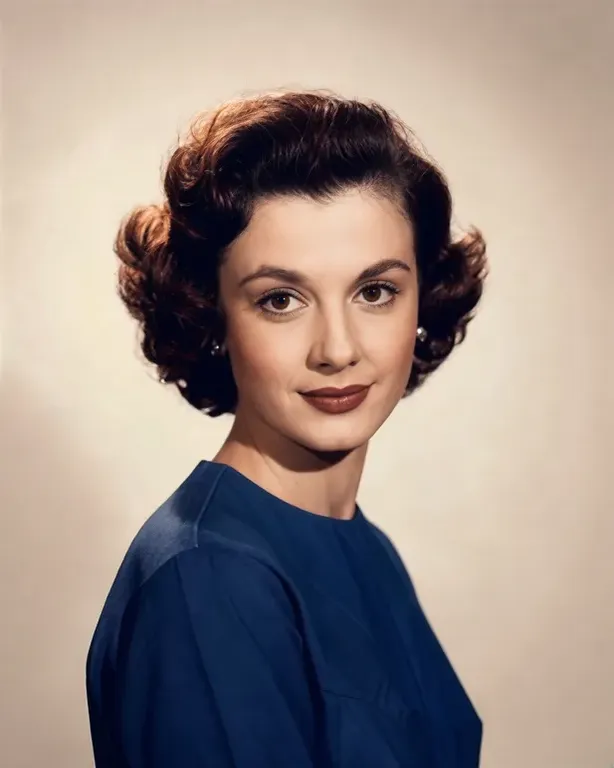
This guide gives a practical order and a way to judge each step. The order below is a recommendation based on how the tools work, not a promise. If you only have one problem, go straight to the matching guide: restore old photos, fix a blurry photo or colorize black and white photos.
On this page
What each tool does, and what it does not
- Photo restoration repairs scratches and damage. It keeps the original tones of the photo, so a black-and-white photo stays black and white. To add colour, use the colorize tool.
- Deblur works on four kinds of blur: Standard, Out of focus, Motion blur (camera shake) and Portrait. Standard suits slightly soft photos. It can redraw fine detail, so compare the result with the original.
- Colorize adds colour to a black-and-white photo. The colours are a plausible guess, not a record of the real ones. The Colorize page describes the tool as AI scratch repair plus colourising, so it may also reduce some scratches; we have not tested how well, so repair first anyway and compare.
- Every tool resizes the photo to at most 1600 px on the long side before processing. Results are kept for 24 hours. The Privacy Notice says results are fully deleted from storage within 7 days. Deblur results are at most 1600 px on the long side, so a 2048 px repaired file is scaled back down when you deblur it; deblur before you make large prints, or keep the repaired version for printing.
A suggested order
- Scan or photograph the print well
A good scan matters more than any order. See the scanning tips in How to restore old photos.
- Repair first
Scratches, dust and tears are easier to fix while the photo is still plain black and white. If you colourise first, the tool may paint a scratch as part of a face or a coat. In our one test, restoration cleared the scratches and dust, and the contrast also got stronger.
- Deblur only if it is still soft
Repair also works on soft focus. Judge the result at 100 percent before you decide whether the photo needs a deblur run.
- Colourise last
Colourising works from a clean, sharp base. Colours added to a damaged photo tend to look patchy.
- Compare after each step, and keep every version
Keep the original, each result and the final image in separate files.
Step by step: one photo, three problems
- Save the original scan
Never overwrite it.
- Run Photo restoration
Upload the scan to Photo restoration. Check the price and run it. Download the result.
- Look at the result at 100 percent
Check faces, eyes, hands and any text or numbers. If the face looks like a different person, stop and go back to the original.
- Decide on a deblur run
If faces are still soft, upload the repaired file to Deblur. Pick Portrait for face-led photos, Out of focus when the camera focused on the wrong spot, or Motion blur for camera shake. If you are unsure, start with Standard.
- Compare again
Deblur can redraw detail. Put the result next to the previous one and compare skin, hair and clothing texture.
- Colourise
Upload the version you like to Colorize and run it. Check skin tones, clothing and sky for colours that look wrong or patchy. In our one test the skin tone looked natural, but the clothing came out dark blue and the background beige; those colours were guesses.
- Keep the black-and-white version too
A colour version is an interpretation. Keep the repaired black-and-white file next to it.
How many steps do you really need?
- If scratches are the main problem, repair may be all you need.
- If the photo is only soft and clean, run deblur alone.
- If it is clean and sharp but grey, colourise alone.
- Each extra run costs credits and is another chance for the AI to change faces. Stop at the first result you are happy with.
Limits: what this cannot do
- None of these tools can restore detail that was never captured. A tiny, very blurry face stays rough.
- Colours are a guess. Do not treat them as the real colours of a uniform, a car or a dress, unless someone remembers.
- Photo restoration keeps the original tones. To change the tones, use the colorization tool, or adjust them in scanning and editing software.
- Torn, folded or missing parts may be filled in with invented content. Check the edges.
- Large prints need a bigger source. Results are at most about 2048 px on the long side.
Frequently asked questions
Can I do all three on one upload?
No. Each tool is a separate run. You download one result and upload it to the next tool.
Should I colourise before I deblur?
We suggest the opposite: repair, then deblur if needed, then colourise last.
Why did the face change after deblurring?
Deblur can redraw fine detail. Go back to the previous version, try a different blur type or keep the repaired version.
Does it cost credits every time?
Yes, each run uses credits, and the price is shown before it runs. Failed runs are not charged; held credits come back automatically. If the result is not yet confirmed, the credits may stay held until the check is finished.
How long do I have to download?
Results are kept for 24 hours.
Related guides
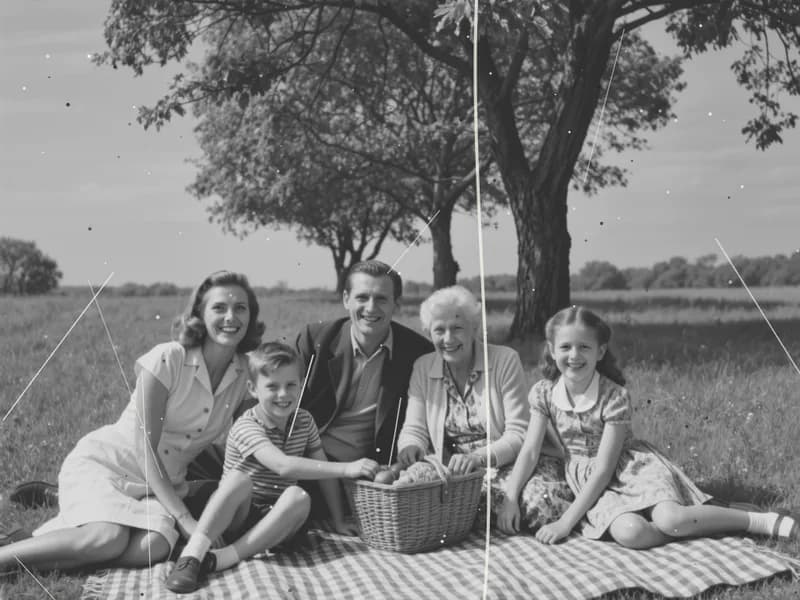
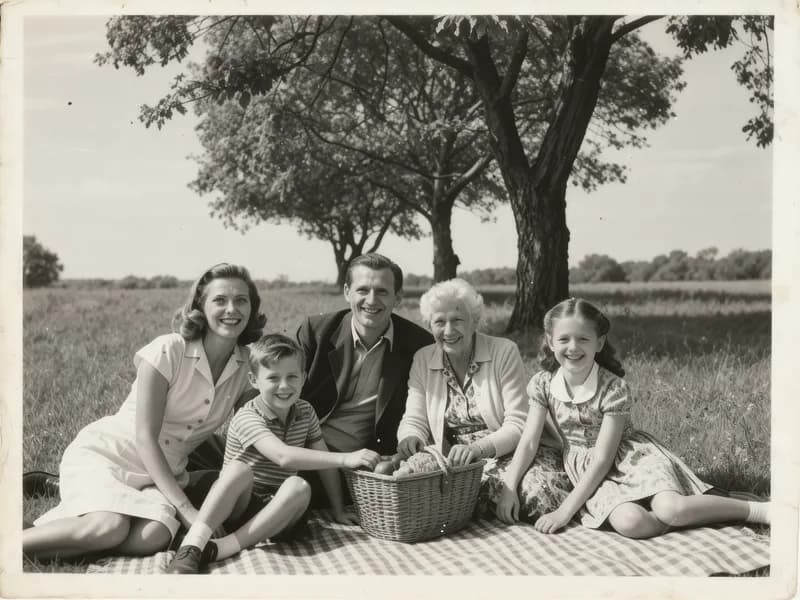 How to Restore Old Photos Without Losing the OriginalHandle, scan and repair scratched, torn or faded family photos, and keep an untouched copy of every original.
 How to Fix a Blurry PhotoRecognise the kind of blur in your photo, sharpen it with AI or a classic editor, and know when a picture cannot be saved.
Related tools
Start with the repair
Upload your scan, see the credit price before it runs, and get a repaired version you can deblur or colourise next.