
How to colorize black and white photos
A black-and-white photo of a grandparent, a family house or a school class can feel distant. Adding colour often makes the people in it look suddenly present, which is why colorizing old photos has become such a popular family project. It is also easy to do badly: muddy skin, orange faces, or a uniform shown in the wrong colour and then passed around as if it were the truth.
Methodhelm editorial teamLast updated: 5 min read
This guide covers the whole process: getting a good scan, understanding what AI colorization can and cannot know, running the colorization, checking the result against what you actually know, and sharing it responsibly. Most of it applies whichever tool you use.
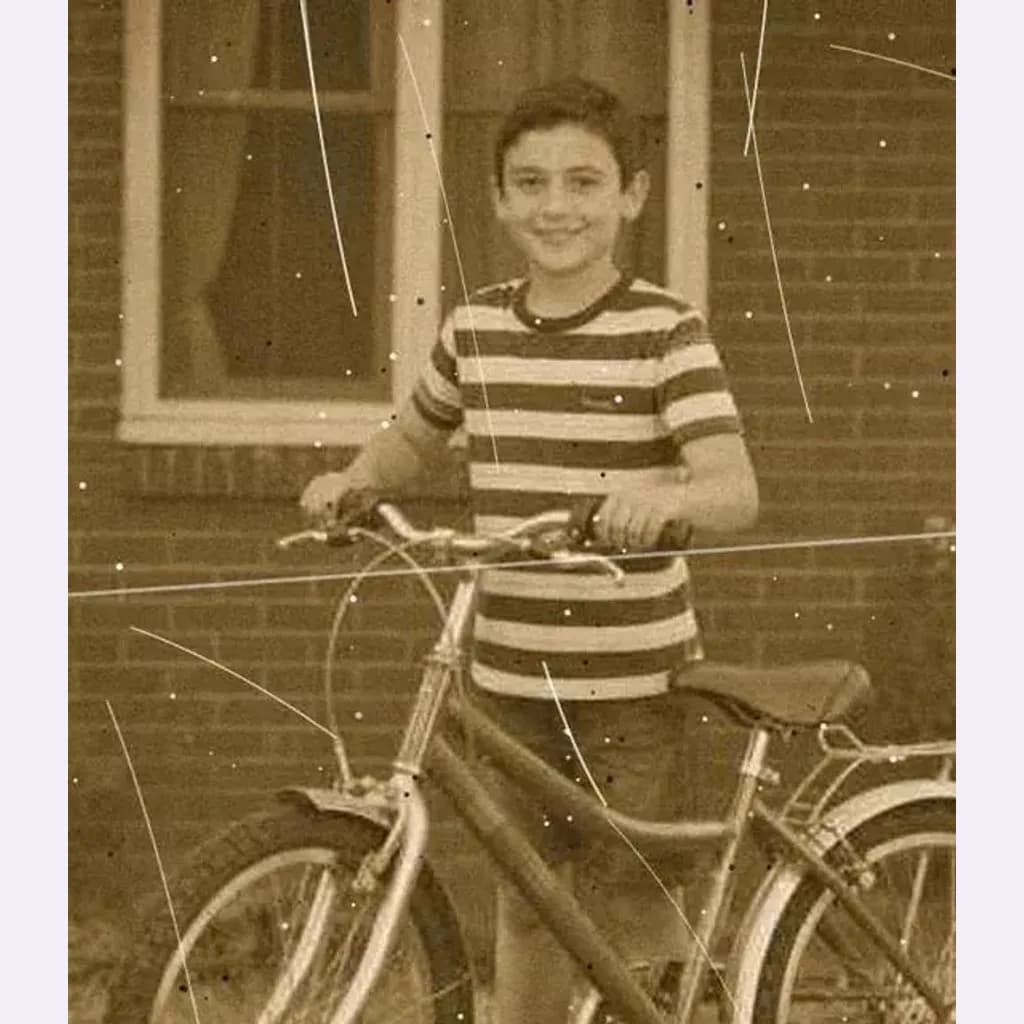
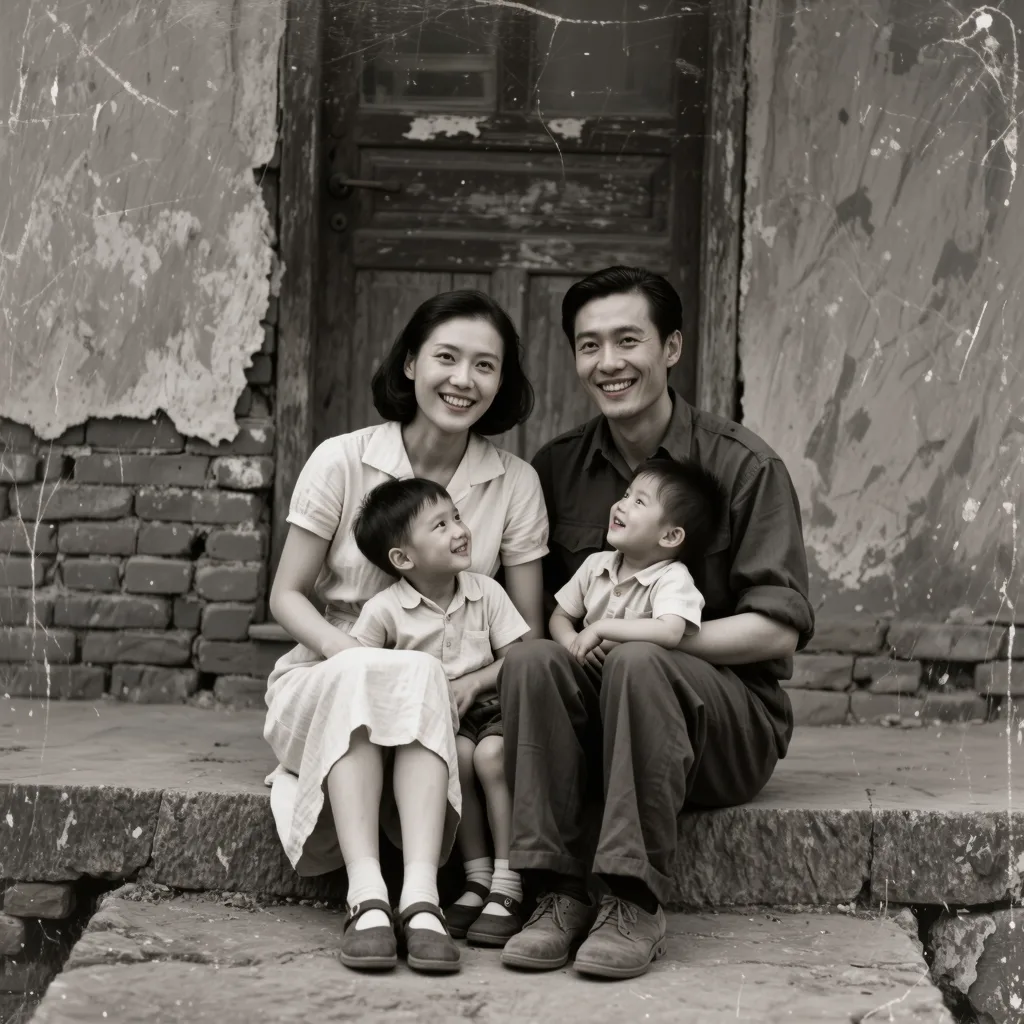 Before
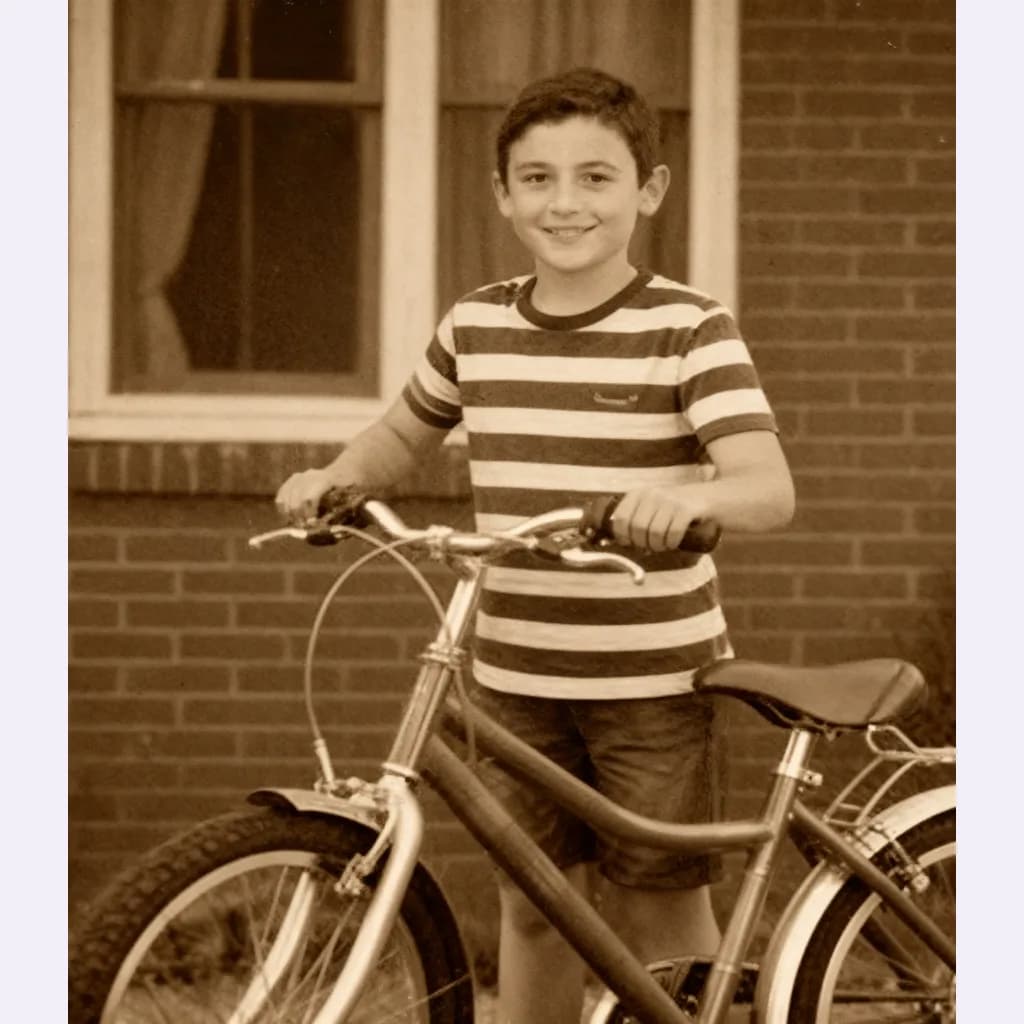
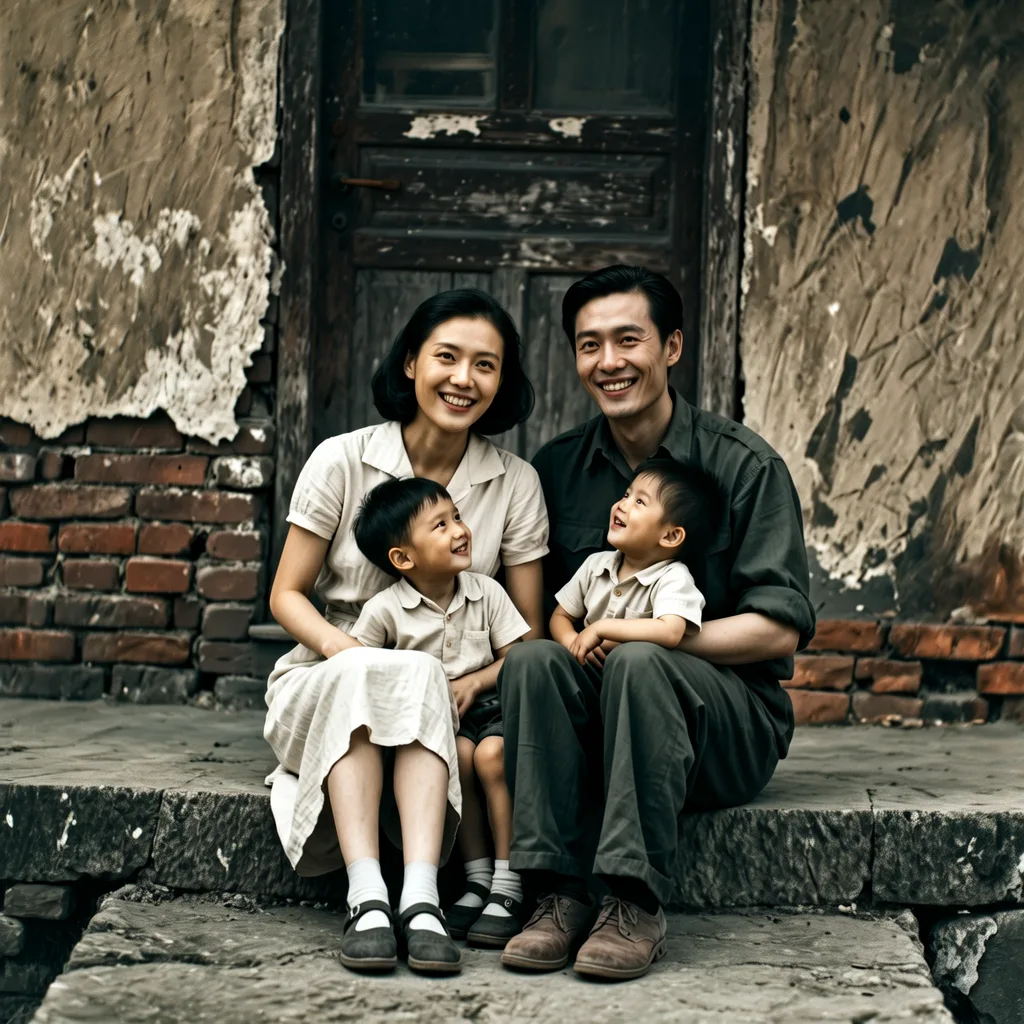 After
AfterOn this page
Start with the best scan you can get
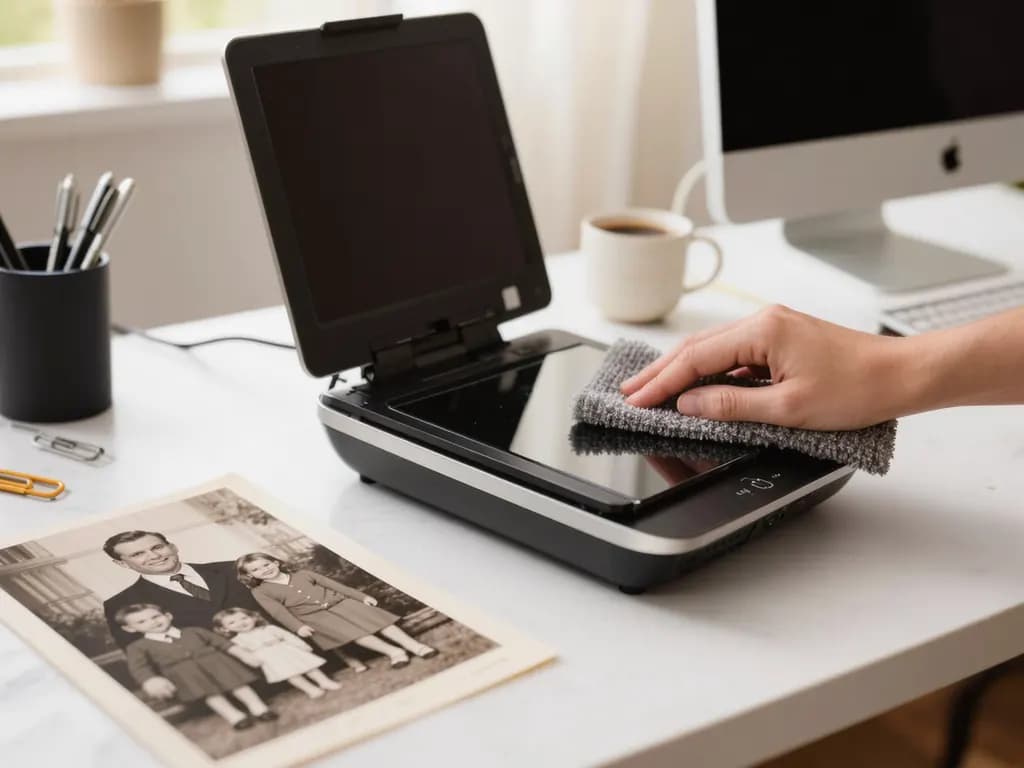
Colorization works on the detail that exists in the image, so the scan matters more than the colour step. If you have the physical print, scan it on a flatbed scanner rather than photographing it at an angle. Clean the glass, lay the print flat and scan at a generous resolution; a small wallet print benefits from a higher setting than a large one.
If a scanner is not available, photograph the print in soft, even daylight near a window, with the phone held parallel to the photo to avoid keystone distortion and glare. Turn off the flash.
Many “black-and-white” photos are actually sepia or yellowed with age. That warm tint is not real colour information; it is toning or fading. AI colorization treats the image as tones of light and dark, so a heavily tinted print can still be colorized, but if you are editing by hand first, converting to neutral greyscale and gently restoring contrast gives a cleaner starting point.
Why AI colours are educated guesses
A black-and-white photo records how bright each part of the scene was, not what hue it was. A red dress and a green dress of similar brightness can produce exactly the same grey. No software can recover the original colour from that grey, because the information was never captured.
What an AI colorizer does is predict plausible colours from context: skin usually looks like skin, sky is usually blue, grass is usually green. That is why results can look very natural for faces and landscapes but uncertain for clothing, cars, wallpaper, painted doors or anything that could have been many colours.
Colorize an old photo step by step
- Scan or photograph the original
Make a sharp, evenly lit, straight copy of the print and keep this file untouched as your master copy.
- Crop and tidy the image
Crop away borders, album pages and background. Leave the photo's natural edges if they matter to you.
- Open the colorize tool and upload
In Old photo restore & colorize, sign in and upload a JPG, PNG or WebP that is at least 128 px on each side. Larger photos are resized to at most 1600 px before upload.
- Check the price and run it
You see the exact credit price before running. Failed generations aren't charged — held credits come back automatically. A run usually takes 10 to 40 seconds, and your result is kept for 24 hours to download.
- Compare before and after
The tool repairs scratches and fading and adds colour in one step. Drag the slider to compare with the original and look closely at faces, hands and clothing.
- Save and label the result
Save the colorized version, which keeps your photo's proportions at up to 2048 px on the long side, and name the file so it is clearly marked as colorized.
Check the colours you can actually verify
Once you have a result, go through it with what you know rather than what looks pleasant.
- Skin tones: compare with other photos of the same person and with relatives. Faces that look too orange, grey or uniform are a common sign the guess went wrong.
- Uniforms, flags and insignia: military, school, police and sports uniforms often had documented colours. Look them up in a museum or archive source before trusting the AI.
- Signage and vehicles: shop signs, buses, trams and phone boxes in a given town often had known liveries. A local history group can often confirm them.
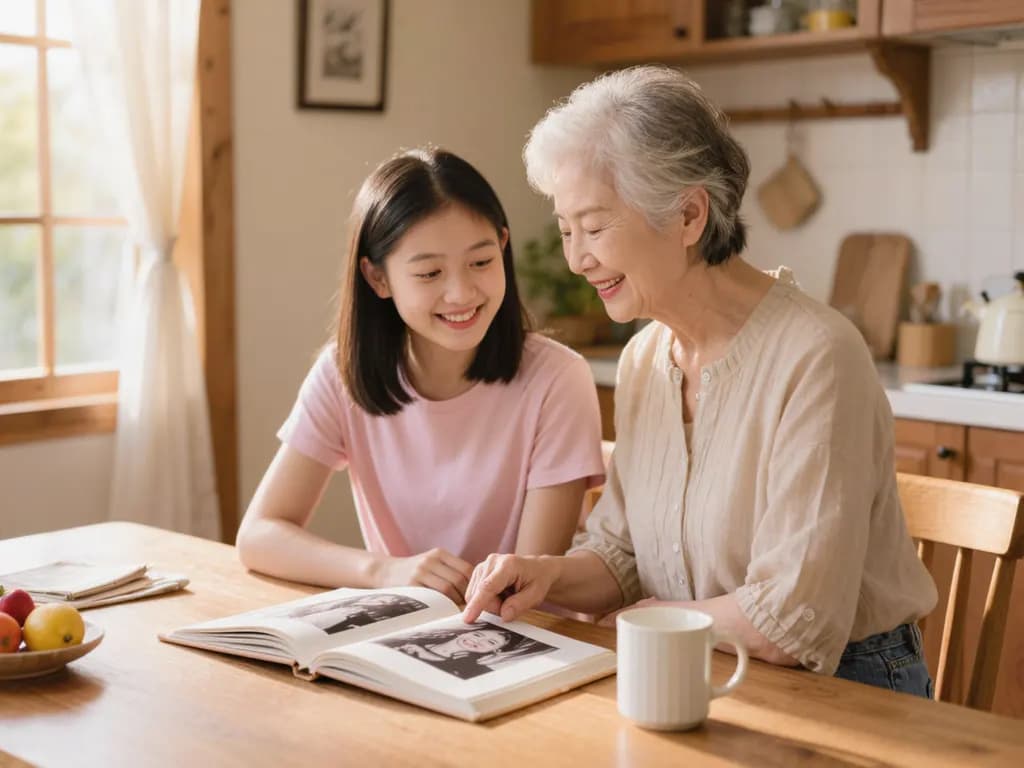
- Ask relatives: an aunt may remember that the front door was blue or that a wedding dress was ivory, not white. Write those memories down while you can.
- Fix or flag: if you know a colour is wrong, correct it in a photo editor with a colour layer on a selection, or simply note in the caption that some colours are uncertain.
What AI colorization cannot do
It cannot know the real colours. Clothing, backgrounds, cars and interiors may differ from reality, sometimes in ways that matter to the family story. It also cannot invent detail that was never in the photo: a tiny, very blurred face will stay soft, and heavy damage may only be partly repaired. Generated results can change small details, so compare with the original before replacing anything.
If the damage is the main problem, you may prefer to keep the image black-and-white. Photo restore repairs damage without adding colour, and our guide on how to restore old photos covers that route in detail. For soft or out-of-focus prints, see how to fix a blurry photo or try photo deblur.
Share it responsibly
- Always keep the original scan. The colorized file is an addition, not a replacement.
- Label shared images as “colorized” in the caption or file name, especially in family archives and online groups.
- Do not present a colorized image as an original colour photograph, and do not submit one to an archive or museum as a primary source.
- Be careful with historical events and people who suffered: colour can make a scene feel more immediate, and it should be done with respect and clear labelling.
- Once you are happy with a still, you can bring it gently to life with photo to video; our guide to turning a photo into a video explains how.
Frequently asked questions
Can AI show the real colours of an old black-and-white photo?
No. A black-and-white photo stores brightness, not hue, so any colorizer predicts plausible colours from context. Faces, sky and foliage often look convincing, but clothing and backgrounds may differ from what was really there.
Should I colorize a sepia photo the same way?
Yes. A sepia or yellowed tint is toning or ageing, not real colour, so the colorizer works from the light and dark tones. If you edit by hand, converting to neutral greyscale first usually gives a cleaner base.
How do I fix a colour I know is wrong?
Open the colorized image in a photo editor, select the area such as a uniform or a door, and add a colour layer set to a colour blend mode. If you cannot fix it, note in the caption that the colour is uncertain.
Can I restore an old photo without adding colour?
Yes. Methodhelm's photo restore tool repairs scratches and fading while keeping the photo black-and-white, which suits archives or anyone who prefers the original look.
Is it acceptable to share colorized family or historical photos?
Generally yes, as long as you keep the original and clearly label the image as colorized, so nobody mistakes the AI's colour guesses for a historical record.
Related guides
 How to Restore Old Photos Without Losing the OriginalHandle, scan and repair scratched, torn or faded family photos, and keep an untouched copy of every original.
 How to turn a photo into a video with AIPick a photo that animates well, choose a motion that suits it and turn it into a short clip you can share or edit.
Related tools
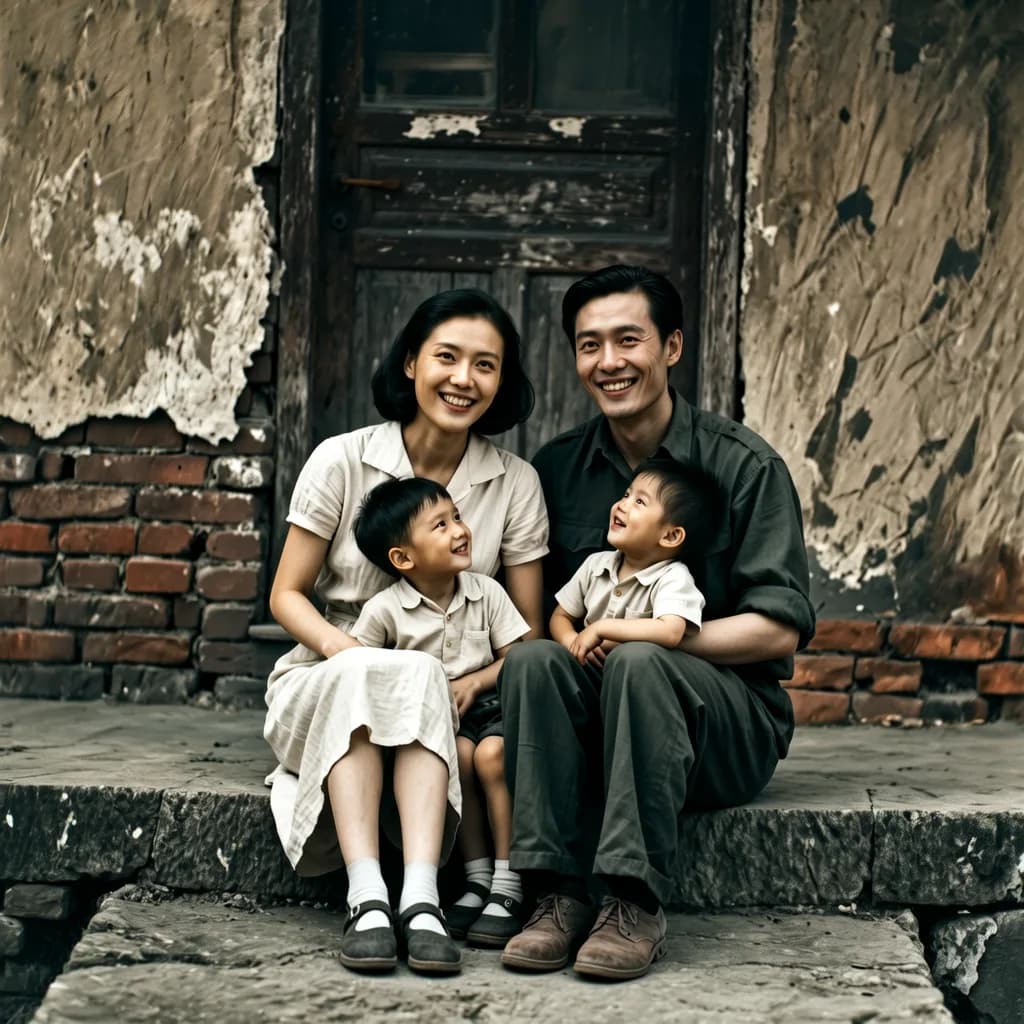
Add colour to an old photo
Upload a black-and-white or faded photo to repair it and add natural-looking colour in one step. You see the exact credit price before running.