
How to Restore Old Photos Without Losing the Original
A shoebox of family prints tends to age in the same ways: corners crack, emulsion scratches, dust settles into the surface, colours drift towards orange or magenta, and some pictures were never quite sharp to begin with. The good news is that most of this damage can now be repaired digitally, while the physical print stays exactly as it is.
Methodhelm editorial teamLast updated: 5 min read
This guide covers the whole job, not only the software: how to handle fragile prints, how to digitise them so the repair has something good to work with, how to run an AI repair, how to judge the result honestly, and how to store and share what you end up with. Most of it applies whichever tool you use, including Photo restoration on Methodhelm.
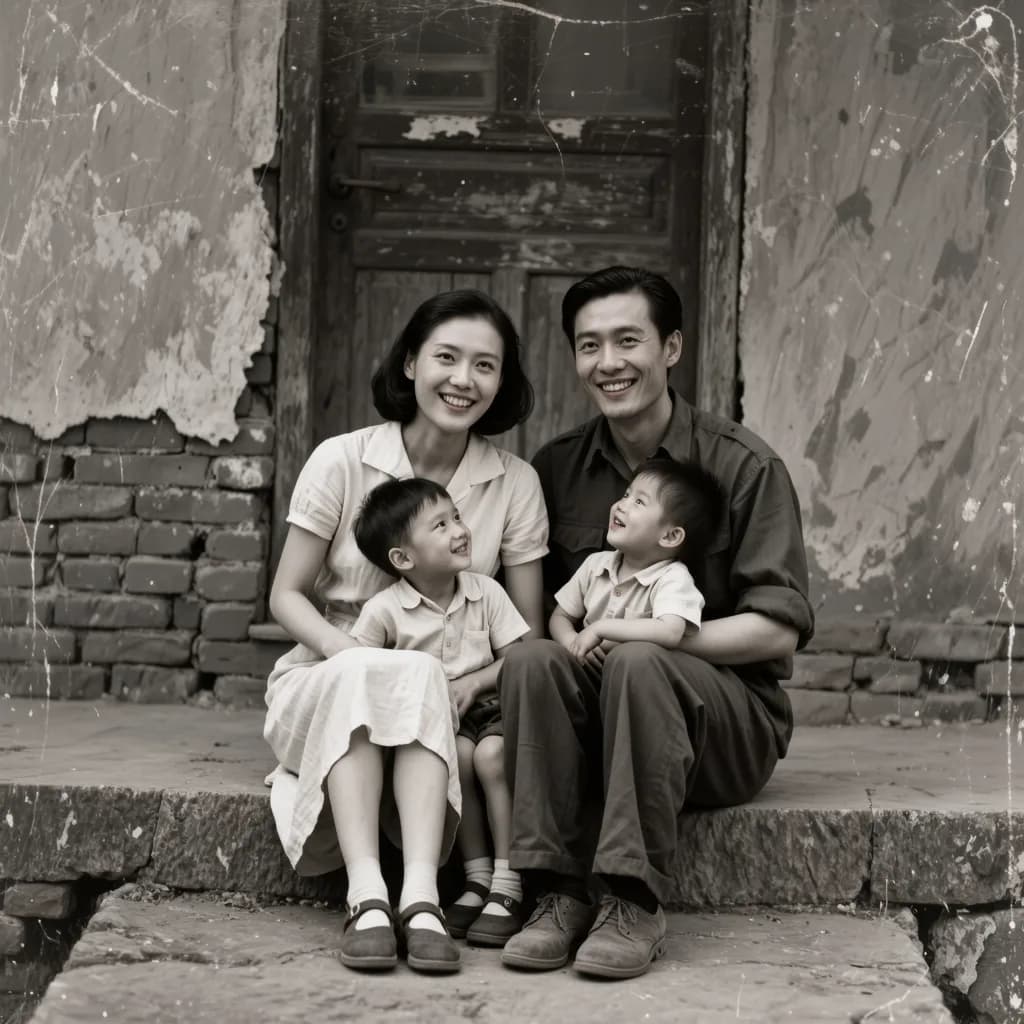
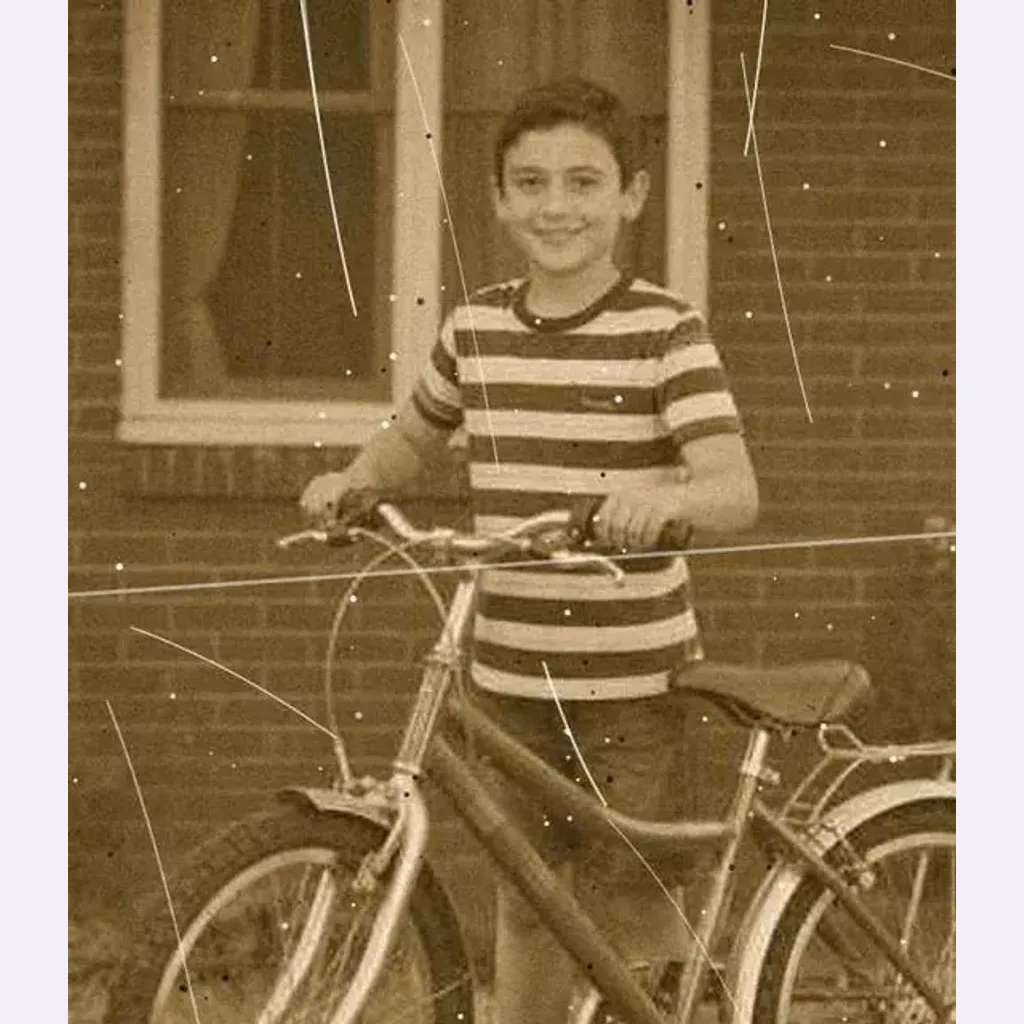 Before
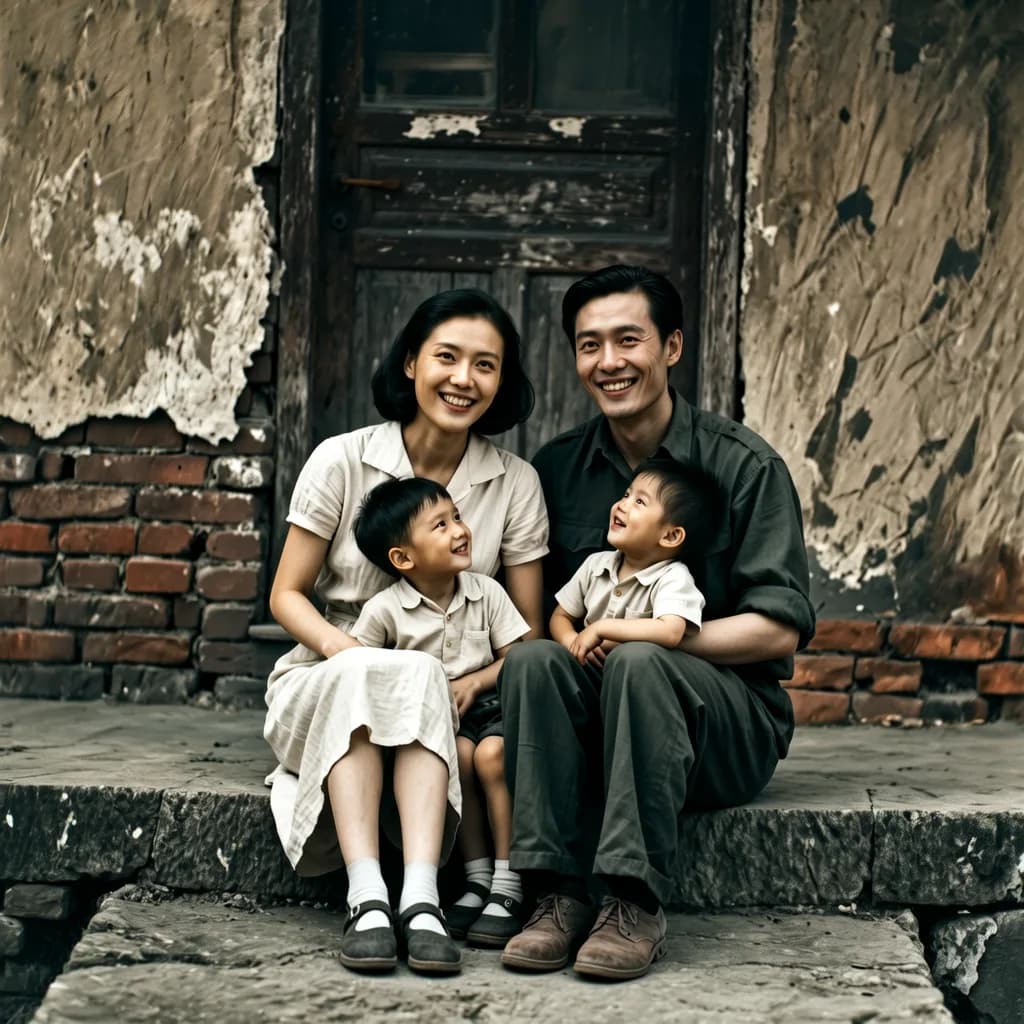
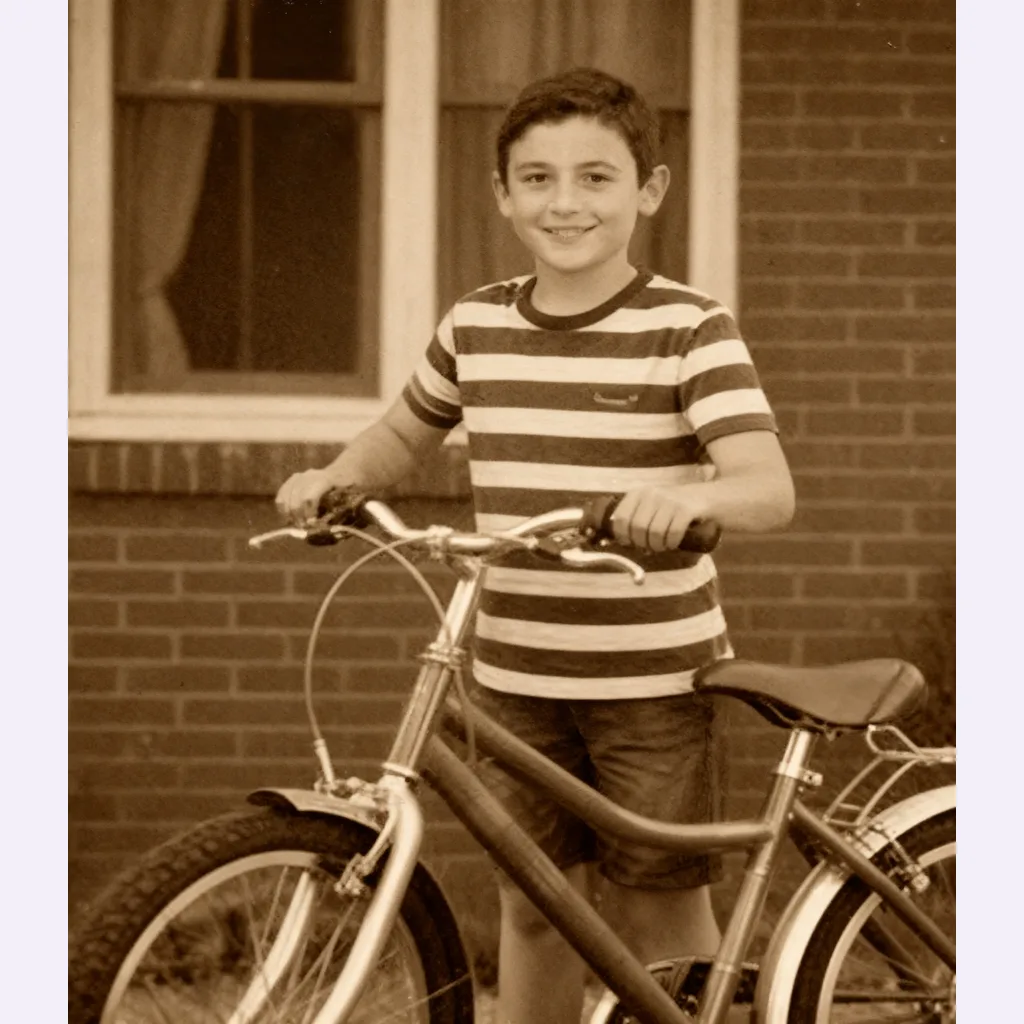 After
AfterOn this page
Handle fragile prints with care first
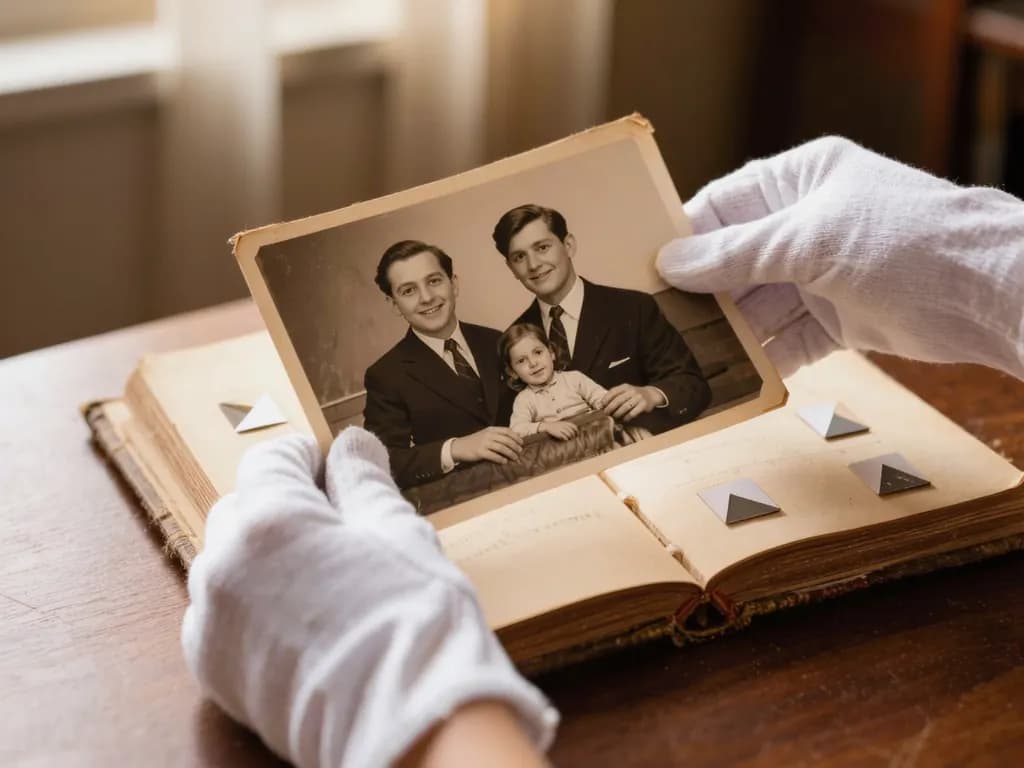
Old prints are more delicate than they look. Work at a clean, dry table, with clean dry hands or cotton gloves, and hold each print by its edges. Fingerprints on the image side can leave oils that show up in a scan and slowly mark the surface.
If a photo is stuck to an album page or to the glass of a frame, do not peel or force it. A scan through the album page or the glass is far better than a torn original. Prints that are curled, flaking or stuck together are a sign to stop and consider a professional conservator, especially for a picture that matters a lot to the family.
Digitise the photo the right way
The scan is the foundation of the repair. AI can fill in a scratch, but it cannot recover detail the camera or scanner never captured. These tips work with any restoration tool, or for retouching by hand:
- Use a flatbed scanner if you can, and wipe the glass with a soft lint-less cloth before every session; a speck on the glass ends up on every scan.
- Scanning small prints at 600 dpi or more is a common recommendation. It gives you a detailed archive copy even if the file you upload later is smaller.
- Turn off any automatic “dust removal”, sharpening or colour correction in the scanner software if you plan to restore afterwards, so you start from an honest copy.
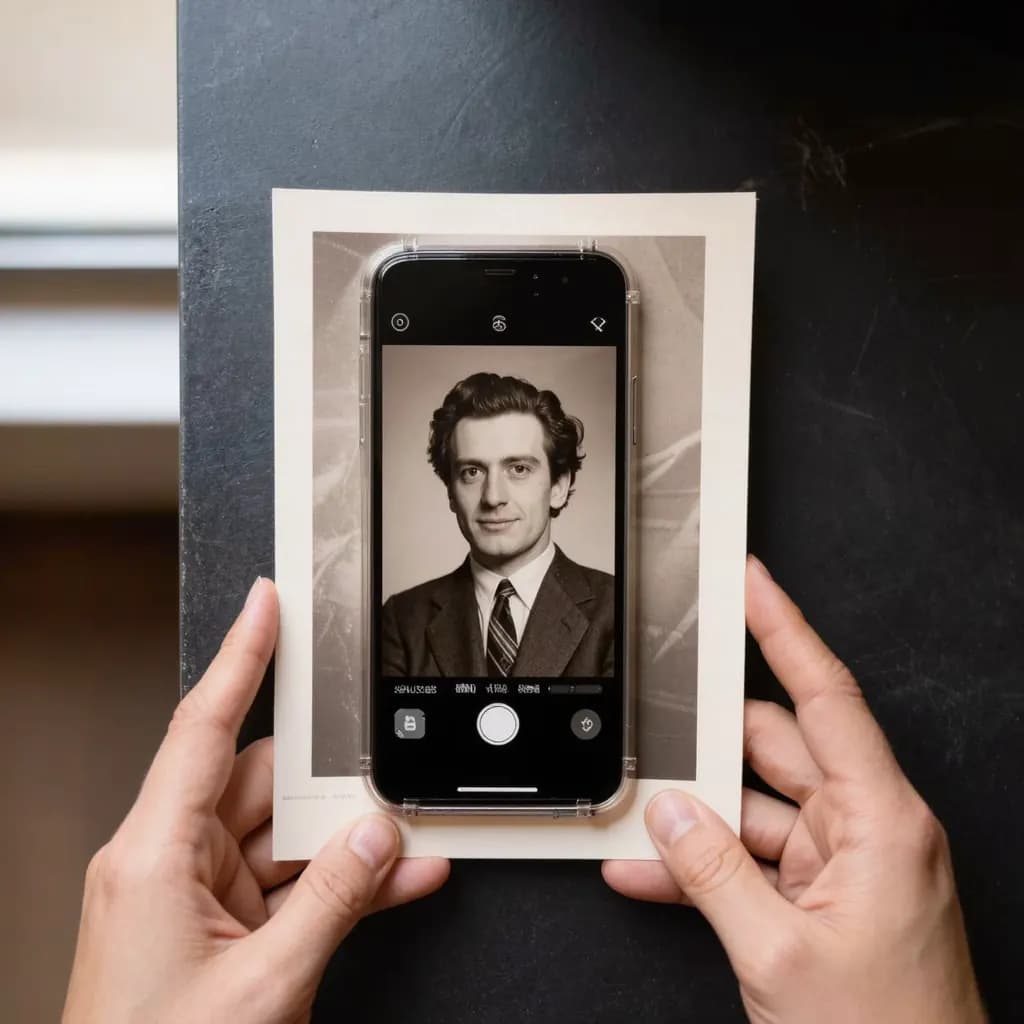
- With a phone, shoot in daylight near a window, flash off, with the phone held parallel to the print so the corners are not skewed.
- Glossy prints and framed photos reflect light. Tilt the light source, not the phone, until the glare disappears; take the photo out of the frame only if it comes out easily.
- Crop away the table and album page, but leave the whole picture area, including damaged corners.
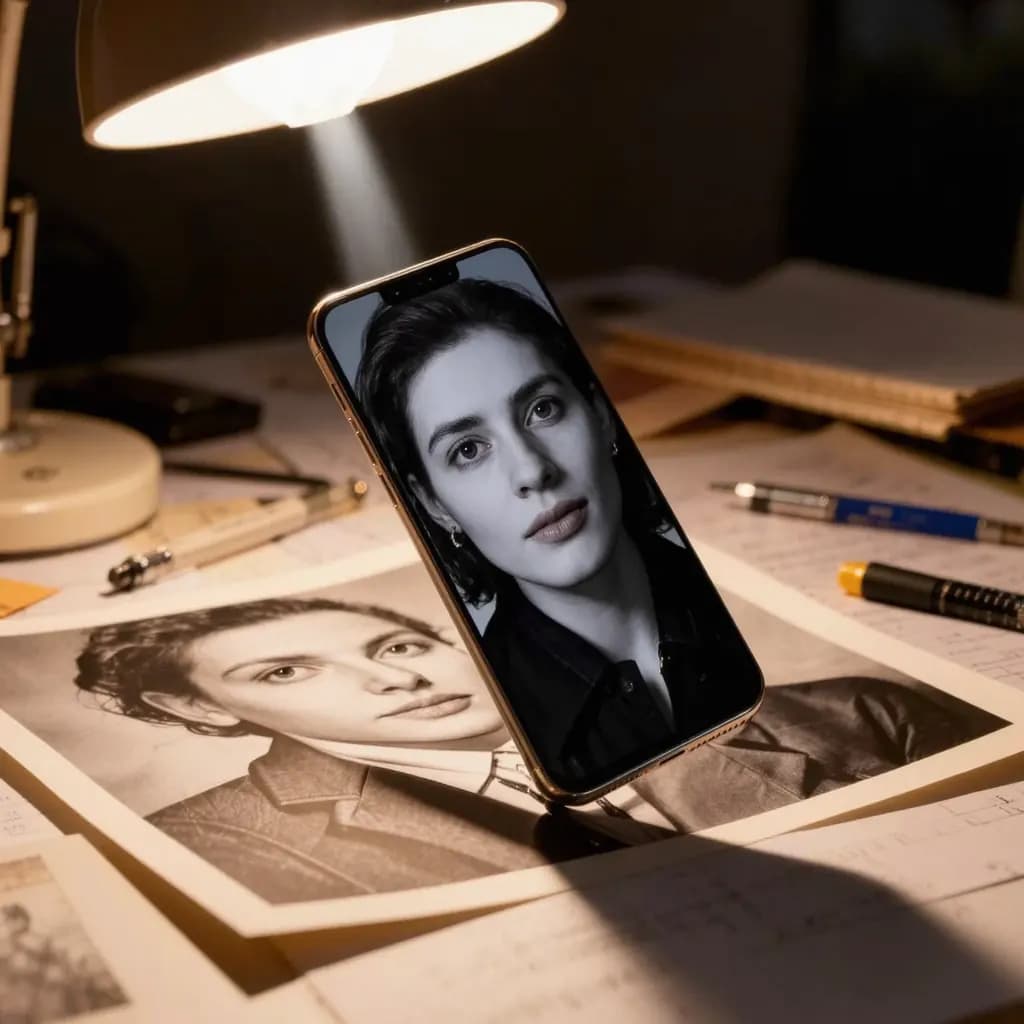
Step by step: restore an old photo with AI
- Save an untouched master copy
Before any editing, save the original scan in a separate folder and never overwrite it. Every repair should be made on a copy.
- Open the restoration tool and sign in
Open Photo restoration and sign in. The exact credit price is shown before each run, so you know the cost before you start.
- Upload the scan
Upload a JPG, PNG or WebP that is at least 128 px on each side. Larger photos are resized to at most 1600 px before upload, so your full-resolution scan stays on your computer.
- Run the repair
Start the run. Scratches, tears, dust and soft focus are repaired in one step, which usually takes 20 to 60 seconds. Failed generations aren't charged — held credits come back automatically. Your result is kept for 24 hours to download.
- Compare the result with the original
Look at faces, eyes, hands, handwriting and signs side by side with the scan. AI fills in missing detail, so faces and text may differ slightly from the original.
- Check the edges and save
The result is up to 2048 px on the long side and keeps your photo's own shape. If you are happy, save it next to, not over, the original.
What AI repairs well, and what it cannot do
AI restoration is good at the common, small-scale damage: fine scratches and creases, dust and specks, small tears and mild softness. Those repairs usually look natural because the surrounding picture tells the model what belongs there.
It is much weaker where information is simply gone. If a large part of the picture is missing, or a face is mostly torn away or washed out, the AI has to invent it, and the result may be a plausible stranger rather than your grandmother. Small text, medal details and uniform insignia can also be redrawn incorrectly. Treat these areas as a reconstruction, not a record, and label them that way if the picture is used for family history.
For a black-and-white photo you would also like in colour, Old photo restore & colorize repairs damage and adds colour in one run; our guide to colorizing black-and-white photos explains how to judge the colours. If the main problem is blur rather than damage, see how to fix a blurry photo. A stray object or a later date stamp is better handled with Object remover.
Keep, label and share the restored photos
- Keep three things: the physical print, the untouched scan and the restored version. The restored file is an interpretation; the scan is your evidence.
- Name files so they sort and make sense later, for example 1962_wedding_Rosa-and-Tom_restored.jpg, and write names, places and dates into the file details or a simple text note while relatives can still tell you who is who.
- Back up to at least two places, such as an external drive and a cloud folder.
- When you share with family, say it has been restored, and offer the original scan too, so nobody mistakes a reconstructed face for the real one.
- For valuable, very old or historically important originals, ask a professional photo conservator before any physical cleaning or flattening. Digital repair never needs you to touch the print surface.
Frequently asked questions
Can AI restore a badly damaged old photo?
AI handles scratches, dust, small tears and mild blur well. Photo restoration keeps the photo's own tones; it does not recolour it. When large areas or most of a face are missing, it has to invent detail, so the result can look convincing but differ from the real person or place. Keep the original scan alongside it.
What resolution should I scan old photos at?
Scanning small prints at 600 dpi or more is a common recommendation for an archive copy. Methodhelm Photo restoration needs at least 128 px on each side and resizes larger photos to at most 1600 px before upload, so a high-resolution scan mainly benefits your own archive.
Will the restored photo look exactly like the original?
Not exactly. AI fills in missing detail, so faces and text may differ slightly, and the output uses the closest standard shape, so edges may be slightly trimmed or extended. Compare faces and writing carefully before you share it.
Can I restore and colorize a photo at the same time?
Yes. On Methodhelm, Old photo restore & colorize repairs damage and adds colour to a black-and-white photo in one run. Use Photo restoration if you want to keep the photo in its original colours.
How much does it cost to restore a photo on Methodhelm?
You sign in and see the exact credit price before each run. Failed generations aren't charged — held credits come back automatically. Your result is kept for 24 hours to download. Current credit packs are listed on the pricing page.


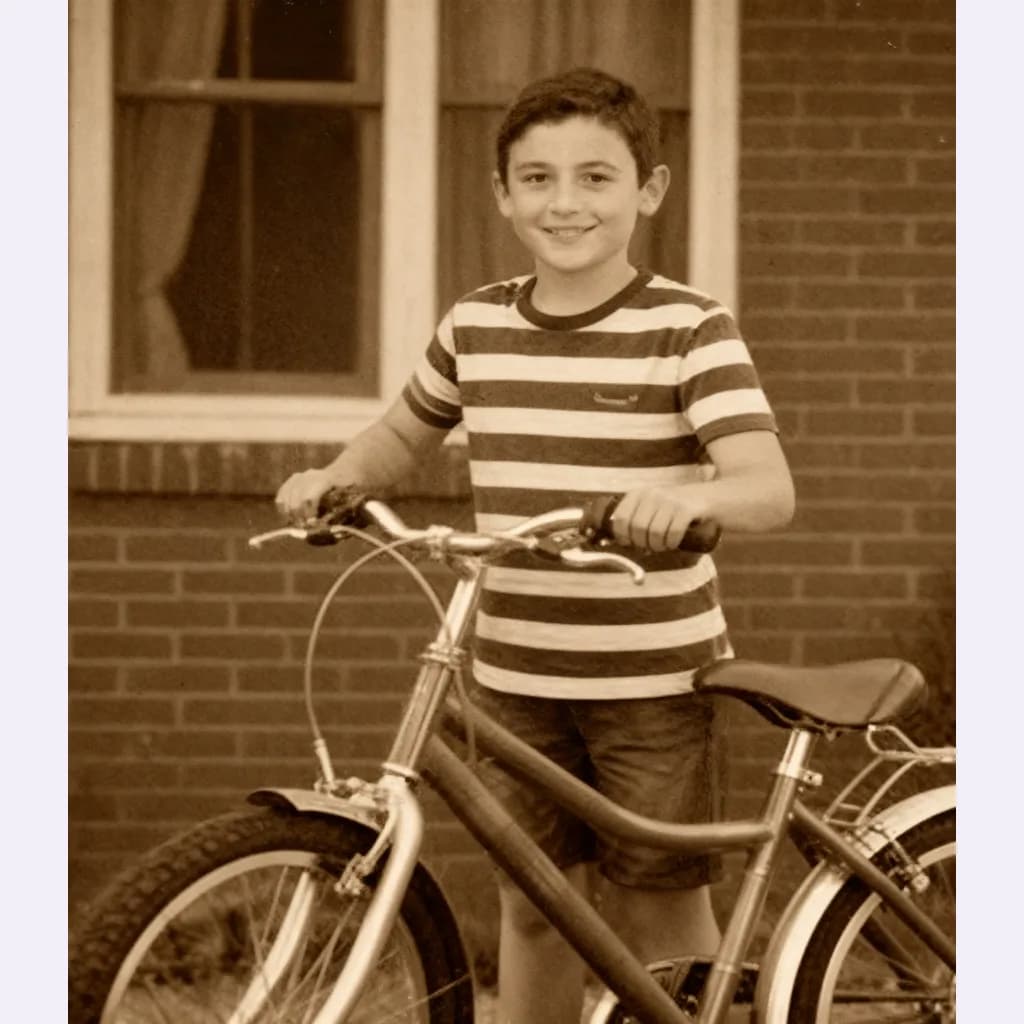
Repair a scratched or faded photo
Upload a scan, see the exact credit price before you run it, and get a repaired version in about a minute. Keep your original file safe.