
GoodNotes hyperlinks: how to jump between pages
When people say "hyperlinked planner" they mean links that already exist inside the PDF. GoodNotes can also make its own links. This guide separates the two, based on GoodNotes' help pages (read on 31 October 2026).
Methodhelm editorial teamLast updated: 2 min read
On this page
Links that come with a PDF
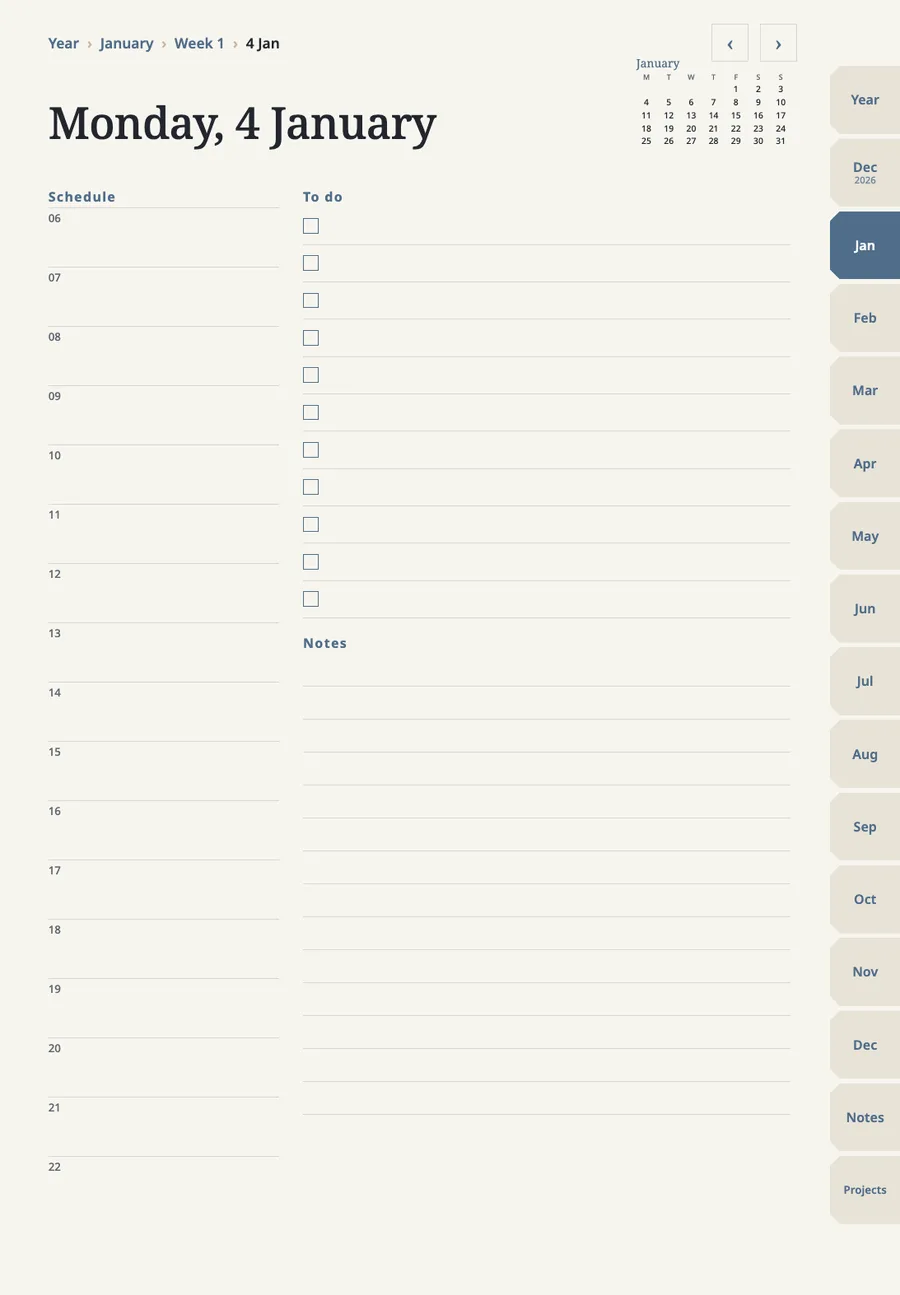
A digital planner can link its index to monthly, weekly or daily pages. These links must already exist in the PDF you import: GoodNotes opens them but does not create them. On iPad, GoodNotes' help page says to select the linked text, image or planner element. On Android, Windows and the web you enter Read Only Mode first, or press and hold the link in Edit Mode and choose Open Link.
Links you make yourself
You can link typed text to a website or to a page in another notebook or whiteboard in your library.
The linked text appears underlined. To open, copy, edit or remove it, select the linked text and choose Link.
- Select the typed text you want to link
Select the typed text you want to link.
- Choose Link in the Object Menu (Command-K on a Mac keyboard)
Choose Link in the Object Menu (Command-K on a Mac keyboard).
- Choose Link Settings, then Website or Document. For Document, pick a notebook or whiteboard, then a page
Choose Link Settings, then Website or Document. For Document, pick a notebook or whiteboard, then a page.
- Confirm: on iOS or macOS tap outside the popover; on Android, Windows or the web tap the checkmark
Confirm: on iOS or macOS tap outside the popover; on Android, Windows or the web tap the checkmark.
What links cannot do
- A link goes to a page, not to a spot on a page.
- Links go on typed text only. Handwriting has to be converted to text first.
- Links you create yourself cannot be attached directly to an image or element, to a phone number, or to a file on your computer.
- Internal links need GoodNotes 6. Links made in GoodNotes 6 open in GoodNotes 5.
- Internal links work in notebooks and whiteboards, not in text documents.
Do my own links survive export?
Yes. GoodNotes says links created in GoodNotes stay clickable in a Flattened PDF. Links that came with an imported PDF need PDF Data Format set to Editable.
To bring a planner into GoodNotes first, read how to import a PDF planner into GoodNotes.
GoodNotes and its logo belong to GoodNotes Limited. We are independent and are not affiliated with or endorsed by them.
FAQ
Frequently asked questions
Why are my GoodNotes hyperlinks not working?
GoodNotes only opens links that exist inside the imported PDF. If the file has none, GoodNotes will not add them.
Can I link a to-do to a page in my planner?
Yes, by typing the text and using Link, then choosing the planner as the document and the page.
Can a link go to a specific spot on a page?
No. A GoodNotes link goes to a page, not to a spot on that page.
Related guides
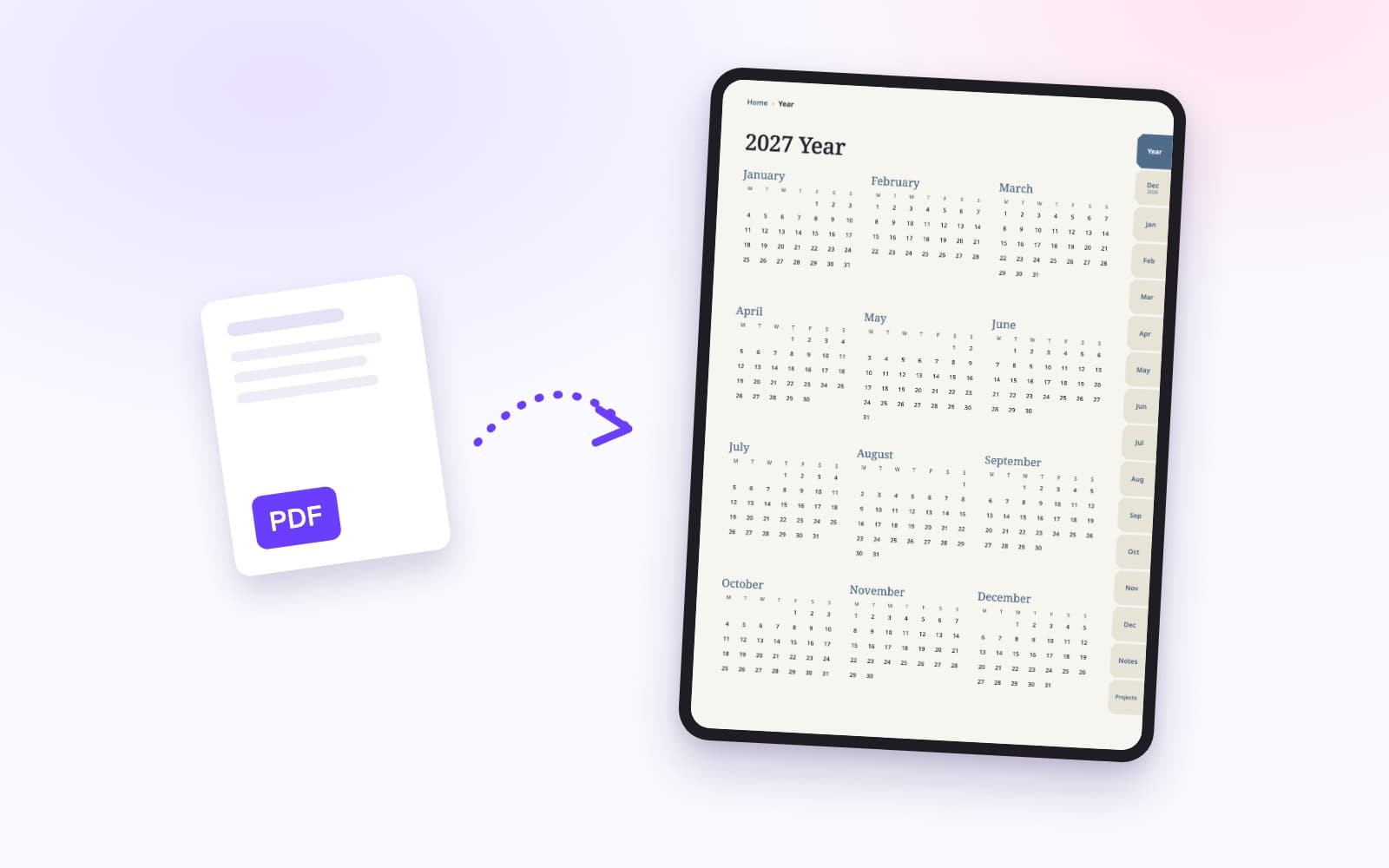 How to import a PDF planner into GoodNotesA PDF planner imports like any PDF. The links inside it only work if they were built into the file, and GoodNotes' plan limits decide whether the import goes through.
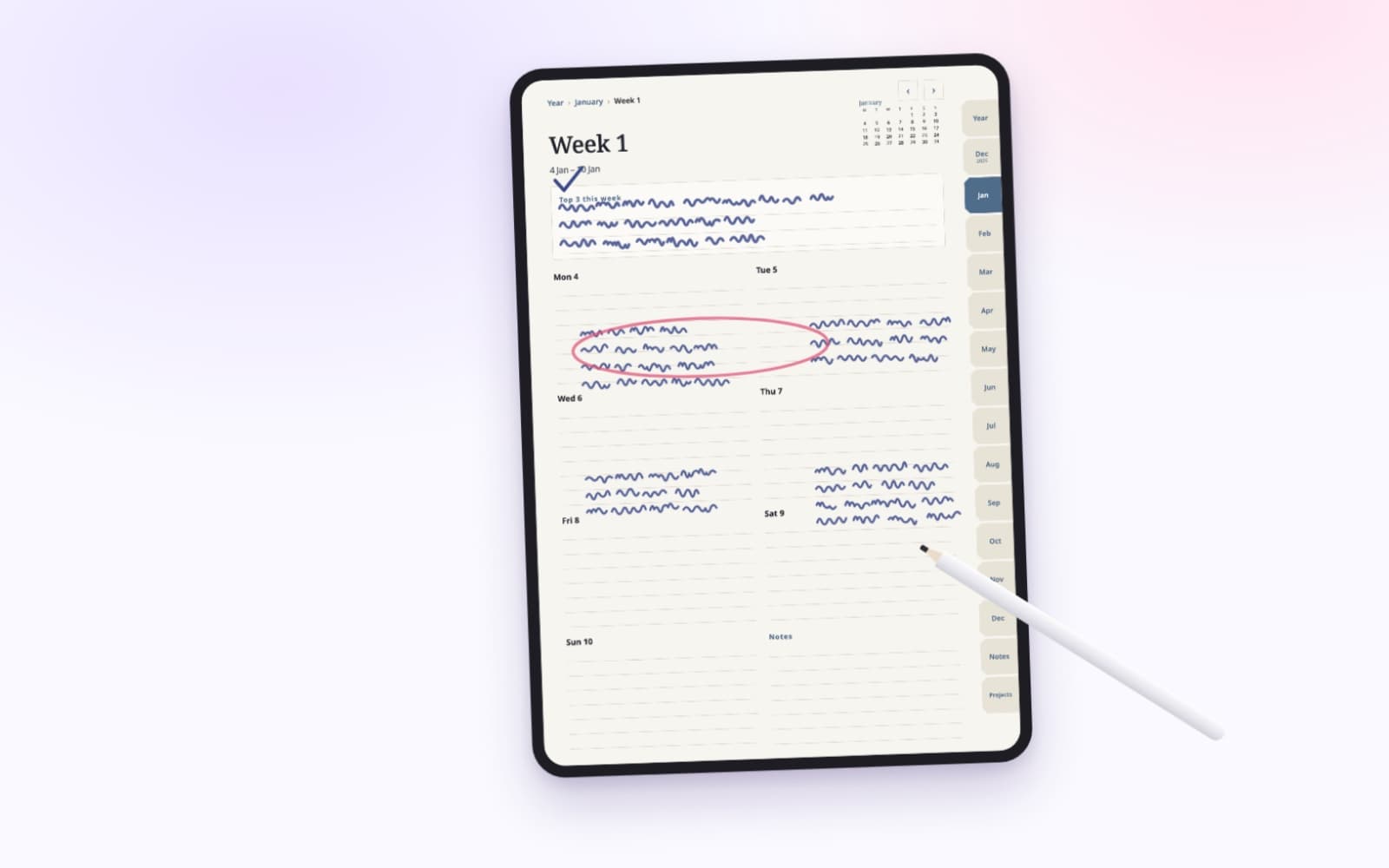 How to plan your week in 15 minutesPick three priorities, place what is already fixed, then add small tasks around them. The same steps work on paper or in a planner on your iPad.
A planner with page links built in, made for GoodNotes
Year, month, week and day pages, notes and projects, with tabs and dates you tap to jump. Each file is under 3 MB. Check that GoodNotes still lets you add a file before you buy.