
How to import a PDF planner into GoodNotes
A digital planner is a PDF with links built in. Getting it into GoodNotes takes a minute. Most problems come from two things: the plan limits, and where the file was saved. This guide covers both, using GoodNotes' own help pages (read on 31 October 2026).
Methodhelm editorial teamLast updated: 3 min read
On this page
Check the plan limits first
GoodNotes' pricing page lists what the unpaid plan allows:
Paid plans remove both limits. So if the import fails, the file is probably not broken: you may have reached the 3-file limit or the 5 MB limit. GoodNotes' pricing page says "3 files"; in our own test on GoodNotes for Mac, the unpaid plan counted notebooks we had created, and deleting one did not always give the slot back. Do not count on deleting to make room.
- Up to 3 files in total, counted across notebooks, whiteboards and text documents.
- An import size limit of 5 MB per file.
Import the PDF
Other ways that GoodNotes lists: open the PDF in the Files app, tap Share and choose Open in GoodNotes; or open GoodNotes and Files side by side in Split View and drag the file across.
- Save the PDF where your iPad can reach it
Save the PDF somewhere your iPad can reach: the Files app, iCloud Drive, or a download in Safari.
- Open GoodNotes and choose Import
Open GoodNotes. In the Documents tab, tap + New, then Import.
- Pick the PDF and tap Open
Pick the PDF and tap Open. The planner appears in your library as a new document.
Make the links work
GoodNotes opens links that were already inside the PDF. It does not create them for you. GoodNotes' iOS help page says to select the linked item, such as a month tab or a date. If nothing happens, make sure you opened the imported planner itself and not a copy you exported as a flat image. Switching to read-only mode before you tap may also help (our suggestion, not stated on the iOS help page).
On Android, Windows and the web, GoodNotes says to enter Read Only Mode first, or to press and hold the link in Edit Mode and choose Open Link.
Keep the links when you export
If you export the planner later, set PDF Data Format to Editable. A Flattened PDF merges everything into one layer, and the original links and outline stop working. Links you create yourself inside GoodNotes stay clickable either way.
What if the file will not import?
- Check the size. The unpaid plan stops at 5 MB per file.
- Check how many files you already have. The unpaid plan allows 3 in total.
- Try the PDF in another PDF app. If the links work there, the file is fine.
Our 2027 planner
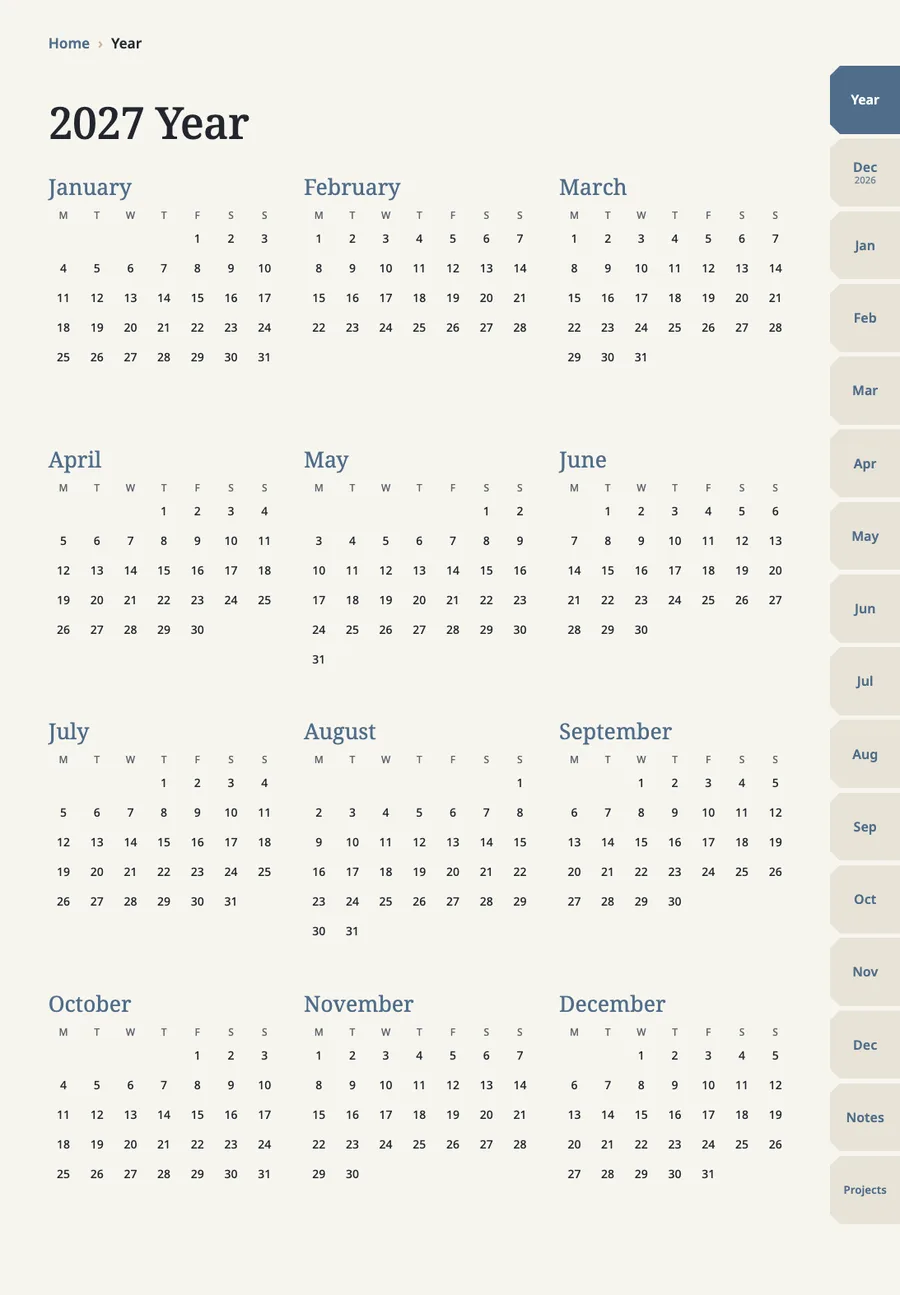
Our planner is a PDF with page links built in, made to be used in GoodNotes: year, month, week and day pages, notes and projects. Each file is under 3 MB, so it stays under the unpaid plan's 5 MB limit, but the unpaid plan's limit on files still applies, so check that GoodNotes still lets you add a new one before you buy. We tested it in GoodNotes for Mac; the steps above for iPad follow GoodNotes' help pages. See the planner page.
Next, see GoodNotes hyperlinks: how to jump between pages.
GoodNotes is a trademark of GoodNotes Limited. This article has no partnership with or endorsement by GoodNotes.
FAQ
Frequently asked questions
Does GoodNotes create the links for me?
No. The links must already exist in the PDF.
Do I need a paid GoodNotes plan?
Not always. The unpaid plan allows 3 files and 5 MB per import. A planner under 5 MB can import on the unpaid plan as long as you have an open slot, so check that before you buy.
Why did my planner links stop working after export?
The export was probably a Flattened PDF. Export again with PDF Data Format set to Editable.
Can I import the planner on other devices or on a Mac?
GoodNotes imports PDFs on its supported platforms. The steps here follow GoodNotes' help pages for iPad. We tested our planner in GoodNotes for Mac, not on an iPad.
Related guides
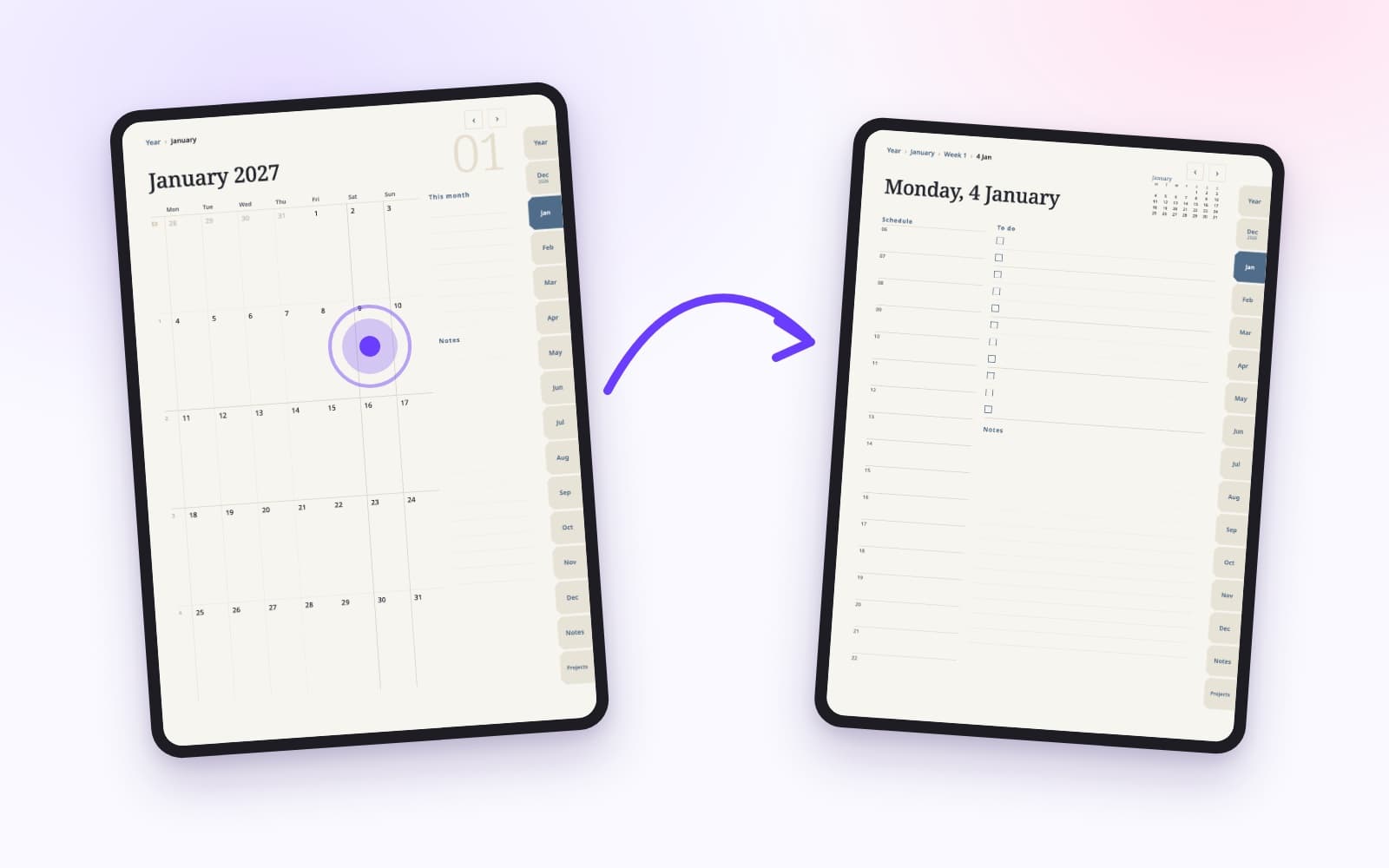 GoodNotes hyperlinks: how to jump between pagesGoodNotes has two kinds of links. PDF links come with the file, and your own links are added to typed text. They are made differently and have different limits.
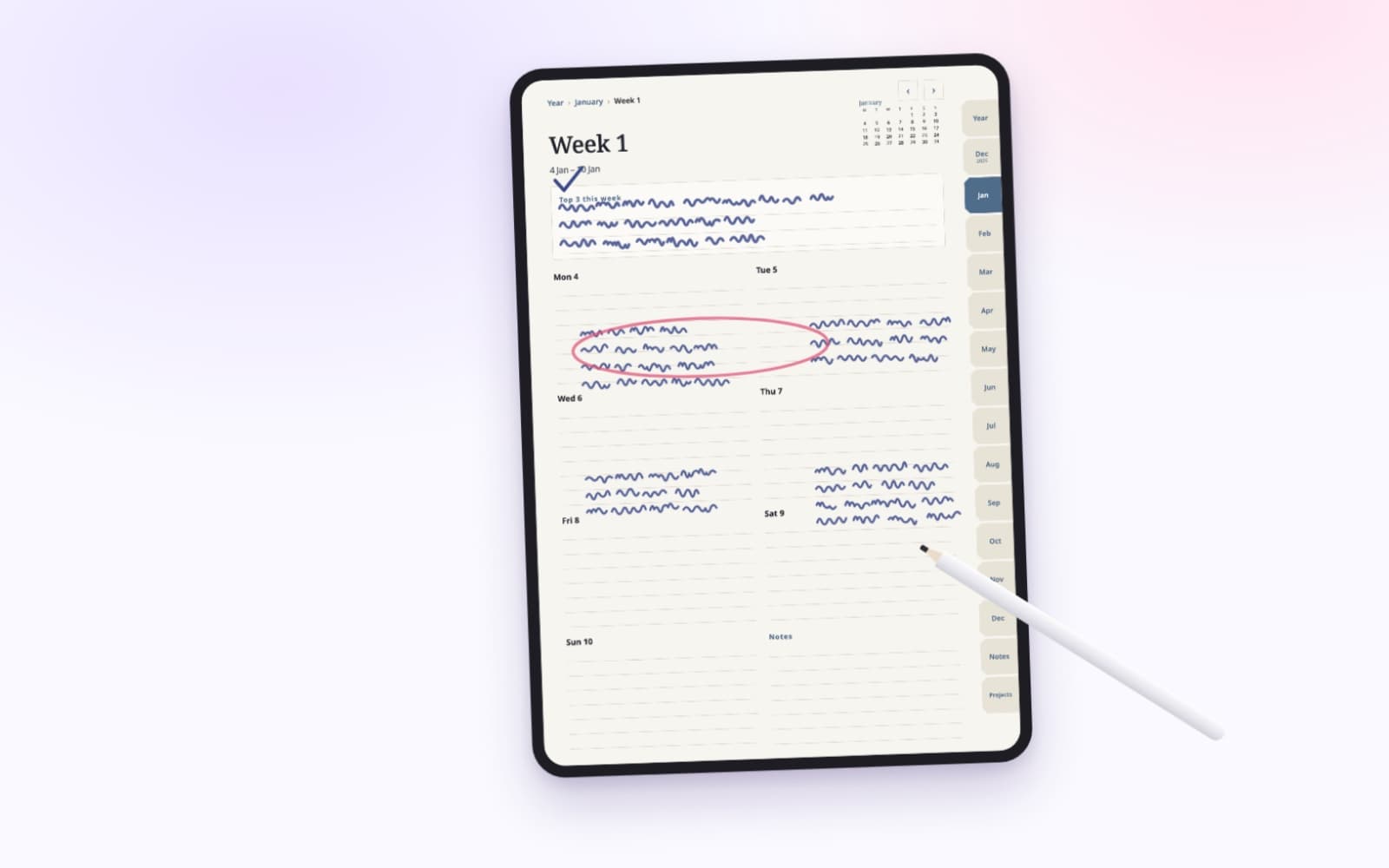 How to plan your week in 15 minutesPick three priorities, place what is already fixed, then add small tasks around them. The same steps work on paper or in a planner on your iPad.
A planner with page links built in, made for GoodNotes
Year, month, week and day pages, notes and projects, with tabs and dates you tap to jump. Each file is under 3 MB. Check that GoodNotes still lets you add a file before you buy.