
How to use a digital planner on iPad: your first week
A digital planner can feel like a lot on the first day: hundreds of pages, tabs on the side, dates that jump somewhere when you tap them. You do not need to learn it all. This is a gentle first week that gets you to a plan you will actually open.
Methodhelm editorial teamLast updated: 2 min read
On this page
Before day one
Check two things. Your planner app must be able to open links inside a PDF, and your plan must have room for the file. If you use GoodNotes, read how to import a PDF planner into GoodNotes first: its pricing page lists limits on files and import size that can stop an import.
A first week in five steps
- Day 1, import and look around
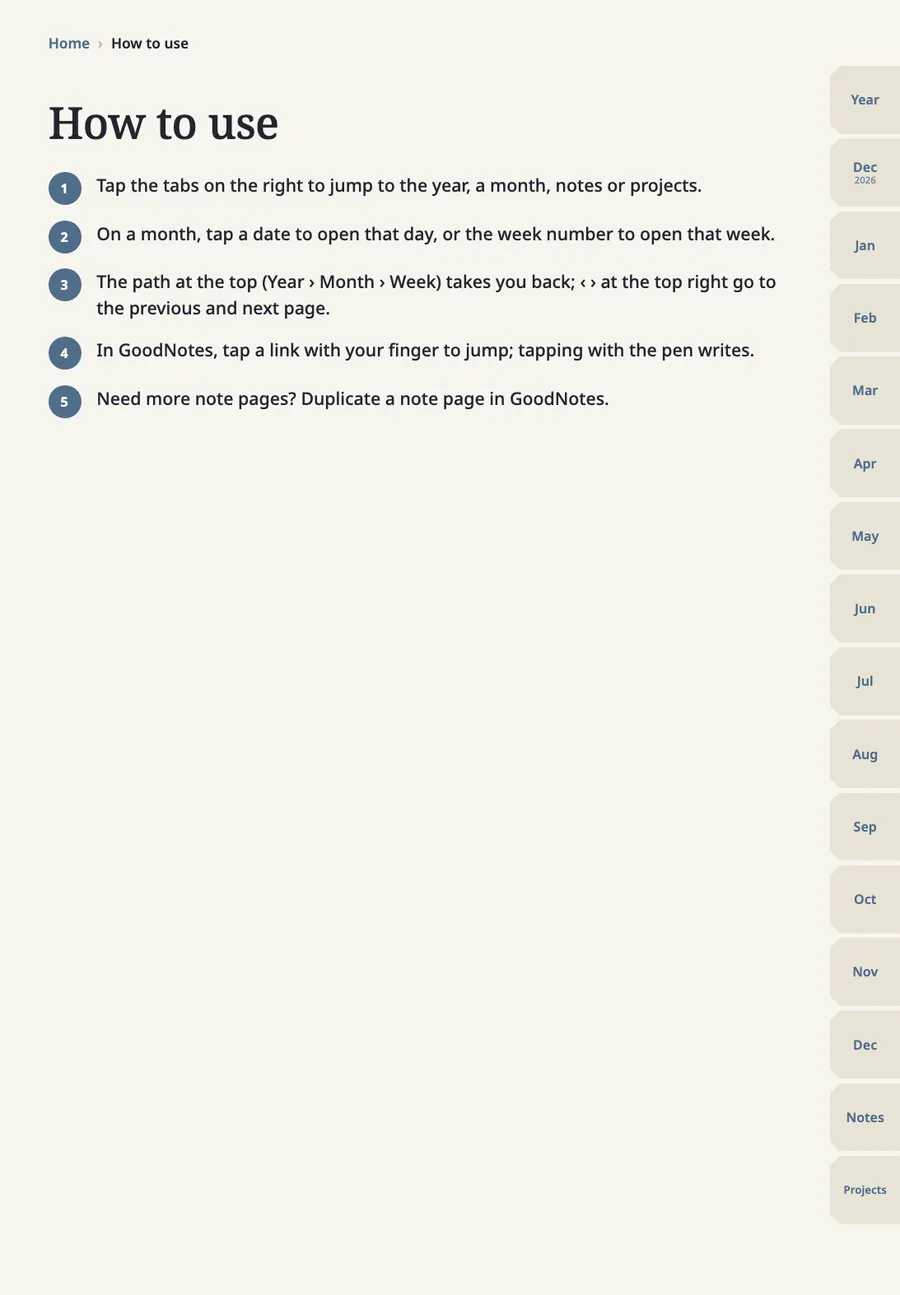
Day 1, import and look around: open the planner and tap the tabs on the side to see the year, the months and the notes pages. Do not write anything yet.
- Day 1, find the way back
Day 1, find the way back: tap a date, then use the path or the arrows to come back to the month. If a tap does nothing, see GoodNotes hyperlinks: how to jump between pages.
- Day 2, plan the week
Day 2, plan the week: open this week's page and write three priorities, then the fixed events. The method is in how to plan your week.
- Days 3 to 6, a one-minute check
Days 3 to 6, a one-minute check: each morning open today's page, add what is fixed and one thing that matters.
- Day 7, look back
Day 7, look back: read the week, move what is unfinished, and decide whether you want to keep going.
Keep it light
Skip colors, stickers and decoration in the first week. The planner earns its place if you open it on day four without being reminded.
If it does not stick
Many people find a paper page quicker. That is a fair result, not a failure. A digital planner helps most if you like to move things and rewrite without crossing out.
GoodNotes is a trademark of its owner, GoodNotes Limited. We have no partnership with GoodNotes, and this guide is not endorsed by them.
FAQ
Frequently asked questions
Do I need a stylus?
Handwriting is the usual way to use a planner on iPad, but you can also type on the pages in many apps. Try both in the first week.
Should I plan the whole year on day one?
No. Start with the current week. Add the year page later, when you have dates to put on it.
What if I fall behind?
Skip the missed days and plan from today. The planner does not need to be filled in to be useful. If you want a planner built for this, see our digital planner.
Related guides
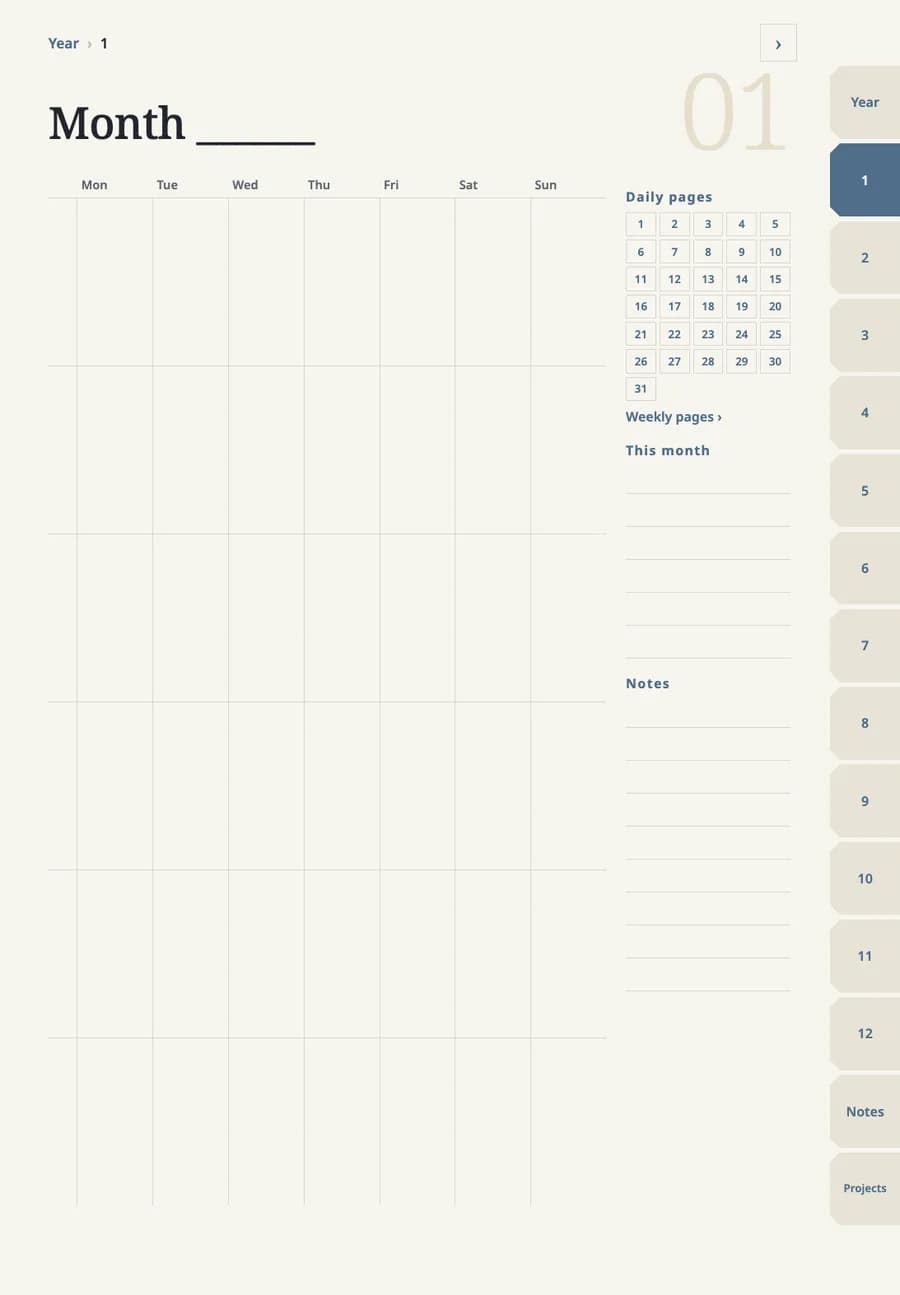 Dated vs undated digital planner: which to chooseA dated planner has the calendar filled in and linked. An undated one leaves the dates for you to write, so you can start in any month and reuse it. The choice depends on how steady your routine is.
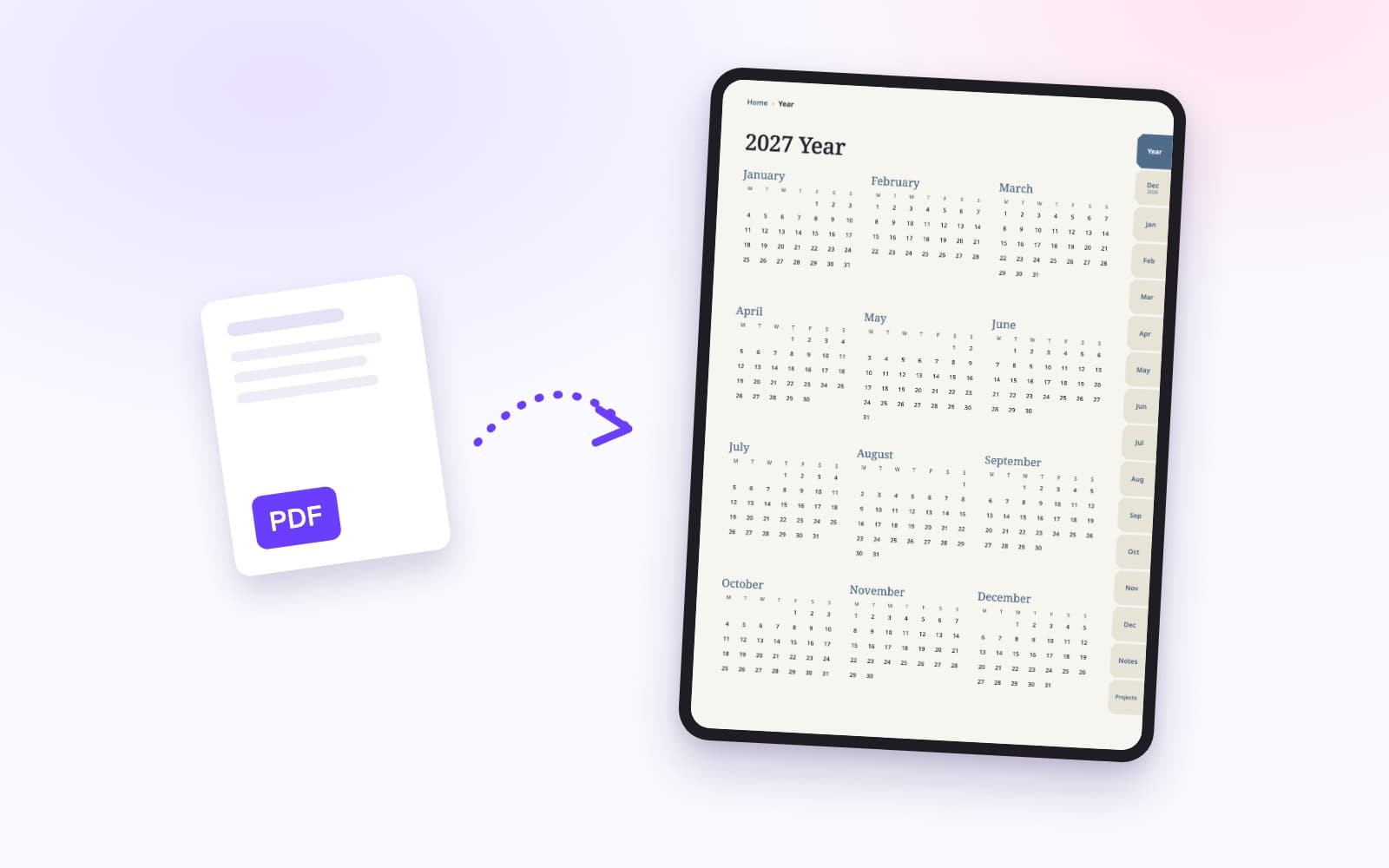 How to import a PDF planner into GoodNotesA PDF planner imports like any PDF. The links inside it only work if they were built into the file, and GoodNotes' plan limits decide whether the import goes through.
A planner with page links built in, made for GoodNotes
Year, month, week and day pages, notes and projects, with tabs and dates you tap to jump. Each file is under 3 MB. Check that GoodNotes still lets you add a file before you buy.