
How to Cut Out a Person or Pet From a Photo (Clean Hair and Fur Edges)
Cutting out a person or a pet is harder than cutting out a mug. Hair, fur and whiskers have thousands of thin strands, some of them half transparent, and a cutout tool has to decide for each strand whether it belongs to the subject or to the background.
Methodhelm editorial teamLast updated: 5 min read
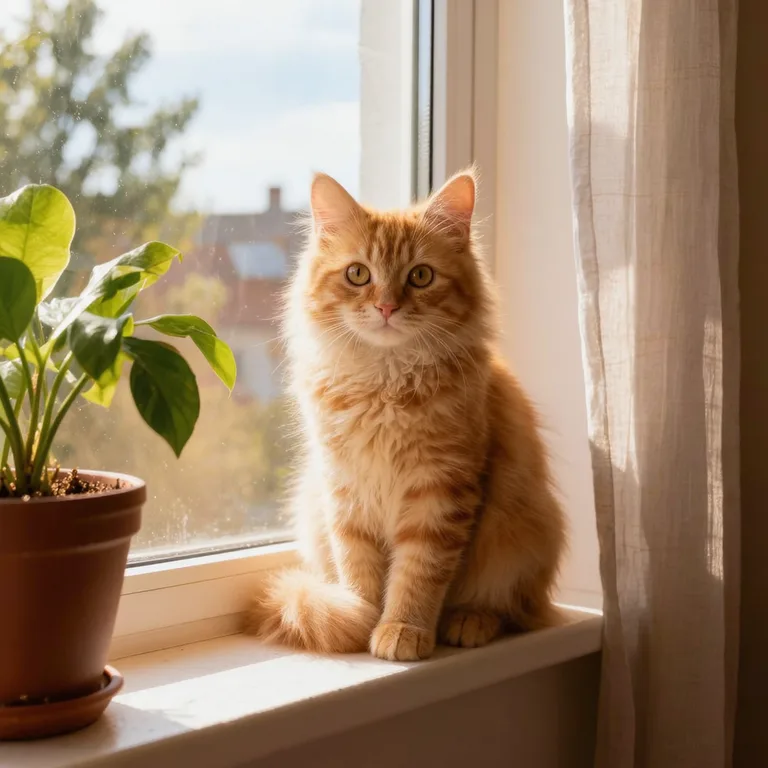
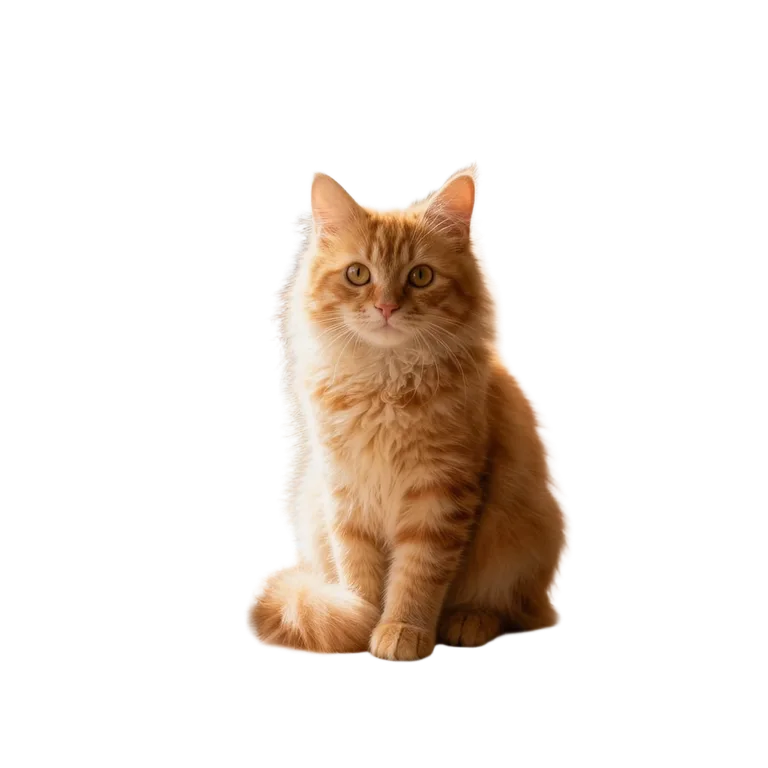
This guide covers the whole job: how to take a photo that cuts out cleanly, how to run the cutout with Background remover, how to check the edges, and what to do when they look rough. It also says plainly where an automatic cutout cannot do the job.
On this page
Pick or shoot a photo that cuts out cleanly
- Contrast matters more than anything else. Dark hair against a light wall, or a white cat against a dark sofa, gives the tool an easy edge. Black hair against a dark curtain does not.
- Keep the subject sharp. A blurry edge looks like a soft edge to the tool, and you cannot tell hair from background. If the photo is soft, try fixing the blur first.
- Use even light. A strong shadow across the face or fur can be read as part of the background.
- Leave a little space around the head and ears. A subject touching the edge of the frame cannot be cut out cleanly on that side.
- Avoid busy backgrounds that match the subject, such as a tabby cat on a striped rug or a person in a green jacket in front of a hedge.
- Only use photos of people who agree to it, and of pets and subjects you have the rights to use.
Step by step: cut out a person or pet
- Choose a photo with a clear outline
Use a JPG or PNG no larger than 10 MB. Zoom in on the hair or fur on your own screen first: if you can already see the edge clearly, the tool can too.
- Open Background remover for the person or pet
Go to Background remover and upload the photo of the person or pet.
- Check the price, then cut out the subject
The credit price is shown before the cut-out runs. If a run fails, the held credits come back automatically. If the result is not yet confirmed, the credits may stay held until the check is finished.
- Download both files
One run gives you a transparent PNG and a white-background PNG. Keep the transparent one for design work; use the white one when you only need a clean preview.
- Zoom in before you use it
Place the transparent PNG on the colour or image where it will really appear and zoom to 200 percent. Look at the hair, the ears, the paws and the area between the arm and the body.
Make the cutout fit the place you use it
- YouTube thumbnails and slides. The result keeps the shape of your photo, with the longer side at 1024 px. That is large enough for a person who fills part of a 1280 × 720 thumbnail, but not for a full-screen portrait. Keep the subject at a moderate size on the page.
- Stickers and profile pictures. Put the cutout on a solid colour that is close to the original hair or fur colour. Small leftover bits blend in.
- Photos with several people. Cut out one photo at a time, or accept that the tool treats the group as one subject.
When the edges look rough
- Thin white or coloured fringe around the hair. The original background colour has bled into the edge. Put the cutout on a background of a similar colour as the old one, or on a darker colour for light fringes and a lighter one for dark fringes.
- Fine details look wrong. Thin flyaway hair, whiskers and similar details are the hardest part of any cutout and may be lost or look rough. We tried 3 AI sample photos: on the short and curly hair the edges looked clean, while on the dog the fur edge was coarser with a thin light outline. Your photo will differ, so check at 200 percent. If the shot matters, take another photo with better contrast and more even light.
- Note on what the tool is built for. The Background remover page describes the tool as made for product photos with clear edges. People and pets can work, but results vary more, so judge each photo yourself before you rely on it.
- Part of the subject disappears. A dark sweater against a dark wall, or a white pet on a white floor, can be treated as background. Re-shoot against something different.
- Glasses, hats and transparent items. Clear or tinted lenses, veils and thin straps may be partly removed. Check them before you use the result.
Limits: what an automatic cutout cannot do
- It cannot invent detail that is not in the photo, so a very small or blurry subject stays rough.
- It does not clean up shadows or reflections on the floor; a pet standing on a shiny table may come out with a smudge.
- The result is a PNG, not a layered file. If you need to fix hair edge by edge, use an image editor afterwards.
- Cutting out a person does not change the person: face, hair and clothes stay as in your photo.
Frequently asked questions
Can I cut out a pet photo for a mug or poster?
You can cut it out, but a 1024 px side is small for large prints. For a mug or a small print it is usually fine; for a poster, use a larger version of the original photo in an editor.
Why does my curly hair look jagged?
Curls have many small gaps where the background shows through. Try a photo with a plain background that contrasts with the hair, and compare both the transparent and the white result.
Is the white background version good for a passport photo?
No. Many authorities do not accept a background that has been replaced; see our guide on rejected passport photos.
Do I get my credits back if the cutout fails?
Failed runs are not charged; held credits come back automatically. If the result is not yet confirmed, the credits may stay held until the check is finished. A result you do not like is not a failed run, so look at the photo tips above before you try again.
Can I use the cutout in an advertisement?
You must have the rights needed for the photo, including the people, pets, text and logos in it.
Related guides
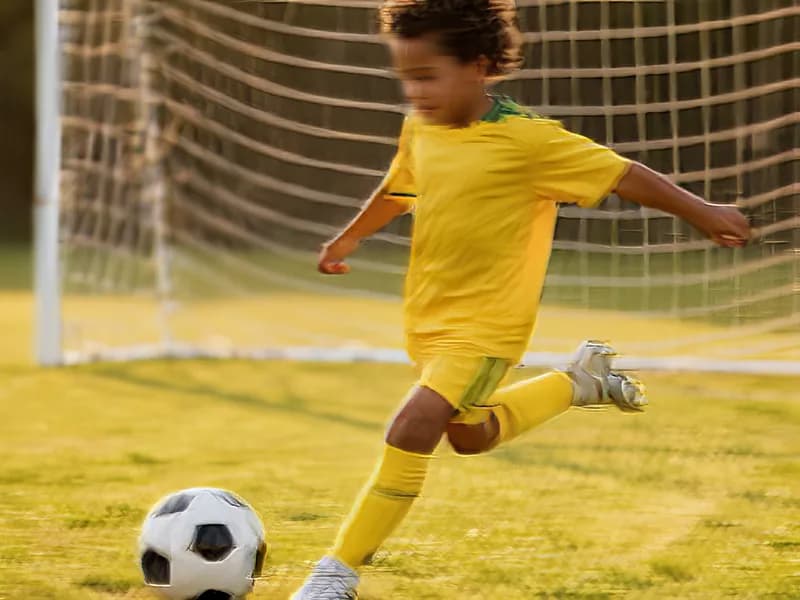 How to Fix a Blurry PhotoRecognise the kind of blur in your photo, sharpen it with AI or a classic editor, and know when a picture cannot be saved.
 Passport Photo Rejected? What to Check and What to Do NextFind out why a passport or visa photo was rejected, decide between a retake and a crop, and avoid edits that get a photo refused again.
Related tools

Cut out your photo
Upload a JPG or PNG and get a transparent PNG and a white-background PNG from one run. You see the credit price before it runs, and a failed run returns the held credits.