
How to Cut Out a Food Photo for a Menu or Delivery App Listing
Menus, posters and delivery apps often look better when each dish sits on a clean background in the same style. A small kitchen cannot always shoot every dish in a studio, so many owners cut a phone photo out of its background.
Methodhelm editorial teamLast updated: 3 min read
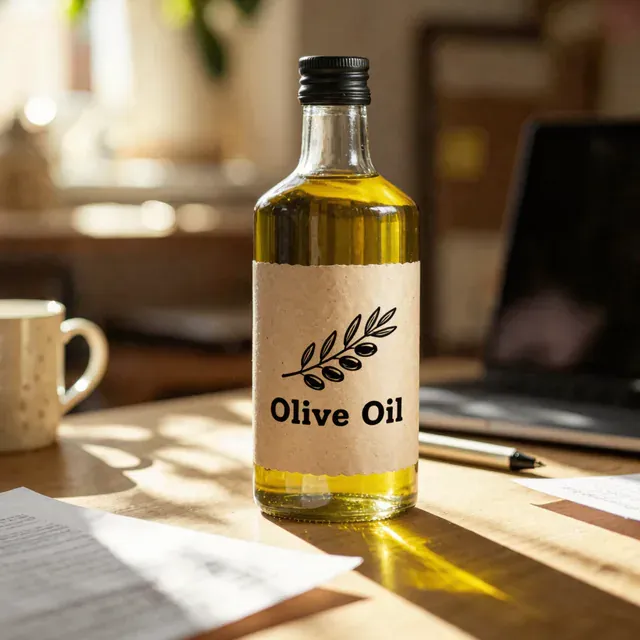
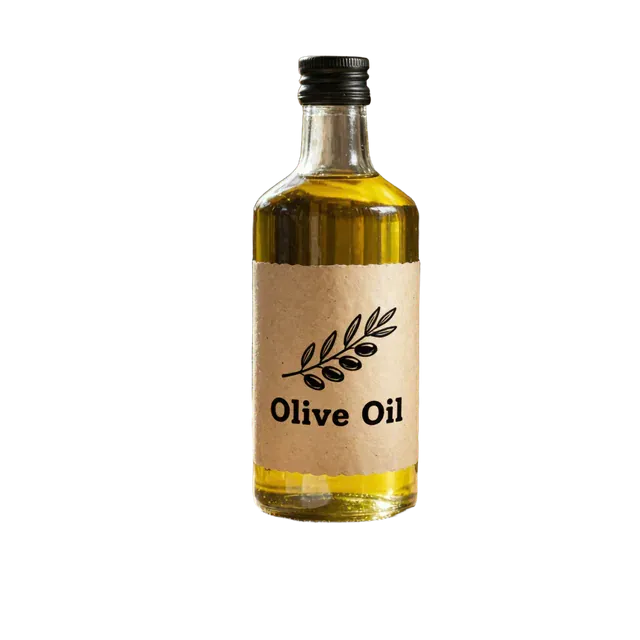
This guide covers how to shoot a dish for a cutout, how to run Background remover, and which parts of food photos need extra checking. For the technical side of transparent files, see how to make a transparent background PNG.
On this page
Shoot the dish so it can be cut out
- Shoot from above or from slightly above, in daylight by a window, without flash.
- Put the plate or box on a plain surface that is clearly different in colour from the dish and the plate, for example a dark table for a white plate.
- Leave space around the plate so the whole edge is in the frame.
- Keep the camera still and the picture sharp. A soft edge is hard to cut out.
- Take the photo before the sauce runs or the steam appears, or wipe the plate rim first.
Step by step: cut out one dish
- Choose a well-lit photo of the dish
Use a JPG or PNG of the dish, up to 10 MB.
- Open Background remover for the dish
Go to Background remover and upload your photo of the dish.
- Check the price, then cut out the dish
Before the dish is cut out, the tool shows what the credits will cost. A failed run releases the held credits automatically; if the result is still unconfirmed, they may stay held until the check is finished.
- Download the transparent PNG and the white-background PNG
One run gives you both.
- Check the edges
Zoom in on the rim of the plate, any sauce or crumbs, steam, a glass or any clear container, and a straw or a skewer.
- Save the cut-out dish within 24 hours
The cut-out dish is kept for 24 hours, so put it into your menu design in that time. The Privacy Notice says results are fully deleted from storage within 7 days.
Parts of a food photo to check
- The plate or the bowl. Decide whether the plate belongs in the picture. If it does, the cutout should keep the whole rim. If the rim is missing in places, choose another photo.
- Sauce, soup and drinks. Glossy or transparent areas may be treated as background. We have not tested these for this guide, so compare the result with the original.
- Steam, smoke and shadows. These are not part of the dish. They may be removed or may leave marks around it.
- Garnish and small pieces. Herbs, sesame seeds or crumbs on the side may be left out. Check that the dish still looks like what you serve.
- Colour. A cutout does not change the colour of the food, but a white-background version can make the dish look different from the one on a coloured menu. Check it on the real menu background.
Keep the picture honest
- The customer should receive a dish that looks like the picture: same portion, same toppings, same container.
- If the picture shows extra items such as a garnish or a side dish that is not included, say so in the text.
- Do not use someone else's photo.
Check the platform's rules and sizes
Each delivery app and printer has its own rules and sizes for photos. We have not checked them for this guide, so read the guidelines of the platform or printer you use before you make a batch. Remember that the cutout is 1024 px on the long side, so it may be too small for a large printed menu board; use the original photo for that.
Frequently asked questions
Can I make all my menu photos the same style?
Use one background colour and the same shooting angle for the whole menu. A cutout makes this easier.
Do I need a transparent PNG?
If you place the dish on your own coloured menu, yes. If you only need a plain background, the white-background PNG is enough.
What if part of the dish disappeared?
Do not use that result. Take another photo with a plate and a surface that differ more in colour.
Do I get my credits back if the dish cut-out fails?
If the cut-out fails, you are not charged and the held credits return by themselves. A cut-out waiting for confirmation can keep credits held until that check is complete. A cut-out you do not like is not a failed run.
Is the result large enough to print?
The long side is 1024 px. That can work for a small printed menu, but not for a big poster; use the original photo for large prints.
Related guides
 How to Make a Transparent Background PNG From a PhotoCut out the subject, download the transparent PNG, check its size and keep it in a format that keeps the transparency.
 How to Make White Background Product Photos That Marketplaces AcceptShoot, cut out and finish a clean white-background main image, and know what Amazon asks for before you upload.
Related tools

Try one dish first
Upload one photo, see the credit price before you run it, and check the edges before you do the whole menu.