
How to Make a Transparent Background PNG From a Photo
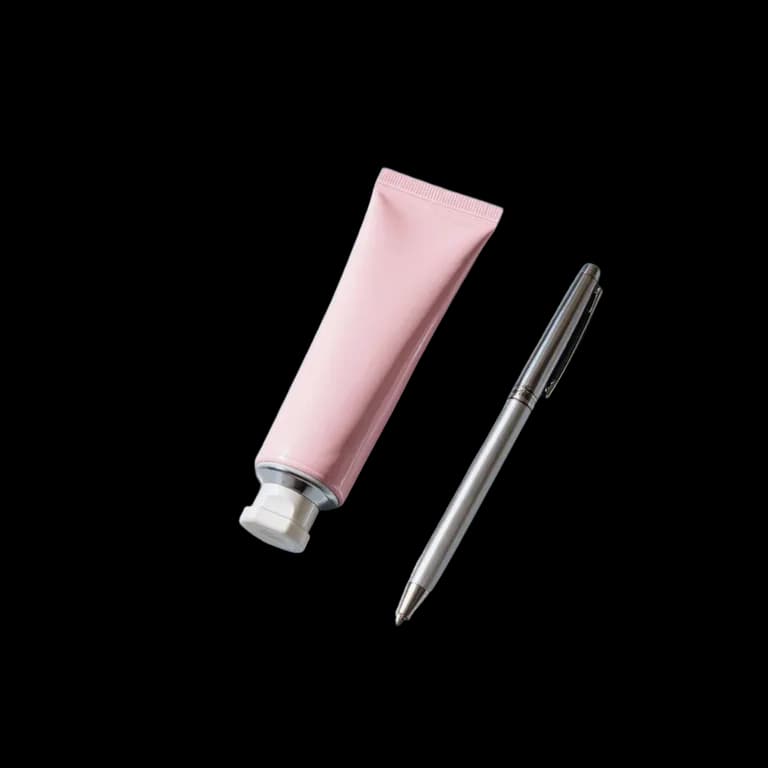
A transparent PNG lets you put a subject on any colour or picture: a slide, a poster, a social post or a sticker. The subject has no box around it, so it sits naturally on the new background.
Methodhelm editorial teamLast updated: 3 min read

This guide shows how to make one with Background remover, which file to keep, how big the result is, and the one mistake that turns transparency back into white. For white backgrounds for shop listings, read white background product photos instead.
On this page
What you get from one run
- Background remover gives you two files from one run: a transparent PNG and a white-background PNG.
- The transparent one is for design work. The white one is a quick preview, or for places that need a plain white background.
- The page says the tool works best for products with clear edges, so check the edges of anything else (see below).
Step by step: make the transparent PNG
- Choose a photo
Use a JPG or PNG up to 10 MB, with the subject clearly separate from the background.
- Open Background remover for your PNG
Go to Background remover and upload the image you want as a transparent PNG.
- Check the price, then make the transparent PNG
Check the credit price shown before the PNG is made. If a run fails, the held credits return automatically, and they may stay held until the check ends while the result is unconfirmed.
- Download the transparent PNG
Keep this one for your design.
- Download the transparent PNG within 24 hours
The transparent PNG is kept for 24 hours, so download it in that time. The Privacy Notice says results are fully deleted from storage within 7 days.
- Test it on the real background
Place it on the colour or picture where it will be used, and zoom in on the edges and on any text or thin parts.
Know the size before you design
- The long side of the result is 1024 px, and the proportions stay the same as your photo.
- That is fine for a subject that takes up part of a slide, a social post or a small sticker. It can look soft if you stretch it across a full screen or a large print. If the cutout will be big, plan the layout around a smaller subject.
- Do not stretch the file larger in your design tool to hide this; it only enlarges the same pixels.
Keep the transparency: choose the right format
- PNG keeps transparency. WebP does too.
- JPG does not have transparency, so transparent areas become white. If you convert or re-save the cutout as JPG, you lose the transparent background.
- If a program refuses PNG and you need a different format, use WebP only when the program can open it. Otherwise keep the PNG.
- The Convert image tool on this site works on your device and keeps transparency for PNG and WebP, and says that JPG turns transparent areas white.
Common problems
- A light or dark edge around the subject. Put the cutout on a background of a similar colour as the old one, or check the original photo for strong contrast.
- Part of the subject is missing, or the background is still there. Look at the original: when the subject and the background are similar in colour, the tool can mix them up. Try a photo with a clearer difference.
- Fine details such as hair, fur or thin straps. We have not tested these for this guide, so zoom in and judge each photo yourself. The page itself describes the tool as made for products with clear edges.
- The cutout looks too small or too big in the slide. Resize it in your design tool. Make it smaller rather than larger.
Frequently asked questions
Which file should I use in a design tool?
The transparent PNG.
Why is my cutout white again?
It was probably saved or converted as JPG. Use PNG.
How big is the result?
Expect a result whose long side is 1024 px, so a wide cutout and a tall one both keep the shape of your original photo.
Do I get the credits back if the PNG run fails?
If making the PNG fails, you are not charged and the held credits come back automatically. A result not yet confirmed can leave the credits held until the check is finished. A result you do not like is not a failed run.
What should I check before publishing a design with the cutout?
You are responsible for the rights to everything in the photo: people, logos, text and other people's artwork.
Related guides
 How to Make White Background Product Photos That Marketplaces AcceptShoot, cut out and finish a clean white-background main image, and know what Amazon asks for before you upload.
 How to Remove Unwanted Objects and People From a PhotoErase photobombers, litter and power lines from a picture, and learn which scenes AI can rebuild convincingly and which it cannot.
Related tools

Make your transparent PNG
Upload a JPG or PNG and get a transparent PNG and a white-background PNG from one run. You see the credit price before it runs.