
How to Make White Background Product Photos That Marketplaces Accept
A plain white background is the most common look for a product's main listing image. It keeps attention on the item, makes a catalogue look consistent, and on Amazon it is a stated requirement for the main image. You do not need a studio: a decent phone photo and a careful cutout get most everyday products there.
Methodhelm editorial teamLast updated: 5 min read
This guide walks through what marketplaces ask for, how to shoot so the cutout is easy, how to remove the background and check the result, and where automatic cutouts still struggle. Most of it applies whatever editor you use, including the Background remover on Methodhelm.
 Before
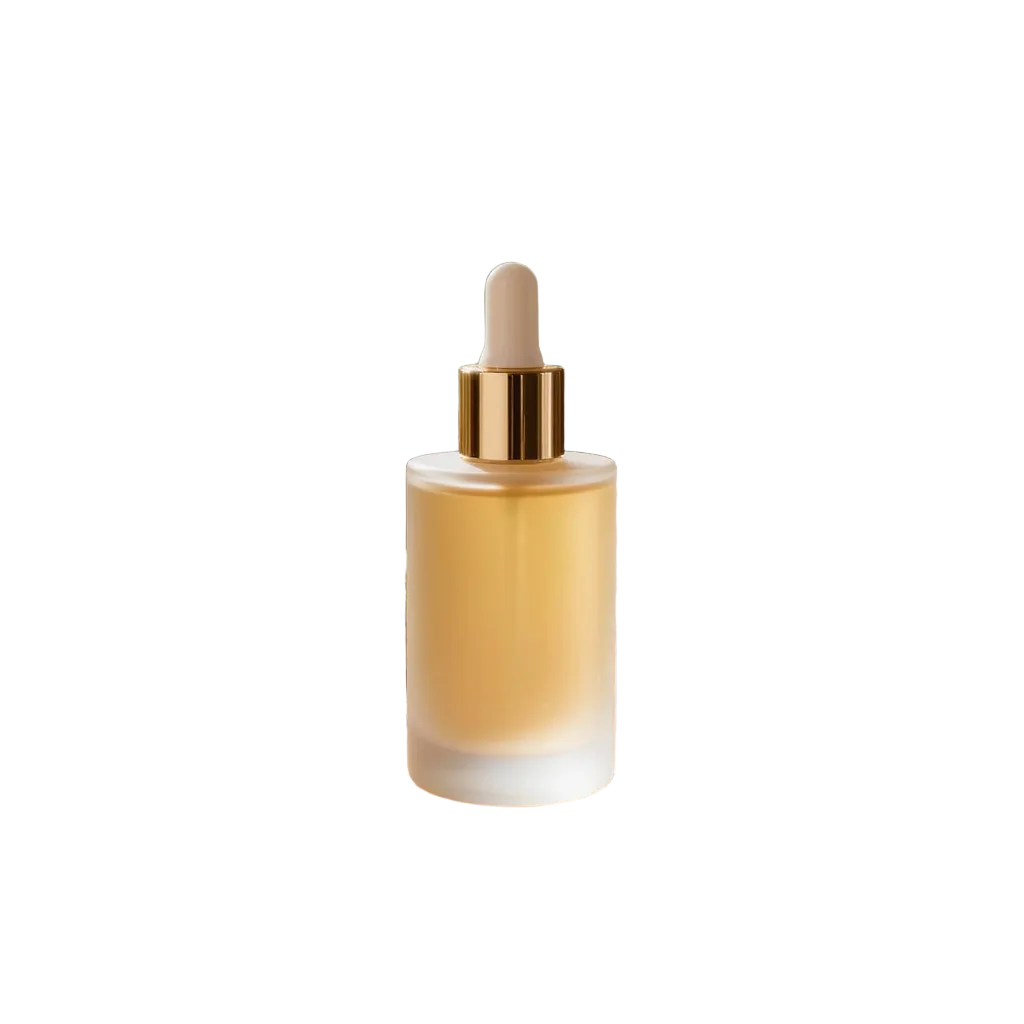 After
AfterOn this page
What marketplaces actually ask for
Amazon's main-image guidance asks for a pure white background (RGB 255, 255, 255), with the product filling about 85% of the image. Images that are 1000 px or more on the longest side enable zoom on the listing page. These rules change and differ by category, so check the current image requirements in Seller Central before you shoot a whole range.
Not every marketplace requires white. Etsy, for example, leaves the background to the seller, and eBay and Shopify set their own expectations. Many sellers still use a clean white main image everywhere for consistency, then show the product in use in the secondary images. Whatever you sell on, read that platform's current seller image guidelines rather than relying on a summary written months ago.
Shoot for an easy cutout
- Use a plain background that contrasts with the product: a sheet of white card for dark items, grey or coloured card for white or pale items. Contrast matters more than the background being white.
- Use soft, diffused light. A large window on an overcast day, or two lamps on either side bounced off white card, gives even light without harsh shadows that confuse the edge.
- Avoid reflections. Angle shiny products slightly, turn off overhead lights that create hot spots, and wipe off fingerprints and dust before you shoot.
- Fill the frame. A product that takes up most of the photo keeps more detail after cropping, which matters when you need a sharp zoom image.
- Keep the phone steady. Rest it on books or use a small tripod and the self-timer; a blurred edge is much harder to cut out than a sharp one. If a photo is already soft, see how to fix a blurry photo.
- Clear the set. Tape, clips and stray props can be erased later with the object remover, but it is quicker not to include them.

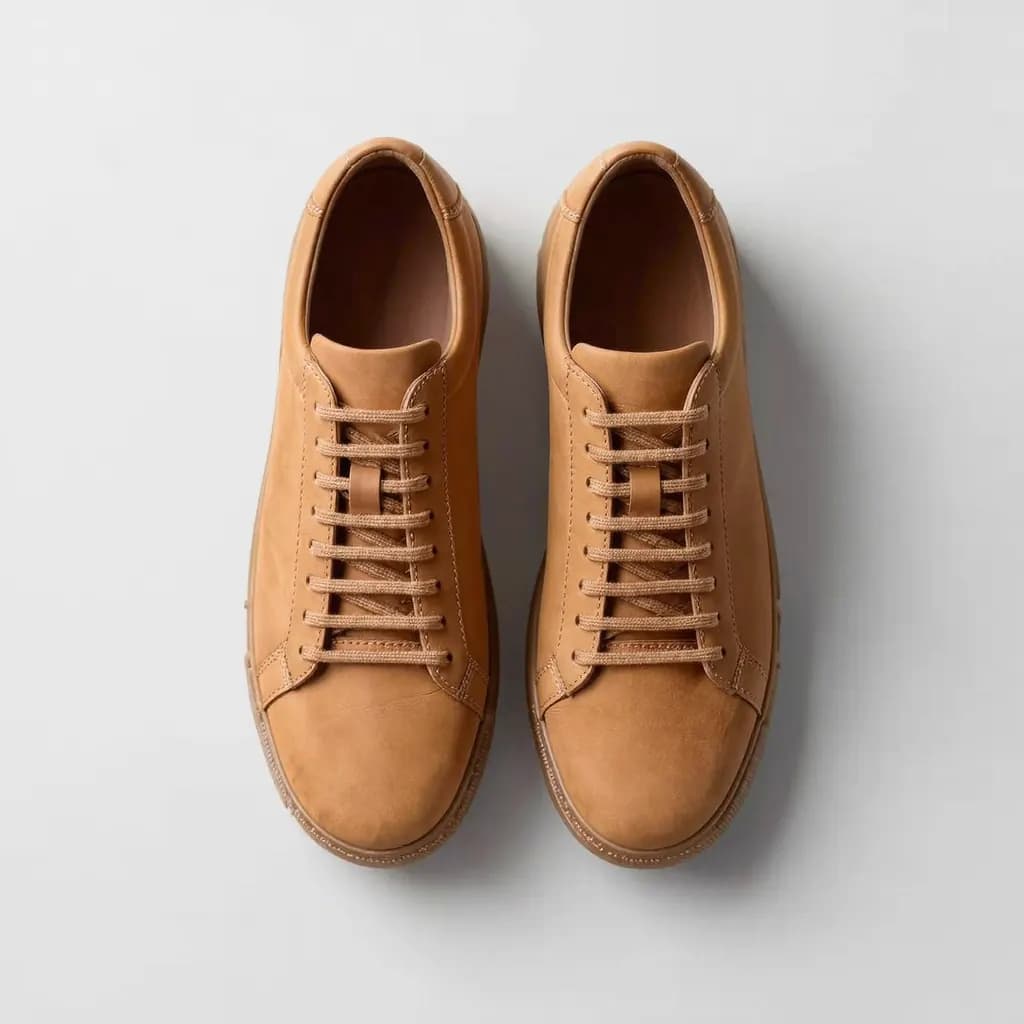

Step by step: make a white-background main image
- Pick your sharpest shot
Choose the photo with crisp edges, even light and the product facing the angle your listing needs. Crop out obvious clutter, but leave a little space around the item.
- Remove the background
Upload the JPG or PNG (up to 10 MB) to the Background remover. After signing in you see the exact credit price before the run, and one run gives you both a transparent PNG and a white-background PNG.
- Check the edges at 100% zoom
Open the result at full size and look along every edge, especially corners, handles, labels and logos. Look for leftover background, bitten-off edges and any text that was softened or changed.
- Upscale if you need more pixels
The cutout's long side is 1024 px, which just clears Amazon's 1000 px zoom threshold. If you want more room for cropping or a crisper zoom, run it through the AI upscaler 2× to double the resolution.
- Place it on a square white canvas
In any editor, put the transparent PNG on a white canvas, centre it and scale it so the product fills roughly the share your marketplace asks for. Check the background with an eyedropper: it should read 255, 255, 255 where pure white is required.
- Export and name the file clearly
Export as JPG or PNG at the size the platform recommends and give the file a descriptive name, such as the product name, colour and view.
Keep a catalogue consistent
Buyers scroll through rows of thumbnails, so consistency often matters as much as any single photo. Shoot each product from the same angle and height, keep the same padding around every item, and use the same square crop. A template file with margin guides makes this quick.
A white background can look flat. A subtle soft shadow under the product, added in an editor on its own layer, helps it sit on the page; keep it light and check your marketplace allows it on the main image. Use secondary images for what the main image cannot show: the product in use, something familiar for scale, close-ups and packaging. For lifestyle shots, the background changer keeps the product and places it in a new scene you describe; treat that scene as illustration, since AI-generated surroundings can change small details.
Limitations: where automatic cutouts struggle
Background removal works best for products with clear, solid edges: boxes, bottles, shoes, gadgets, cosmetics. Some subjects are hard for any automatic tool and often need manual touch-up or a reshoot.
- Glass and transparent packaging: the background shows through, so the tool has to guess what belongs to the product.
- Fur, fine hair, feathers and fluffy textiles: individual strands blend into the background and can come out clipped or haloed.
- Thin straps, wires, chains and cut-outs such as handles: gaps inside the product may stay filled or get removed along with parts of the item.
- White products on a white background: with little contrast, the edge is ambiguous. Reshoot on grey or coloured card instead.
- Text and logos: always check them. A cutout should not change printed details, but any AI-processed image should be compared with the real product before you list it.
Frequently asked questions
What background colour does Amazon require for the main image?
Amazon's main-image guidance asks for a pure white background, RGB 255, 255, 255, with the product filling about 85% of the image. Requirements vary by category and change over time, so confirm them in Seller Central before uploading.
Is a 1024 px cutout big enough for Amazon zoom?
Amazon enables zoom for images of 1000 px or more on the longest side, so a 1024 px cutout just meets it. If you plan to crop or want more detail on zoom, upscale it 2× before placing it on your white canvas.
Do I need a white background on Etsy, eBay or Shopify?
Not necessarily. Etsy leaves the background to the seller, and other platforms set their own guidelines. Many sellers use white for consistency, but check each platform's current seller image guidelines.
Should I keep the transparent PNG or the white version?
Keep both. The white-background PNG is ready for a main image, while the transparent PNG lets you change padding, add a shadow or place the product on other backgrounds later without cutting it out again.
Why does my product's edge look jagged or haloed?
Usually the original photo had low contrast, motion blur or reflections at the edge. Reshoot against a contrasting background in soft light, or clean the edge by hand in an editor at 100% zoom.
Related guides

 How to remove unwanted objects and people from a photoErase photobombers, litter and power lines from a picture, and learn which scenes AI can rebuild convincingly and which it cannot.
 How to fix a blurry photoRecognise the kind of blur in your photo, sharpen it with AI or a classic editor, and know when a picture cannot be saved.
Related tools
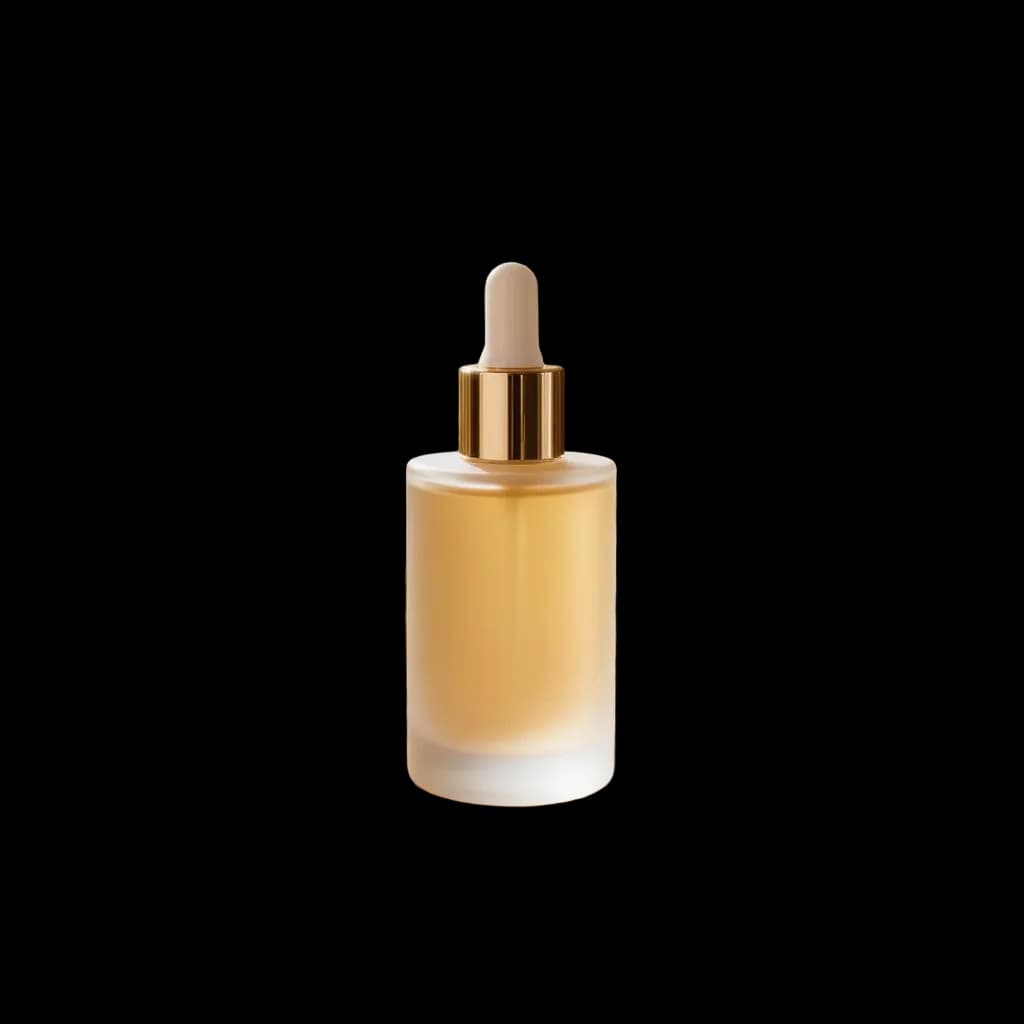

Cut out your product photo
Upload a JPG or PNG and get a transparent PNG and a white-background PNG from one run. You see the credit price before it runs, and a failed run returns the held credits.