
How to extend a photo's background: uncrop to any shape
Every platform wants a different shape. A website banner or video thumbnail is wide, a story is tall, a feed post is square or 4:5, and the photo you love never quite fits. Cropping it to the new shape throws away part of the picture or cuts through the subject's head.
Methodhelm editorial teamLast updated: 4 min read
Extending, often called uncropping or outpainting, works the other way round: your whole photo stays and AI adds new scenery around it until the picture reaches the shape you need. This guide covers which photos extend well, how to do it step by step with the Image expander on Methodhelm, which shape to choose for which use, and what to check before you publish.
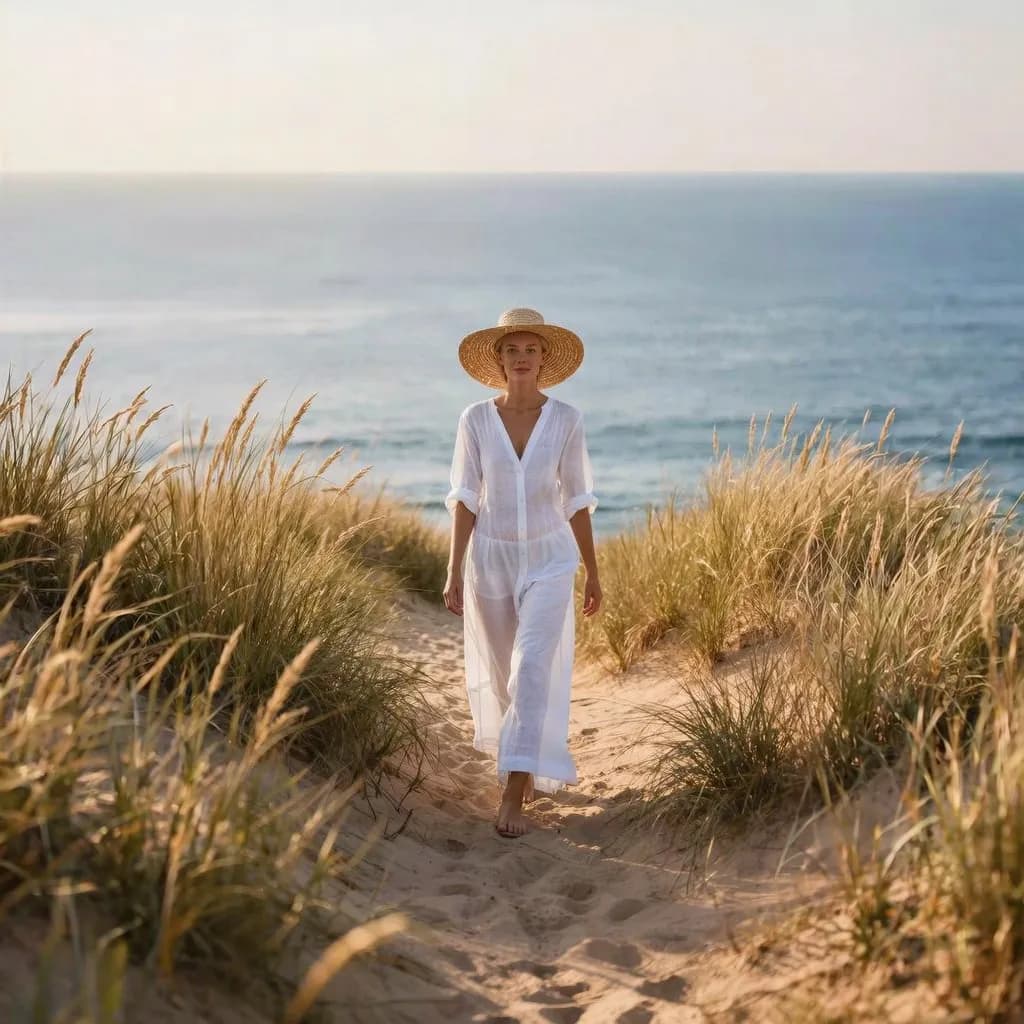
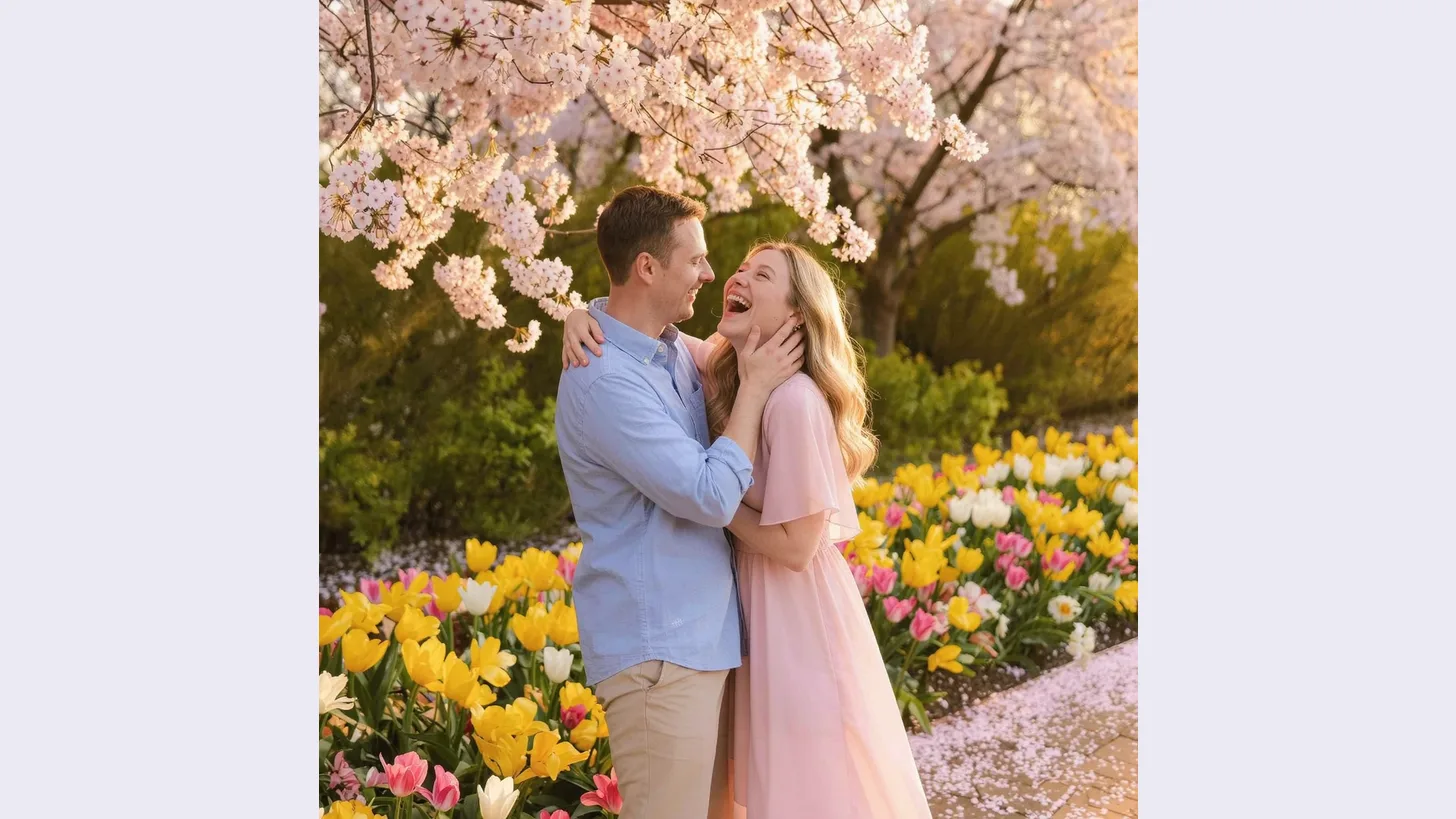 Before
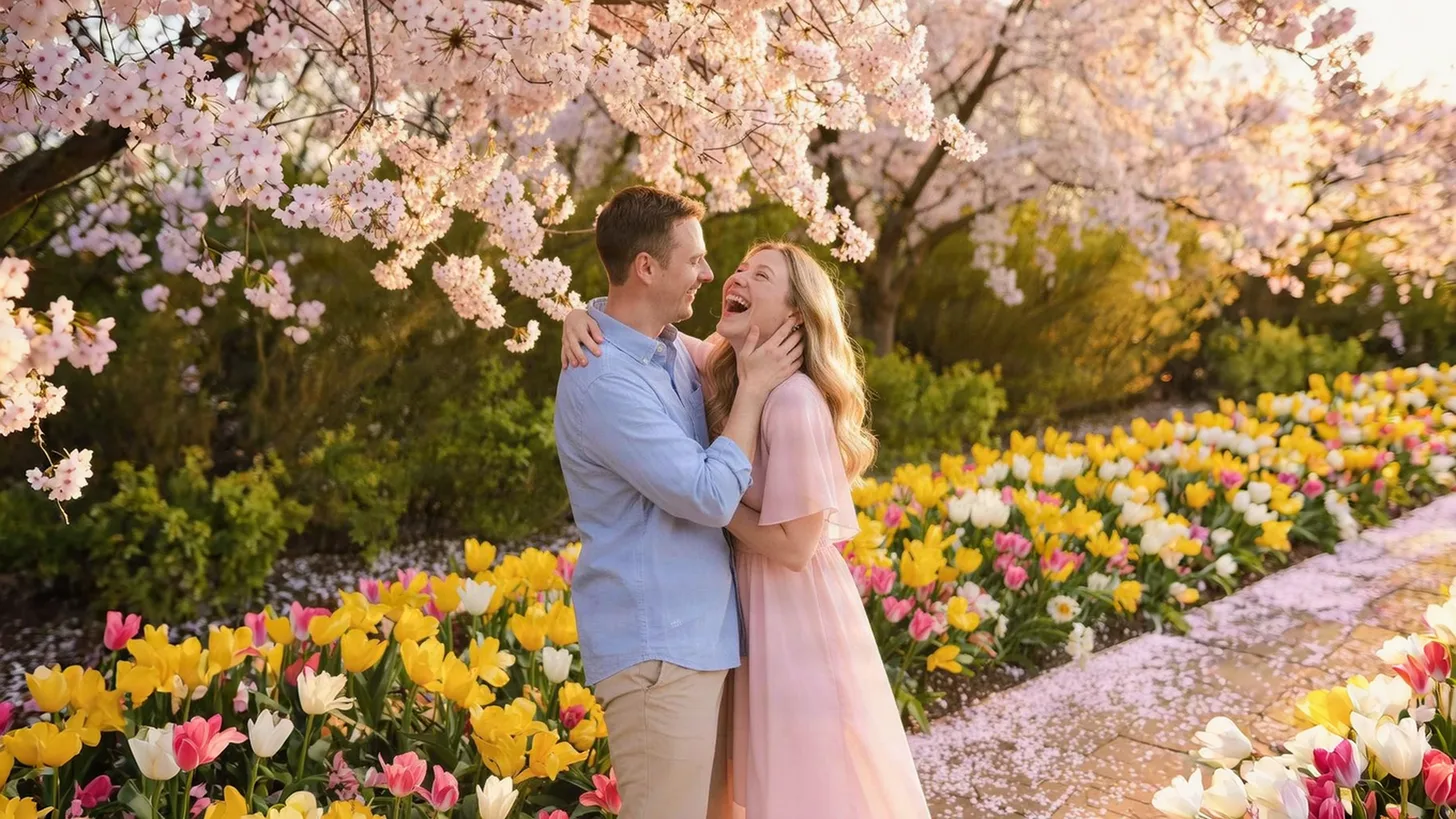 After
AfterOn this page
What extending a photo actually does
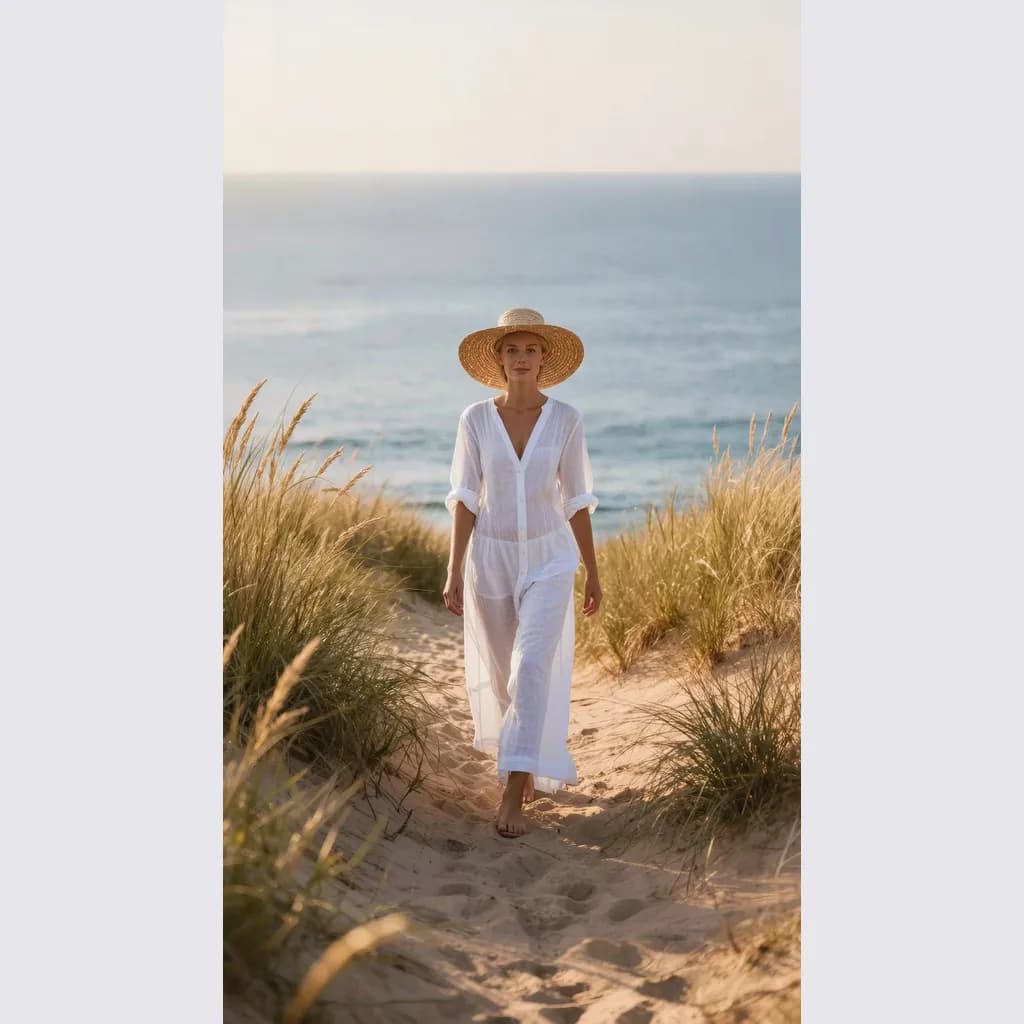
When you extend a photo, the original pixels are kept and placed inside a larger canvas. The empty area around them is filled with new content that continues the scene: more sky above a landscape, more wall beside a portrait, more sand and grass along a beach path. The result is a new picture in the chosen shape, with your original photo at its centre.
The new area is invented, not recovered. The AI does not know what was really beyond the frame, so it paints something plausible. That is perfect for backgrounds like sky, sea, walls, floors, fields and foliage, and much less reliable for people, text or detailed objects that were cut off at the edge.
Choose a photo that extends well
- Leave space around the subject. A person or product fully inside the frame extends cleanly; a body cut off at the edge forces the AI to invent the missing half.
- Simple, continuous backgrounds work best: sky, sea, plain walls, grass, sand, a blurred street.
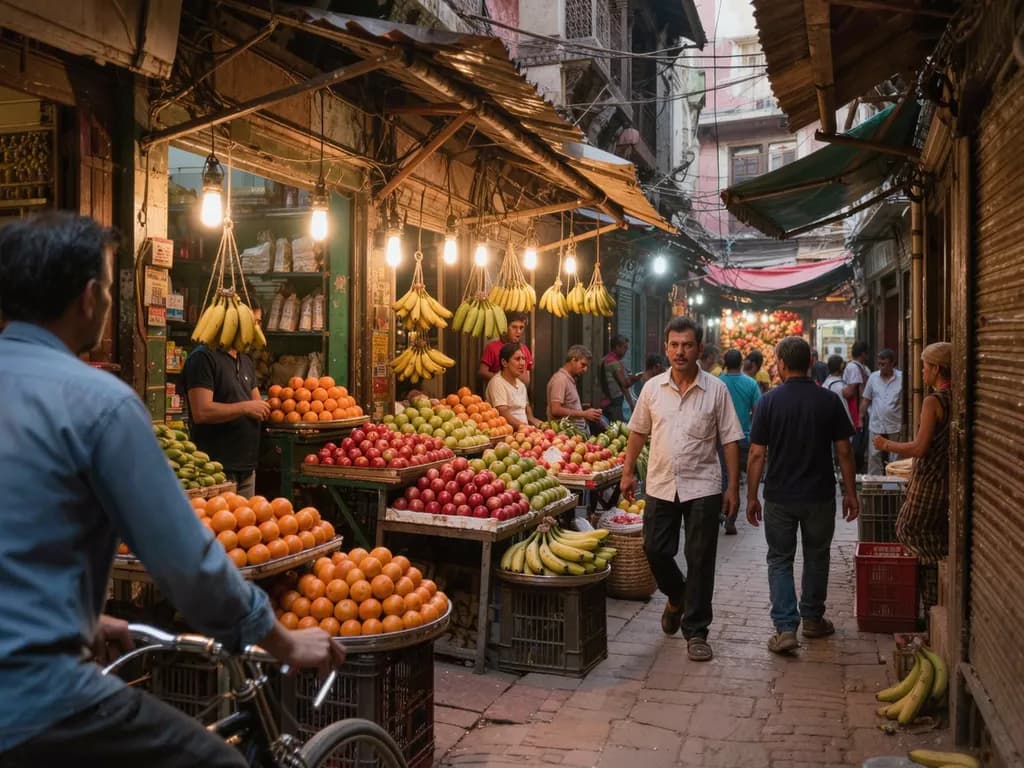
- Busy scenes with crowds, signs, patterns or architecture right up to the edge are much harder to continue convincingly.
- Use a sharp photo. Blur and heavy noise get continued into the new area; fix a soft shot first with Photo deblur.
- Remove distractions near the edges before extending, for example with the object remover, so they are not repeated.
Step by step: extend a photo with AI
- Upload your photo
Open the Image expander and upload a JPG, PNG or WebP of at least 128 px a side. Larger photos are scaled to at most 1280 px before upload.
- Pick the new shape
Choose 1:1 Square, 4:5 Portrait post, 16:9 Widescreen or 9:16 Story. After signing in you see the exact credit price before the run.
- Run the expansion
It usually takes 10 to 40 seconds. Failed generations aren't charged — held credits come back automatically. Your result is kept for 24 hours to download.
- Check the edges
Look closely at where the original photo ends and the new area begins, and at anything that was cut off: hands, feet, hair, furniture or lines such as a horizon.
- Run again or adjust the source
If the new area looks wrong, run it again, try a less extreme shape, or crop the source photo so the subject is no longer cut off at the edge and extend that.
Which shape for which use
- 16:9 Widescreen: website headers, presentation slides, video thumbnails and cover images. Turns a portrait photo into a wide banner with room for a headline.
- 9:16 Story: stories, reels covers and phone wallpapers. Turns a landscape shot into a tall picture.
- 4:5 Portrait post: feed posts that take up more screen height than a square.
- 1:1 Square: profile pictures, marketplace listings and square feed posts, without cropping a tall or wide photo.
- Extending to the opposite orientation, such as tall to wide, adds the most new area. The further you go, the more the result depends on how simple the background is.
Limitations and what to check
The extended area is AI-generated and varies from run to run. Repeated patterns, a horizon that does not line up, doubled objects or odd shapes near the original edge are the most common problems, so always check the full picture at 100% before you use it.
- Your whole photo keeps its size and new area is added around it, up to about 2300 px on the long side. For a larger file, run the result through the AI upscaler.
- People or text near the original edge may come out distorted; keep them inside the frame where you can.
- Do not use extended photos where an unedited original is required, such as documents, evidence or news.
- Only upload photos you have the rights to, and photos of other people only with their consent.
Frequently asked questions
What does it mean to uncrop a photo?
To make the picture larger than it was by adding new content around the original, the opposite of cropping. AI tools generate the missing area so the scene appears to continue beyond the old edges.
Can I make a portrait photo wide for a banner?
Yes. Choose 16:9 Widescreen and the AI extends the background on both sides. It works best when the background is simple and the subject is fully inside the frame.
Will my original photo change?
Your photo is kept at its size and placed in the larger picture; the new content is added around it. Check the seam where old and new meet, because that is where problems show.
Why does the extended area look strange?
The AI invents what might be beyond the edge. Crowds, text, patterns or a subject cut off at the edge are hard to continue. Try a simpler photo, a less extreme shape or another run.
How much does it cost?
Methodhelm uses credits. You see the exact price before each run in the tool and on the pricing page, and failed runs return the held credits.
Related guides
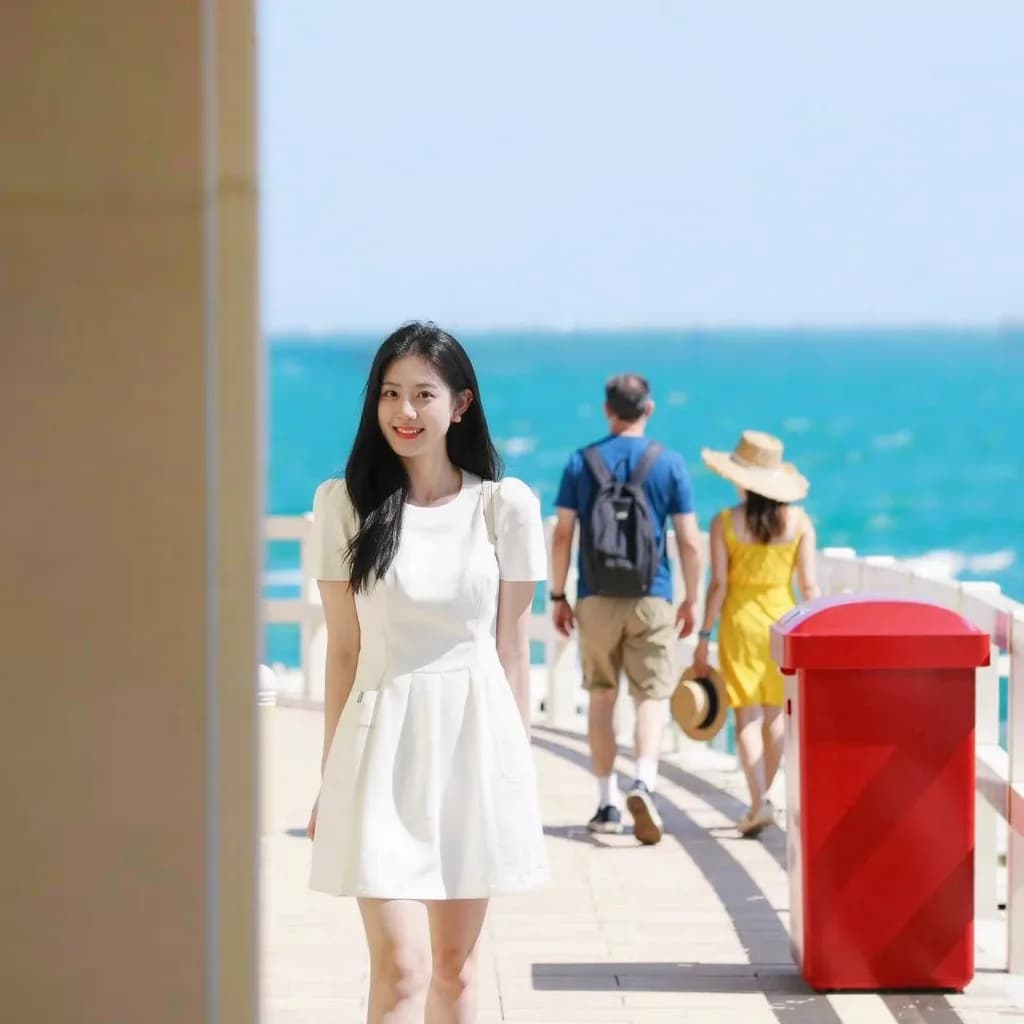
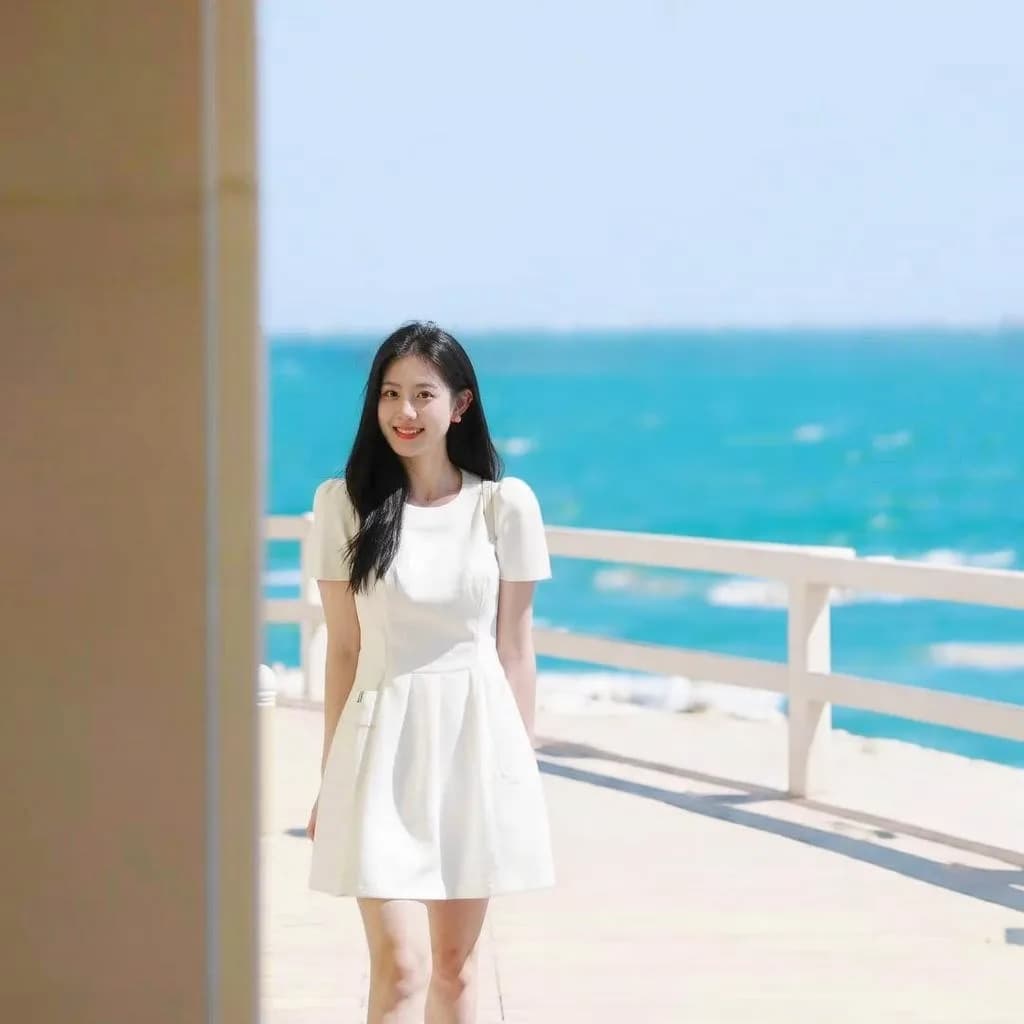 How to remove unwanted objects and people from a photoErase photobombers, litter and power lines from a picture, and learn which scenes AI can rebuild convincingly and which it cannot.
 How to Make Product Lifestyle Photos for Your Online ShopTurn one clean product photo into styled scene images for listings, ads and social posts, and know where a white main image is still required.
Related tools
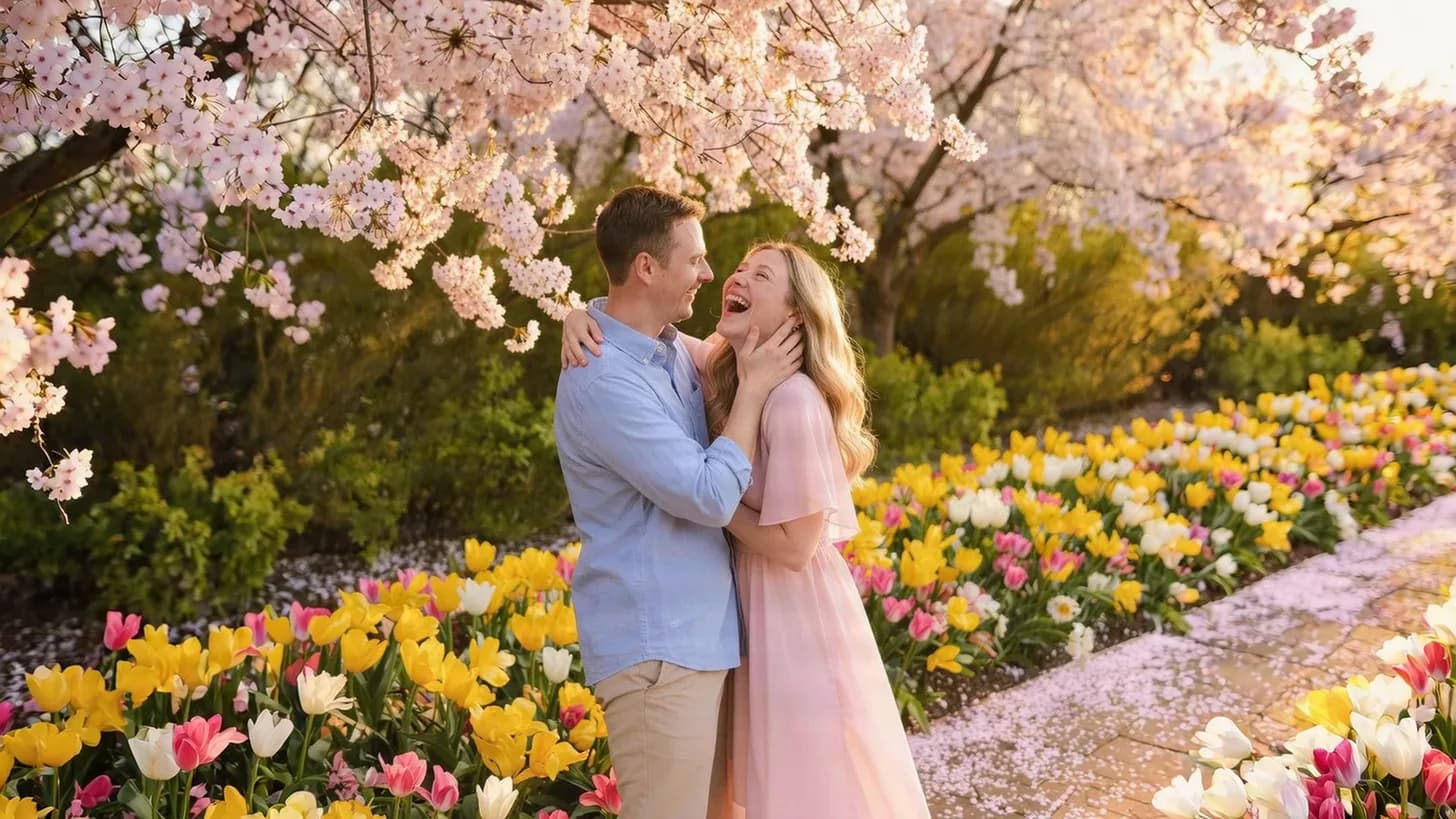
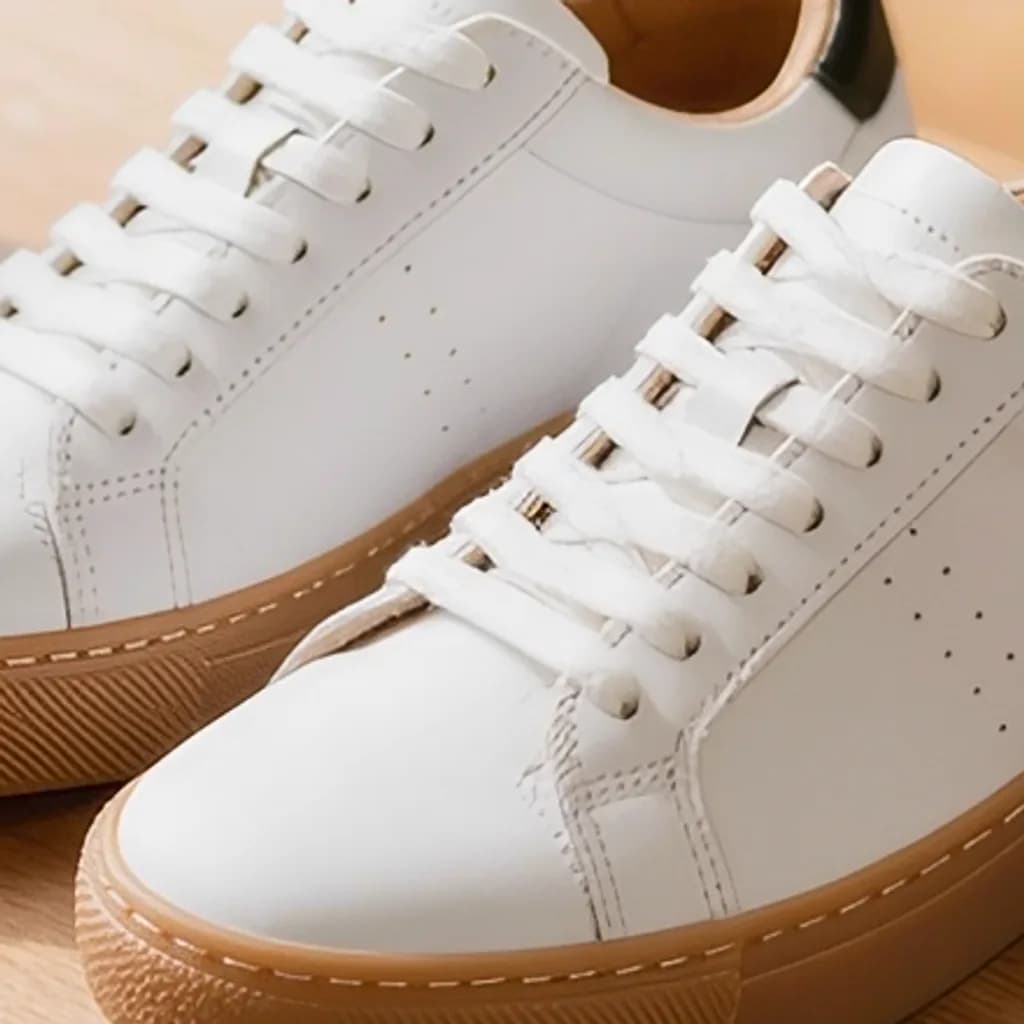
Extend your photo to a new shape
Upload a photo, choose square, portrait post, widescreen or story and let AI fill in the edges. You see the credit price before it runs.