
How to Make Product Lifestyle Photos for Your Online Shop
A buyer cannot pick your product up, so your photos do the work a shop shelf would: they show size, texture and how the item fits into everyday life. A plain cutout tells people what the product is; a lifestyle or scene photo, such as a candle on a wooden table or a serum bottle beside a bathroom sink, helps them imagine owning it.
Methodhelm editorial teamLast updated: 4 min read
Setting up props and locations for every product takes time. This guide shows how to start from one clean product photo, place it in a styled scene with Product scene photos on Methodhelm, and use those images where marketplaces allow them, without misleading anyone about what is in the box.
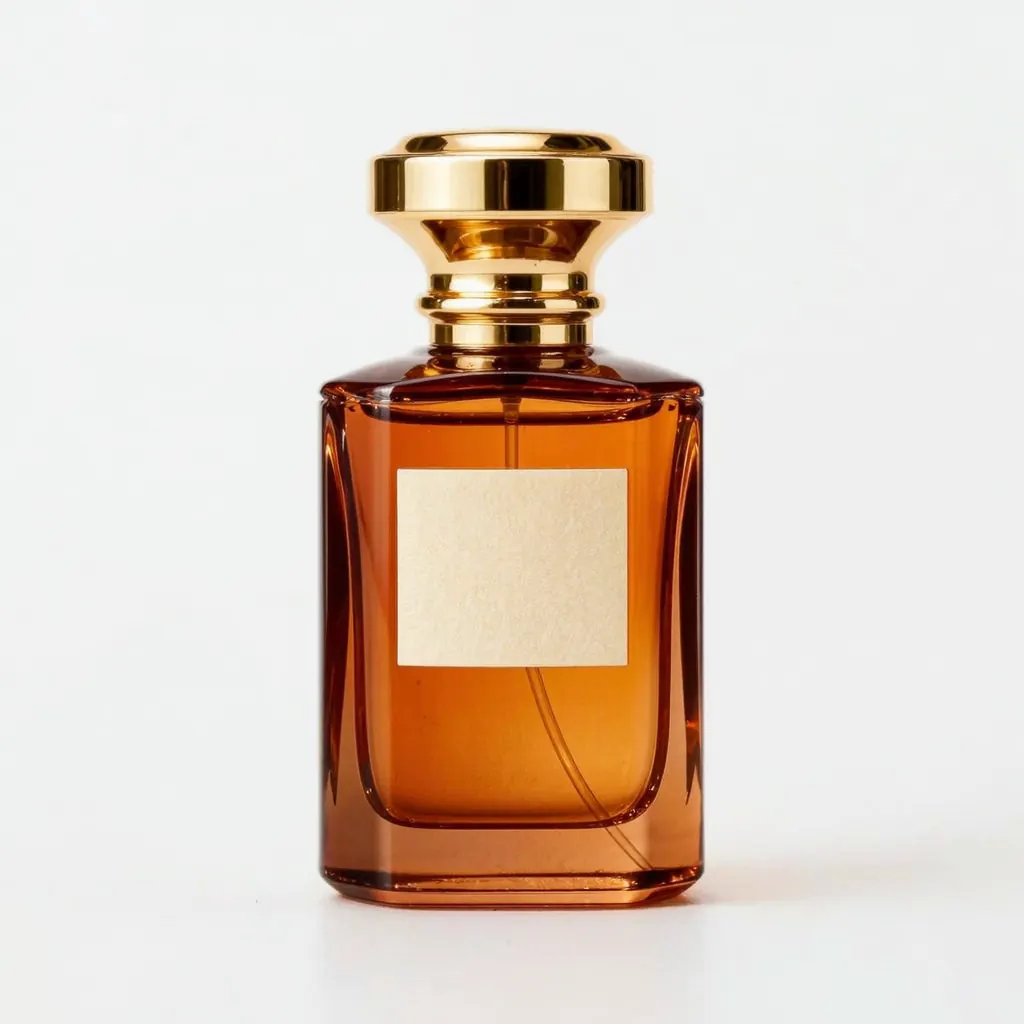 Before
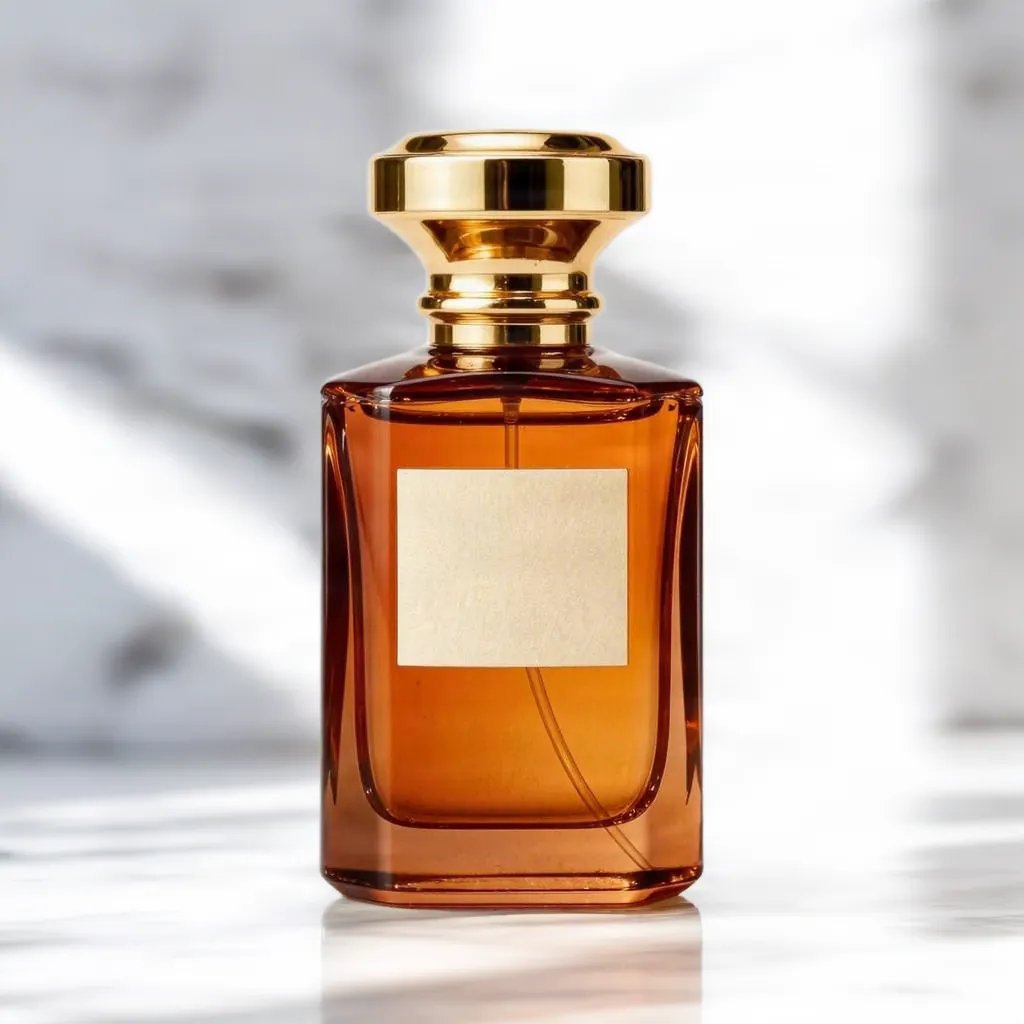 After
AfterOn this page
Main image or extra images: know the rules first
Many marketplaces treat the first, main image differently from the rest. Amazon's main-image guidance asks for a pure white background, and several other marketplaces require or strongly recommend a plain white or light background for the first photo too. For that image, cut the product out with the Background remover instead; our guide to white background product photos walks through it.
Scene photos belong in the secondary images, in your own shop, in ads and on social media. Etsy, Shopify stores and most social platforms leave the look of the main photo to you, but rules change and differ by category, so check each platform's current seller image guidelines before you upload a whole catalogue.
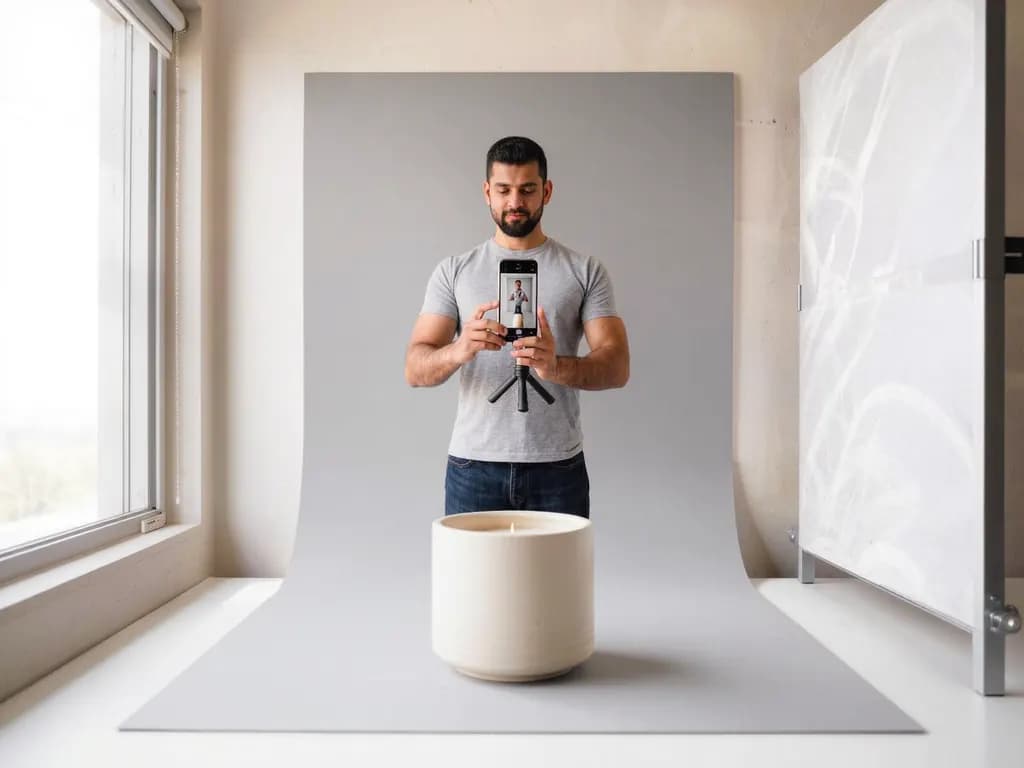
Start from a clean product photo
The tool keeps your product where it stands in the frame and builds the scene around it, so the photo you upload decides how the result looks.
- One product per photo, fully in frame, with a little space around it. Cut-off edges stay cut off.
- A plain background with good contrast, such as white or light grey card, so the product's outline is clear.
- Soft, even light from a window or a lamp bounced off white card. Hard shadows and reflections are carried into the scene.
- A sharp photo from a natural angle: slightly above for most tabletop items, straight on for bottles and boxes.
- Clean the product first: dust, fingerprints and price stickers show up in every scene. Stray clips or tape can be erased with the object remover.
Step by step: create a scene photo
- Upload your product photo
Open Product scene photos and add a JPG, PNG or WebP of at least 128 px a side. Photos are scaled to at most 1600 px on the long side before upload.
- Pick a scene
Choose one of seven presets: Studio gradient, Marble countertop, Wooden table, Kitchen, Bathroom vanity, Outdoor nature or Festive. After signing in you see the exact credit price before the run.
- Create the scene
It usually takes 10 to 40 seconds. Failed generations aren't charged — held credits come back automatically. Your result is kept for 24 hours to download.
- Check the product, not just the mood
Compare the result with your original at full size. Look at labels, logos, edges and colours. The product should look like the one a buyer will receive.
- Try another scene for variety
Run the same photo with a second scene to get a set: for example a marble image for the listing and a festive one for a seasonal promotion.
Which scene suits which product
Keep a catalogue consistent: using the same one or two scenes across a product range looks more professional than a different setting for every item.
- Studio gradient: a neutral, polished look for electronics, accessories and anything you want to keep the focus on.
- Marble countertop: bright and minimal, popular for cosmetics, perfume, jewellery and skincare.
- Wooden table: warm and homely, good for candles, ceramics, coffee, tea and handmade goods.
- Kitchen: for cookware, food products, kitchen gadgets and storage.
- Bathroom vanity: for soaps, toiletries, towels and skincare that lives by the sink.
- Outdoor nature: for outdoor gear, drinks bottles, natural cosmetics and garden products.
- Festive: warm lights and seasonal touches for holiday sales and gift guides.
Limitations and honest listings
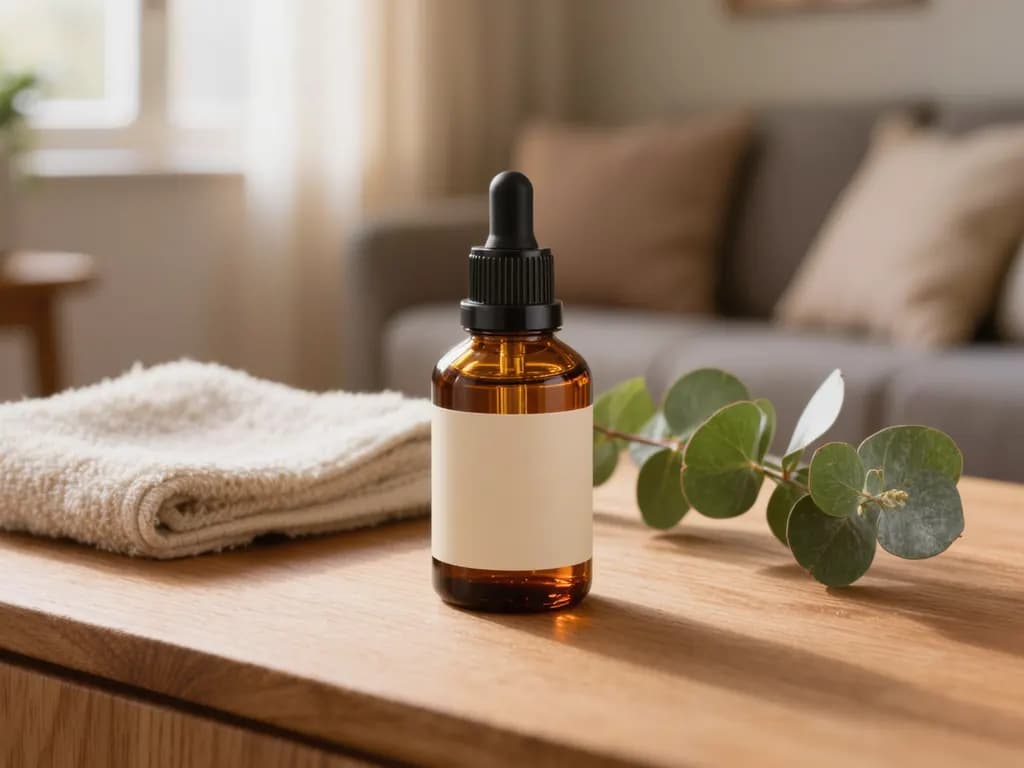
- The scene is AI-generated and may contain objects or details that do not exist. Do not let props suggest that something is included when it is not.
- The product keeps its position and size, and the AI aims to keep it unchanged, but small text, logos and fine edges can change slightly. Check them before you publish.
- Glass, transparent packaging and very shiny surfaces are harder: the scene may show through them or reflections may look wrong.
- Scale can look off. If size matters, add a photo with something familiar for reference, or state the dimensions.
- The result has the same size and shape as the photo you uploaded, up to 1600 px on the long side. Need more pixels? Try the AI upscaler 2×.
- Only use photos you have the right to use, such as your own product shots.
Frequently asked questions
Can I use a scene photo as my Amazon main image?
Amazon's main image needs a pure white background, so no. Use the Background remover for the main image and scene photos for the additional images. Check the current rules for your category.
Will the AI change my product?
It keeps the product's position and size and aims to keep it as it is, but small text, logos and fine edges can change slightly. Always compare the result with the real product before listing it.
Can I describe my own scene?
No, you choose one of seven fixed scenes: Studio gradient, Marble countertop, Wooden table, Kitchen, Bathroom vanity, Outdoor nature and Festive. For a scene you describe yourself, try the Background changer.
What size is the result?
The same size and shape as your uploaded photo, up to 1600 px on the long side. A very detailed result may be saved slightly smaller to fit the storage limit.
Why does my product look cut off in the scene?
The product stays exactly where it was in your photo. If it touched the edge of the frame, it still does. Reshoot with some space around the product.
Related guides
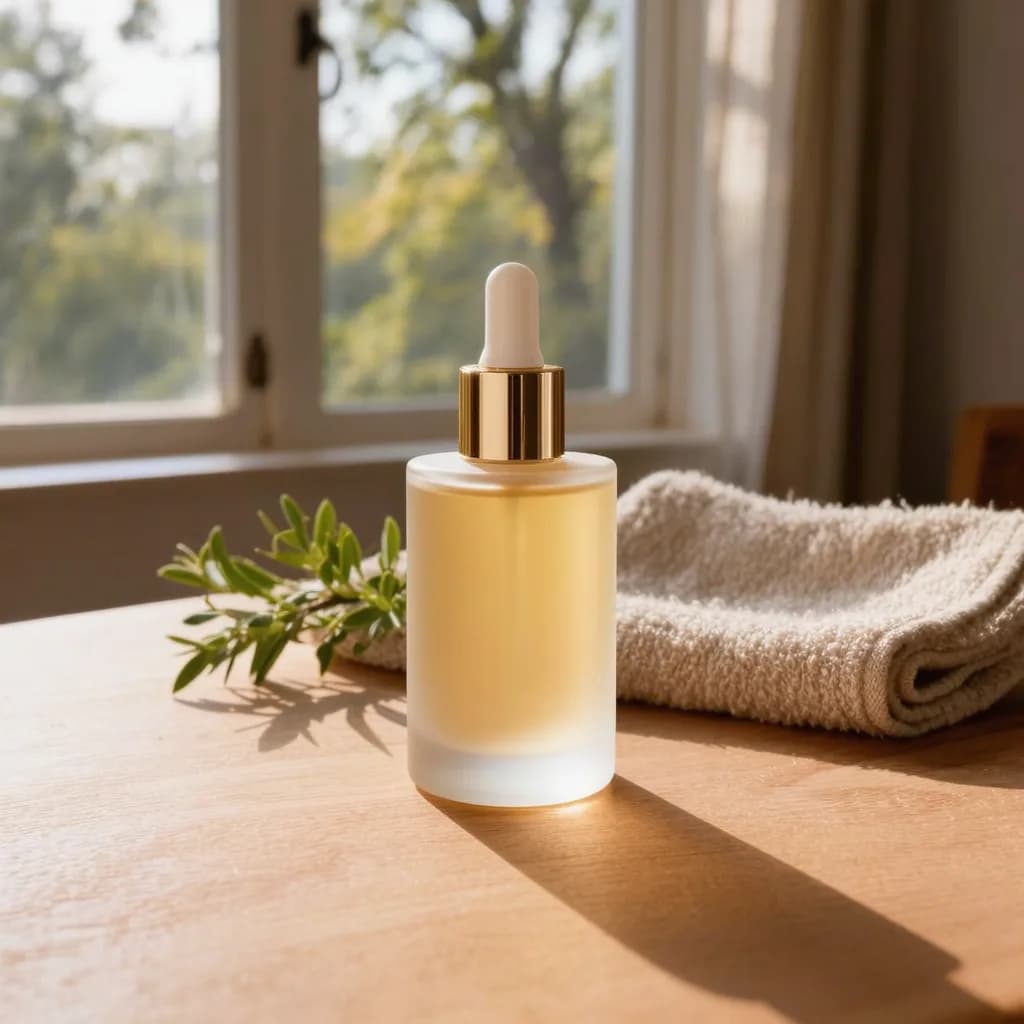
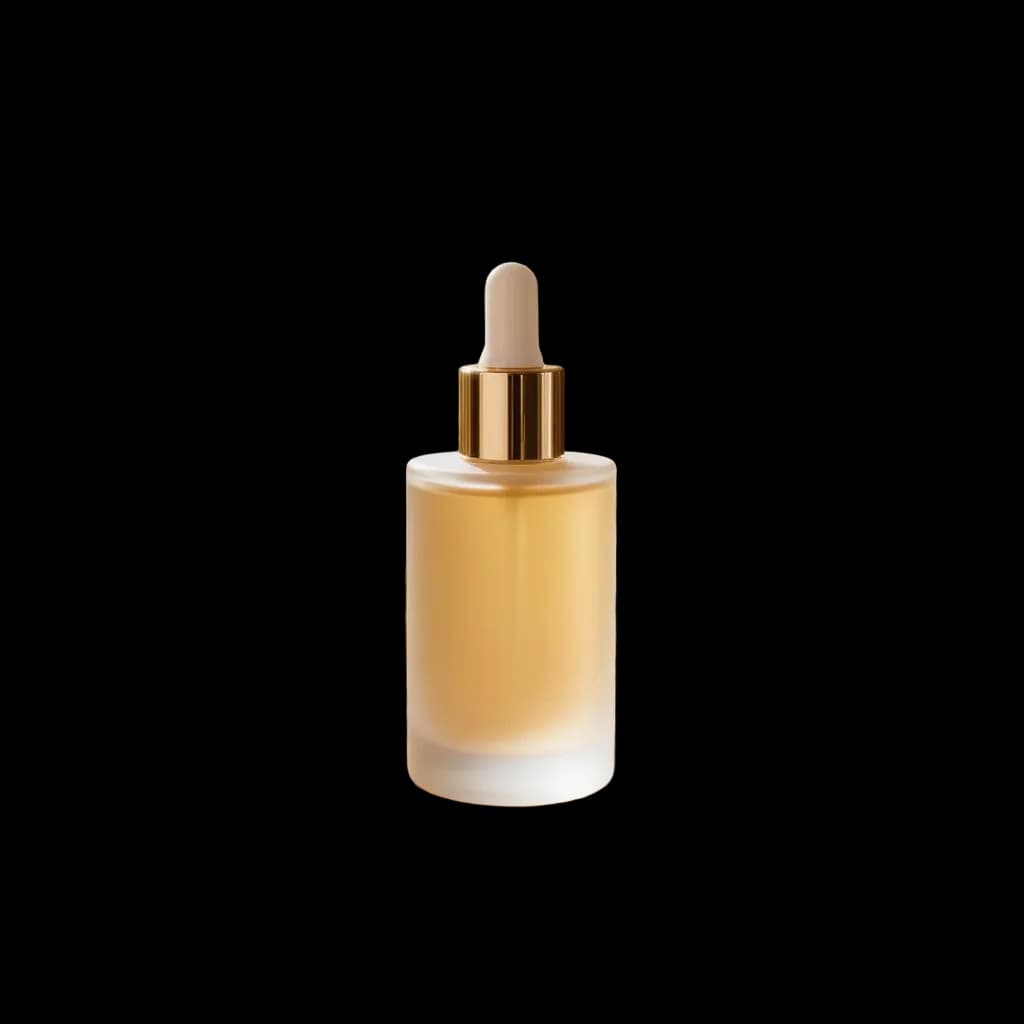 How to Make White Background Product Photos That Marketplaces AcceptShoot, cut out and finish a clean white-background main image, and know what Amazon asks for before you upload.
 How to Fix Flat or Dull Lighting in a PhotoUnderstand why a photo looks flat, fix what you can when shooting, and relight the rest with golden hour or soft light.
Related tools
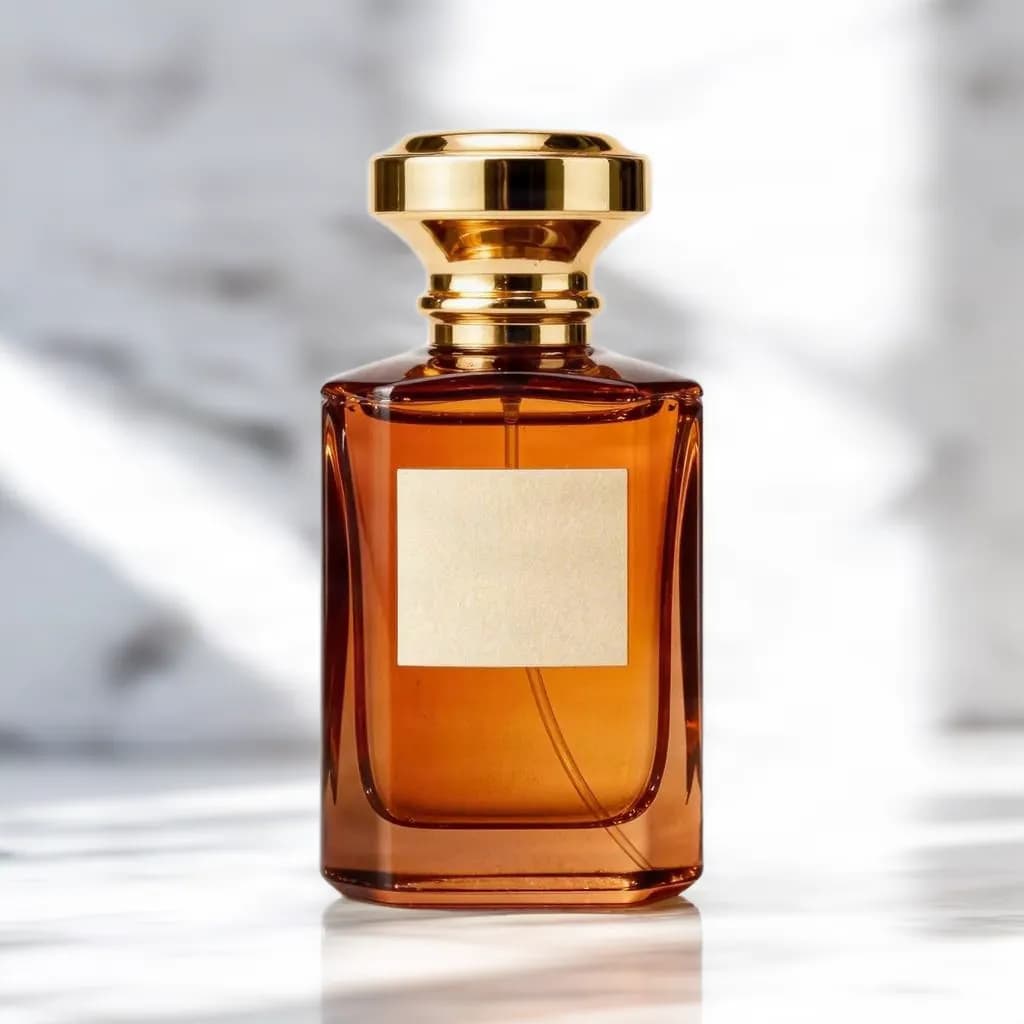
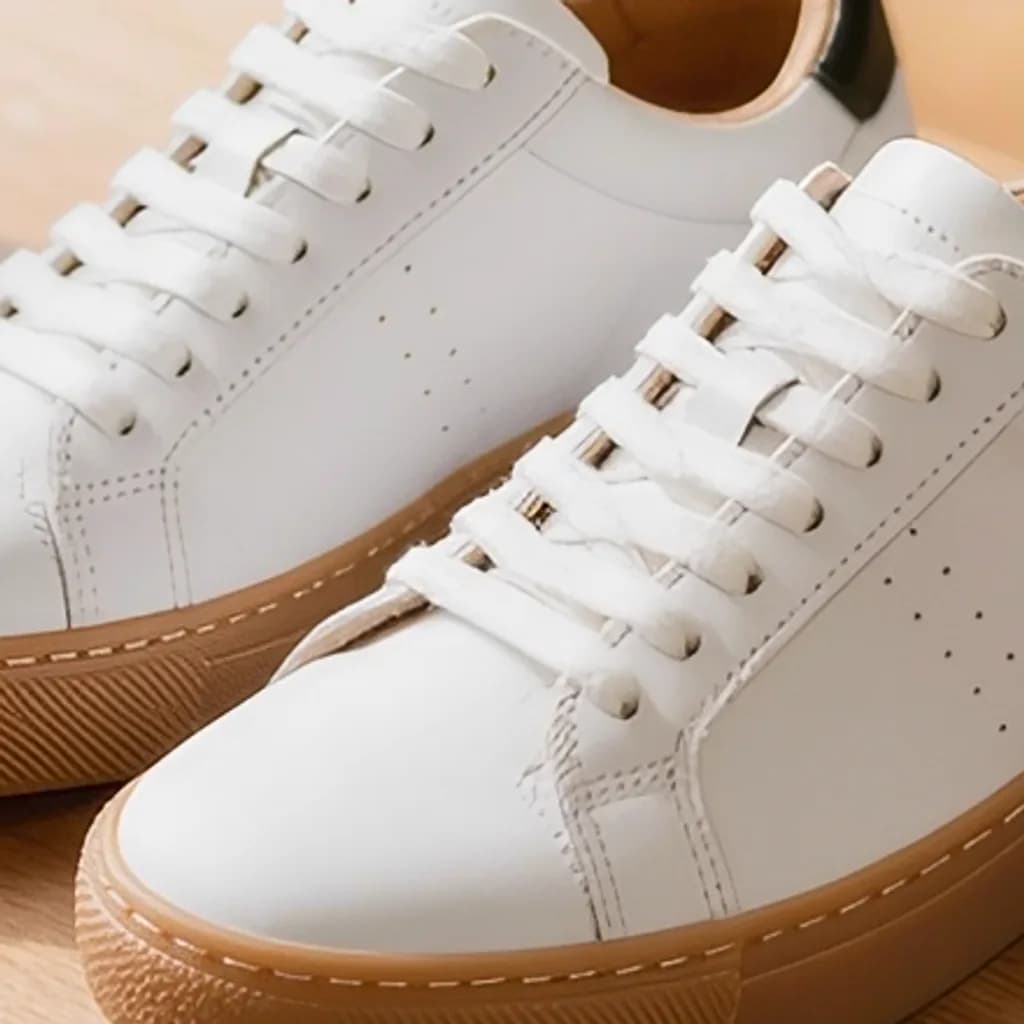
Put your product in a scene
Upload one product photo, pick from seven scenes and compare the result with your original. You see the credit price before it runs, and a failed run returns the held credits.