
How to remove unwanted objects and people from a photo
Almost every travel photo has something you did not want in it: a stranger walking through the frame at the Trevi Fountain, a parked car in front of a Cotswolds cottage, a rubbish bin beside a beach, or a tangle of power lines across a sunset. Today an AI object remover lets you paint over the thing you want gone and then fills the gap with a plausible version of what might have been behind it.
Methodhelm editorial teamLast updated: 5 min read
This guide explains how that works, how to mark an object so the fill looks natural, which photos give good results and which do not, and how to avoid the problem when you take the next picture. The technique applies whatever editor you use; we also show where the Methodhelm Object remover fits in.
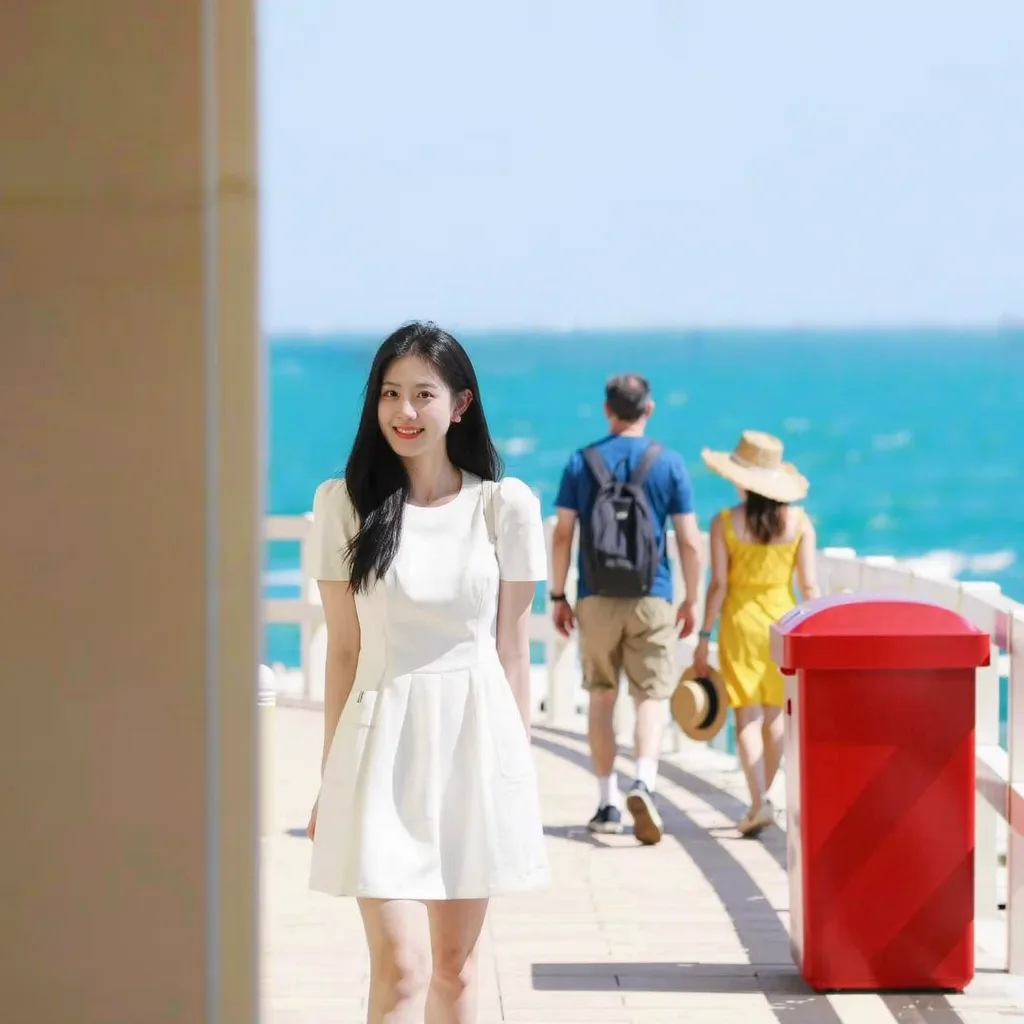 Before
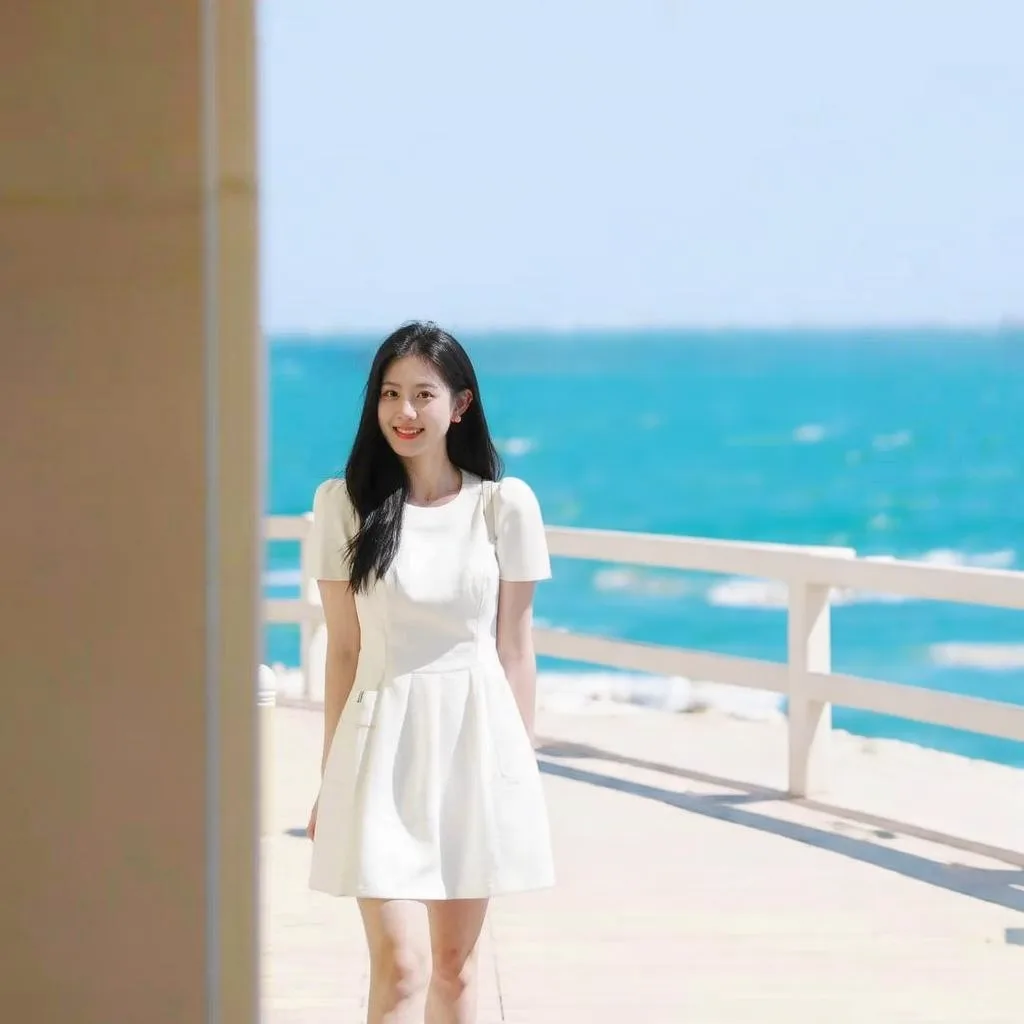 After
AfterOn this page
How AI object removal actually works
When you paint over an object, you are telling the software which pixels to throw away. The AI then looks at everything around that hole, such as the sky, the wall texture, the line of a pavement or the pattern of grass, and generates new pixels that continue it. It does not know what was really behind the tourist; it invents a believable guess.
That has two practical consequences. First, the more predictable the surroundings, the better the guess: plain sky, sand, water, grass and painted walls are easy, while a crowded street or a detailed mosaic is hard. Second, because the fill is generated, it can change small details or introduce odd shapes, so you should always inspect the whole image, not only the spot you edited.

Step by step: remove an object from a photo
- Choose a suitable photo
Start with a JPG, PNG or WebP image at least 128 pixels on each side. A photo where the unwanted object sits on a fairly simple background gives the most convincing result.
- Open the object remover and upload
Sign in to the Object remover and upload the photo. Large photos are resized to at most 1600 pixels and 2.56 megapixels before upload, so keep your original file as the master copy.
- Paint over what you want gone
Brush over the person, object or text, going slightly beyond its edges. Include its shadow and any reflection in water or glass, otherwise a ghostly outline stays behind. You can undo any stroke.
- Check the price and run it
The exact credit price is shown before you press Remove. A run usually takes 10 to 30 seconds. Failed generations aren't charged — held credits come back automatically. Your result is kept for 24 hours to download.
- Compare before and after
Drag the comparison slider and look at the edited area at full size, then scan the rest of the frame for anything that changed. Look for repeated patterns, blurred patches and lines that do not meet.
- Save, or refine one object at a time
Save the result if it looks right. For several objects, remove them one at a time and check each result; keep in mind that each run costs credits.
Tips for a cleaner result with any tool
- Paint generously. A mask that stops exactly at the edge leaves a halo of the old colour; a few extra pixels of margin let the fill blend.
- Remove shadows and reflections together with the object. A missing person with their shadow still on the ground is the most common giveaway.
- Work on one object at a time when they are far apart, so each fill only has to solve one local problem.
- Zoom in before you judge. A fill that looks fine on a phone screen may show smears or repeated tiles when printed.
- If the subject is what matters and the background is not, consider cutting the subject out instead with the Background remover; for product shots, see white background product photos.
What works well and what does not
Good candidates are small objects against simple or repeating backgrounds: a photobomber at the edge of the frame, a plastic bottle on the sand, a single power line across the sky, a sign on a plain wall, a bird dropping on a car bonnet. In these cases there is plenty of similar texture nearby for the AI to continue.
Hard cases are large areas, objects in front of faces or hands, complex patterns such as tiled floors, carved stone or lettering, and crowds that fill most of the frame. Removing one person standing in front of another person means the AI must invent part of a real human being, and the result is often unconvincing.
When the problem is that the frame is too tight rather than too busy, extending the edges with Image expand can work better than erasing. Damaged prints with scratches and stains are a different job; see how to restore old photos.
Avoid the problem when you take the photo
- Wait for a gap. In busy places the crowd moves in waves; a minute of patience often gives you a clear shot.
- Change your angle. Stepping to one side or crouching lower can hide a bin behind a railing or put a crowd below the frame.
- Go early. Popular sights are usually quietest shortly after sunrise.
- Shoot a burst. Several frames a second apart give you a choice, and sometimes one frame is already clean.


Limitations and honest use
The AI rebuilds what it cannot see, so the hidden area is always an invention. Text, faces, logos and precise geometry in the filled area may come out distorted, and details elsewhere in the image can shift slightly. Treat every result as an edit to review, not a restoration of the truth.
Use removal for personal and creative photos. Do not alter images that others rely on as a factual record, such as evidence, news photos, insurance claims, property listings or product listings, in a way that would mislead. Check the rules of any marketplace or platform you publish on.
Frequently asked questions
Can AI remove people from a photo?
Yes, especially when the person is small, at the edge of the frame and in front of a simple background such as sky, sand or a wall. It is much harder when the person overlaps another person or fills a large part of the image, because the AI has to invent a lot of hidden detail.
Why is there a blurry patch or ghost outline after removing an object?
Usually the mask did not cover the whole object, its shadow or its reflection, or the area around it is too complex to continue. Paint a little beyond the edges, include shadows, and try again.
Does removing an object reduce the photo quality?
The filled area is generated, so it may look softer or slightly different from the rest. In the Methodhelm Object remover, large photos are also resized to at most 1600 pixels and 2.56 megapixels before upload, so keep your original for large prints.
How much does it cost to remove an object with Methodhelm?
You see the exact credit price before you press Remove. Failed generations aren't charged — held credits come back automatically. Your result is kept for 24 hours to download. Each separate run costs credits, so plan multiple removals. Current credit packs are on the pricing page.
Is it acceptable to remove objects from photos?
For personal and creative photos, yes. Do not use edited images as evidence, news, insurance documentation or real-estate and product listings in a way that misleads people about what is real.
Related guides

 How to Make White Background Product Photos That Marketplaces AcceptShoot, cut out and finish a clean white-background main image, and know what Amazon asks for before you upload.
 How to Restore Old Photos Without Losing the OriginalHandle, scan and repair scratched, torn or faded family photos, and keep an untouched copy of every original.
Related tools

Remove a distraction from your photo
Paint over the person or object, see the exact credit price before you run it, and compare before and after before you save.