
How to Translate Text in a Photo: Menus, Signs, Labels and Screenshots
A chalkboard menu in Lisbon, a pharmacy shelf in Tokyo, a parking sign in Berlin, the back of a snack packet from Seoul: some of the most useful text you meet when travelling or shopping is printed on things, not typed on a screen. Image translation reads the text inside a photo and redraws it in your language, in the same place, so you can still see which line belongs to which price or which arrow.
Methodhelm editorial teamLast updated: 5 min read
This guide shows how to take a photo that translates well, how to run it with the Image translator on Methodhelm, and, just as important, where AI translation of pictures still goes wrong and what you should always check with a person.
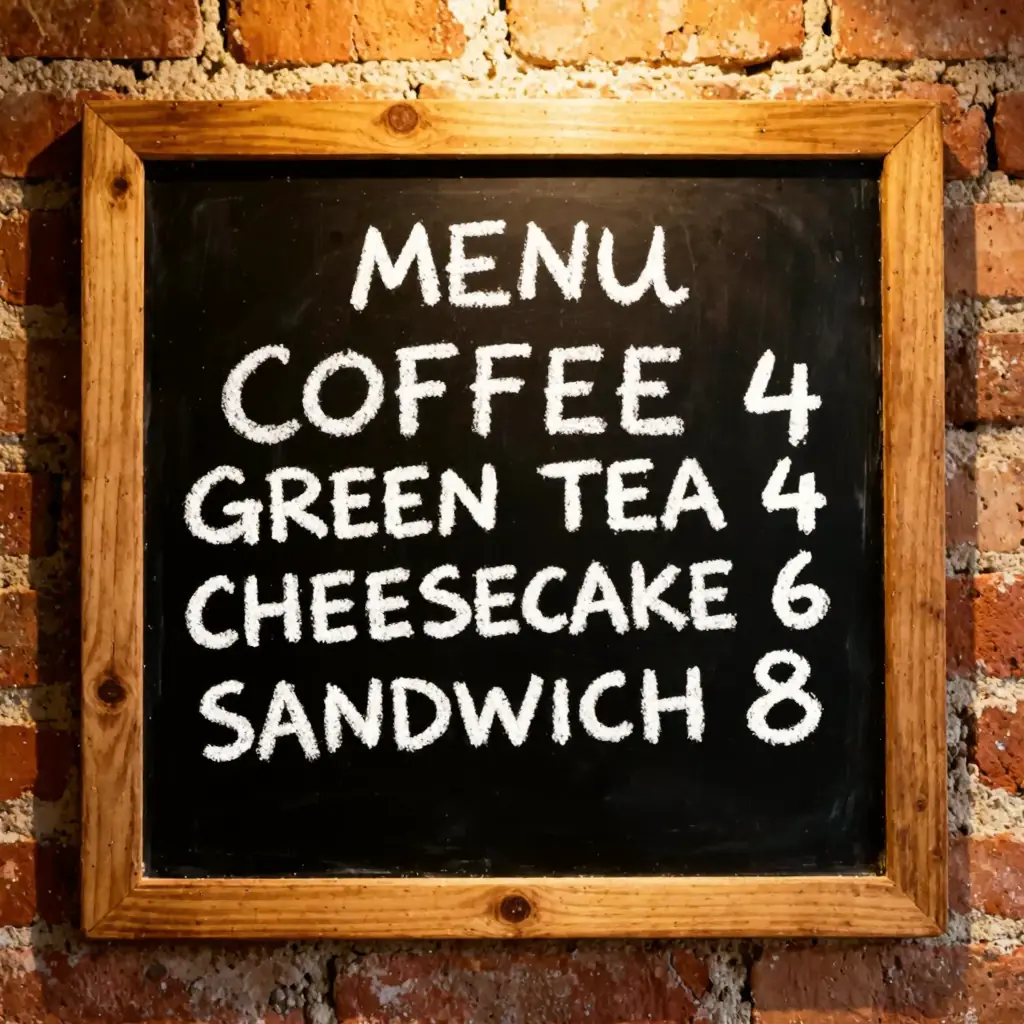 Before
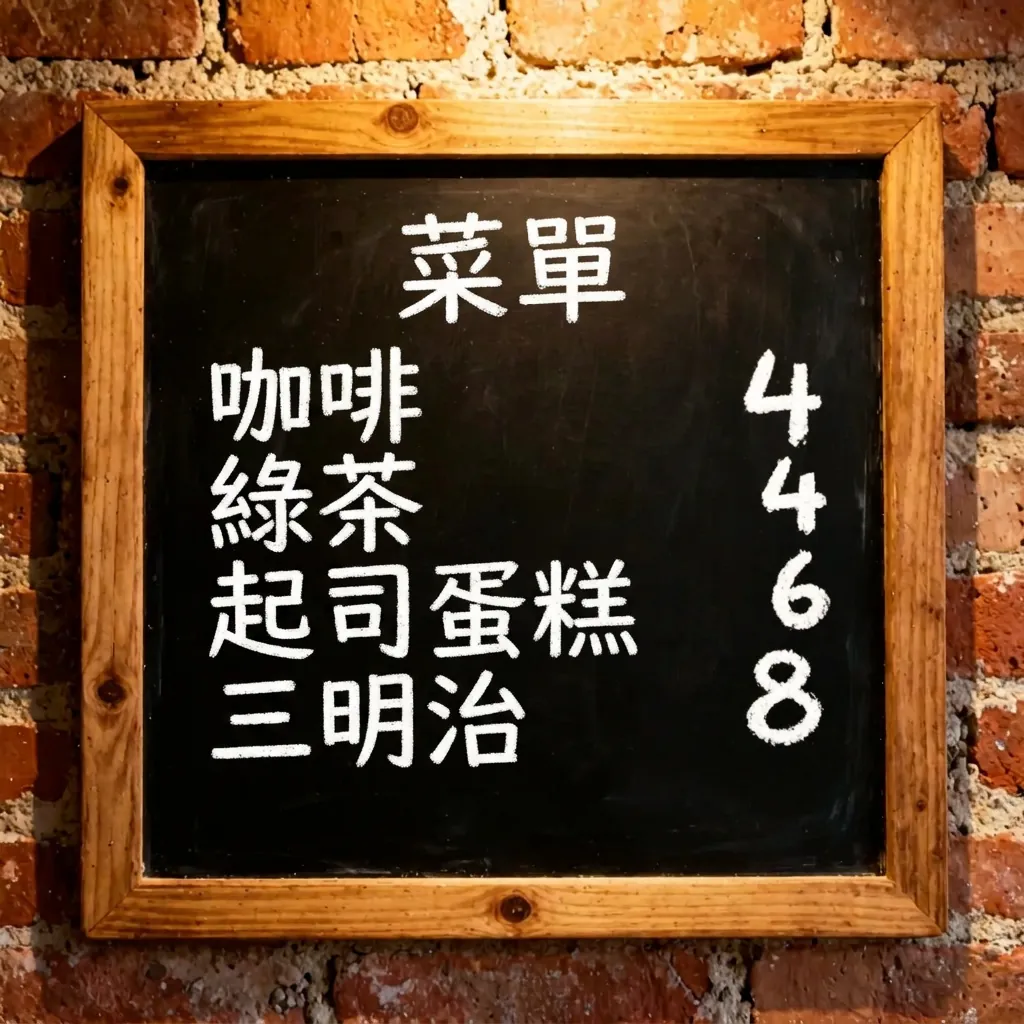 After
AfterOn this page
What image translation does, and what it does not
A text translator gives you a list of sentences. An image translator gives you the picture back with the words replaced: the menu still looks like a menu, the label still looks like a label, and the layout tells you which name goes with which number. That is what makes it handy for menus, timetables, signs, packaging, posters, instruction sheets and app screenshots.
On Methodhelm you choose one of 14 target languages: English, Traditional Chinese, Simplified Chinese, Japanese, Korean, Spanish, Portuguese (Brazil), German, French, Italian, Indonesian, Thai, Vietnamese and Turkish. The original can be in almost any language. The tool is told to keep numbers, prices, brand names and logos as they are and to leave the rest of the image alone.
It is not a certified translation and it does not explain anything. It redraws text; it cannot tell you whether a dish contains peanuts if the menu never says so, and it can misread or skip words. Treat the result as a quick reading aid, not as the final word.
Take a photo the AI can read
Most bad translations start with a bad photo. If you could not read the text yourself when you zoom in, the AI will struggle too.
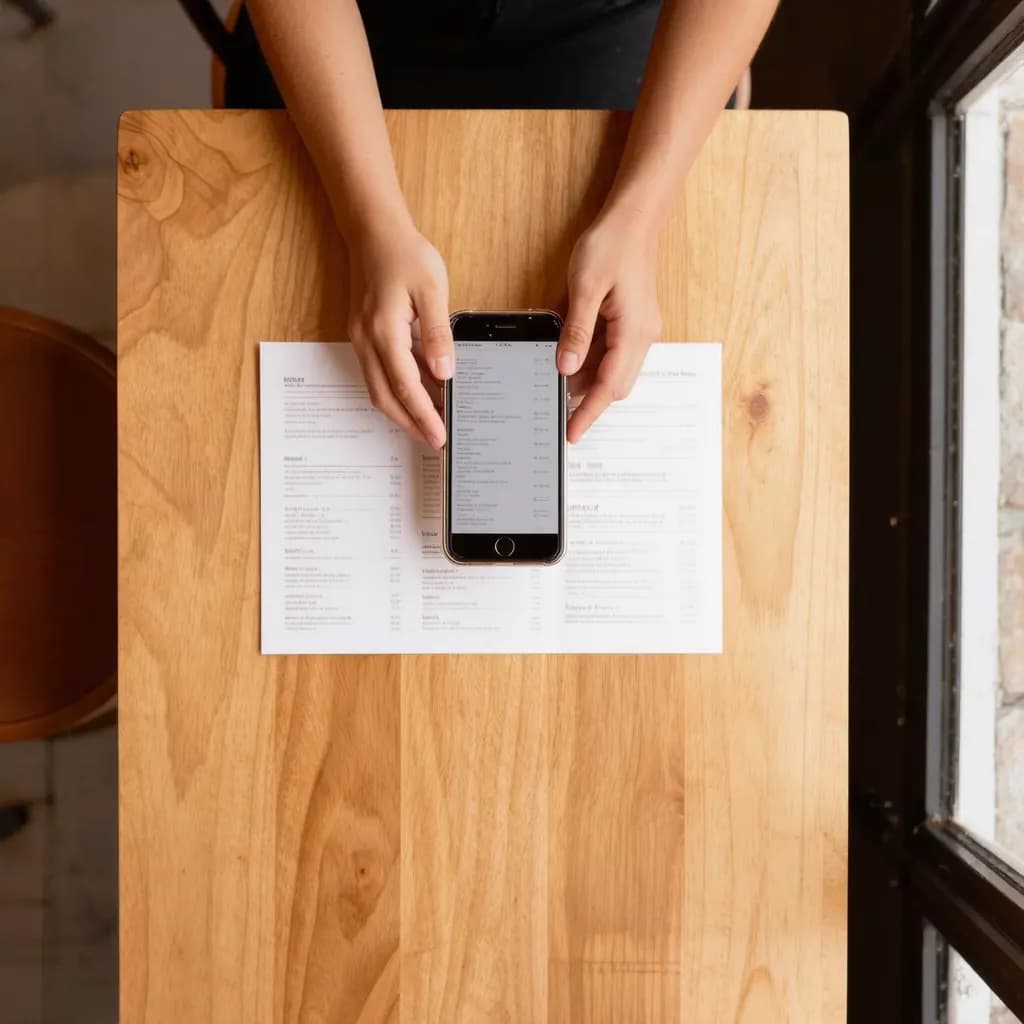
- Hold the phone parallel to the text. Photograph a menu or label straight on, not from an angle; slanted lines and squeezed letters are misread more often.
- Avoid glare. Laminated menus, glossy packaging and glass display cases reflect ceiling lights. Tilt the item slightly or step to the side until the bright patch leaves the text.
- Get close, but keep the whole block of text in frame. One menu page per photo works better than a whole table of menus.
- Flatten what you can. A curled page or a label on a round bottle bends the lines; press the page flat or turn the bottle so the part you need faces you.
- Use enough light and hold still. A dim, shaky photo turns small print into mush. If your photo is already soft, see how to fix a blurry photo first.
- For screenshots, crop to the part you need. A smaller area with larger text translates more completely than a full screen of tiny words.
Step by step: translate a photo
- Upload the photo or screenshot
Open the Image translator and add a JPG, PNG or WebP of at least 128 px a side. Larger photos are scaled to at most 1600 px on the long side before upload, so crop first if the text you need is small.
- Choose the language you want
Pick the language you want to read, not the language in the photo. After signing in you see the exact credit price before anything runs.
- Run the translation
It usually takes 10 to 40 seconds. Failed generations aren't charged — held credits come back automatically. Your result is kept for 24 hours to download.
- Compare it with the original
Check line by line: is every item translated, do the prices still sit next to the right names, and did anything stay in the original language? Long translations are sometimes shortened to fit the space.
- Save it, and keep the original
Download the translated image, but keep the original photo too. If you need to ask staff or a seller about something, showing them the original text avoids confusion.
Everyday uses
- Travel: restaurant menus and specials boards, station and platform signs, opening hours on a shop door, museum panels and hotel instructions.
- Shopping: ingredients and care labels, cooking instructions on imported food, sizes and settings on appliance packaging.
- Sellers and creators: a first draft of a product image or app screenshot in another market's language, which a fluent speaker then checks before it goes live.
- Paperwork you only need to understand: a notice from a building manager or a parking ticket, as long as anything that matters is confirmed with the issuer.
Limitations: what to double-check
The result is AI-generated, and the text is redrawn rather than copied, so it can look convincing and still be wrong. Expect these problems most often:
- Small, blurry, curved, decorative or handwritten text may be skipped, misread or translated wrongly, and some words can stay in the original language.
- Fonts, spacing and small details change, because the text is drawn again. Numbers, prices and brand names are meant to stay the same, but check them.
- The result is about one megapixel (for example 1024 × 1024 px) in the standard shape closest to your photo, so edges may be slightly trimmed or extended.
- Allergens, medicine, safety warnings, contracts and official documents: never rely on an image translation alone. Ask the staff, the pharmacist or the issuer, or get a professional translation.
- Only upload images you have the right to use, and avoid photographing other people's personal details.
Frequently asked questions
Which languages can I translate a photo into?
English, Traditional Chinese, Simplified Chinese, Japanese, Korean, Spanish, Portuguese (Brazil), German, French, Italian, Indonesian, Thai, Vietnamese and Turkish. The text in the photo can be in almost any language.
Can it translate handwriting or a chalkboard menu?
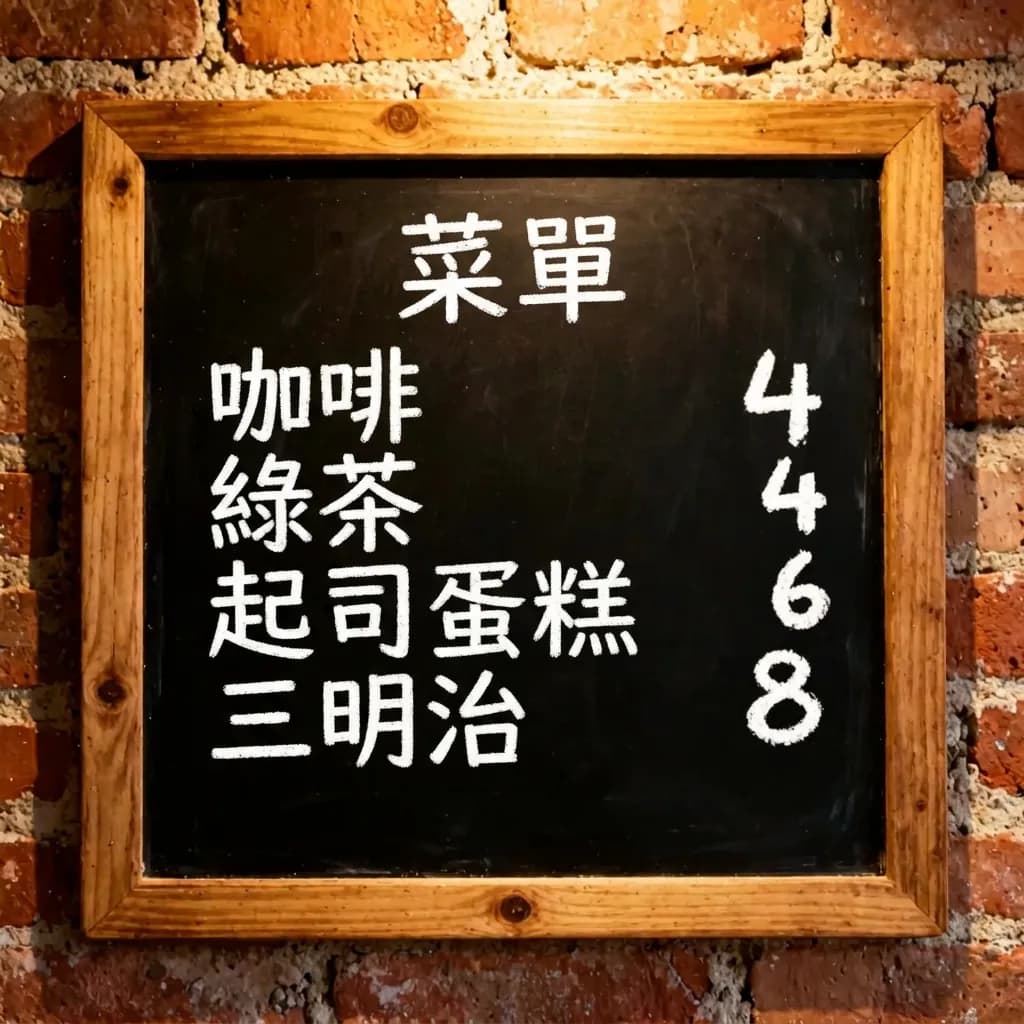
Clear, large chalk or marker lettering often works. Small, joined-up or decorative handwriting is much less reliable and may be skipped or misread, so compare the result with the original.
Will the prices and brand names change?
The tool is instructed to keep numbers, prices, brand names and logos unchanged, but the image is redrawn, so check every price and name against the original before you rely on it.
Is it safe to use for allergy information?
No. An AI translation can miss or mistranslate an ingredient, and a menu may not list everything. For allergies, medicine or safety, always confirm with staff or a professional.
Why does the translated image look slightly different from my photo?
The text is drawn again, so fonts and spacing change, and the result comes in the standard shape nearest your photo at about one megapixel, which can trim or extend the edges slightly.
Related guides
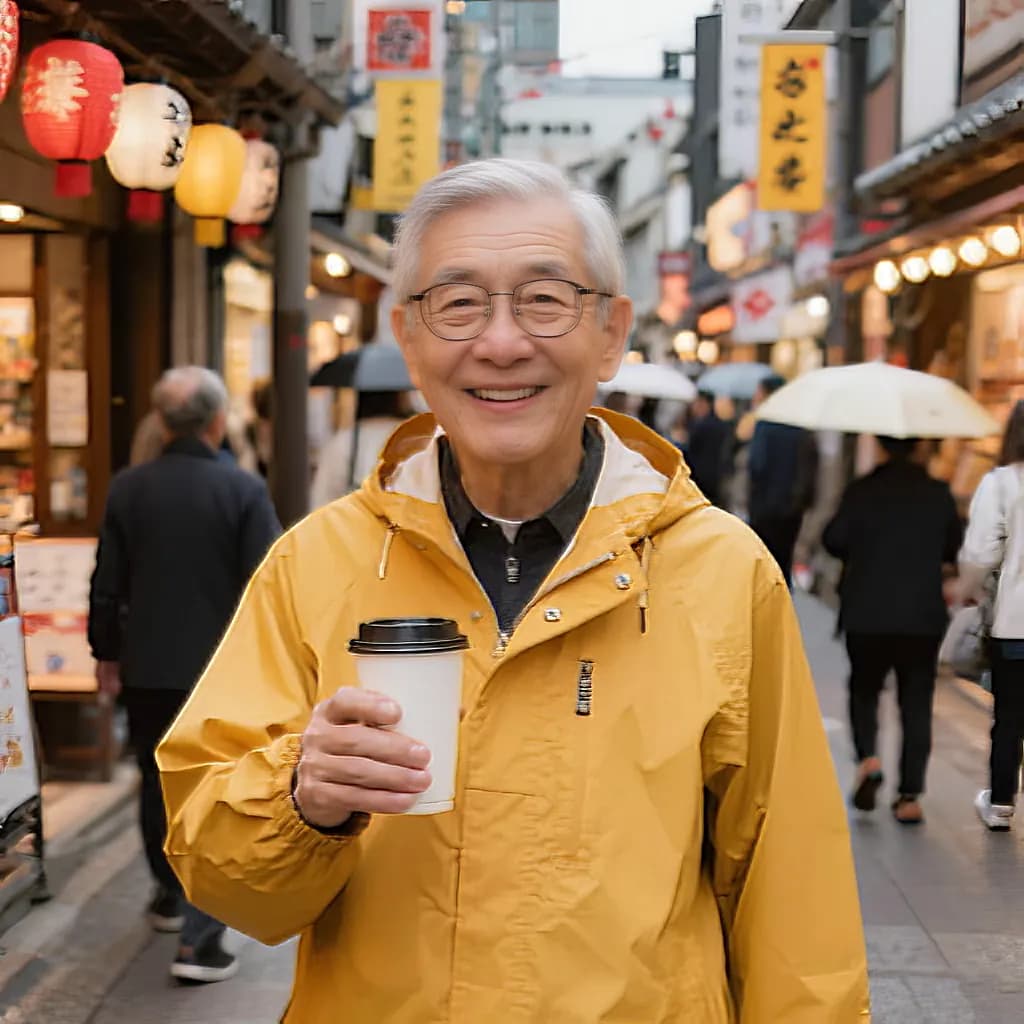 How to fix a blurry photoRecognise the kind of blur in your photo, sharpen it with AI or a classic editor, and know when a picture cannot be saved.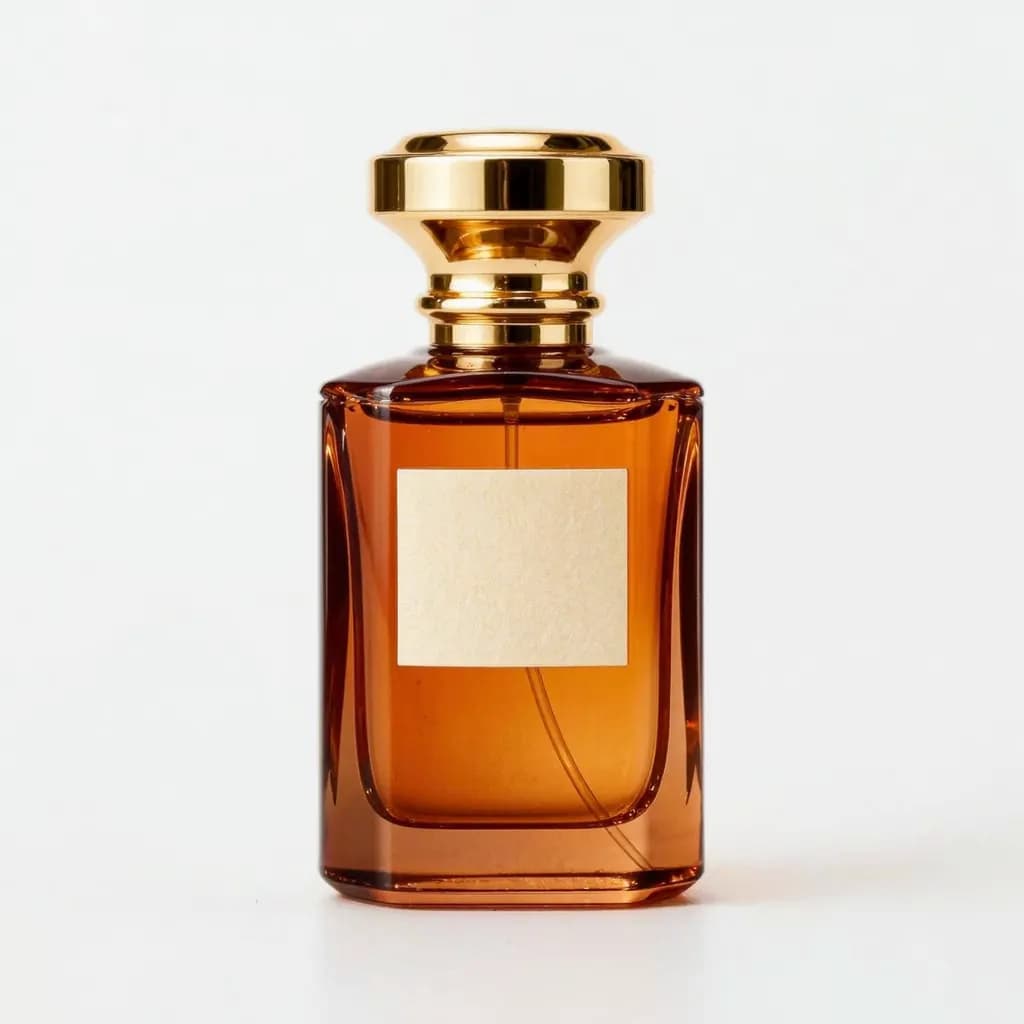
 How to Make Product Lifestyle Photos for Your Online ShopTurn one clean product photo into styled scene images for listings, ads and social posts, and know where a white main image is still required.
Related tools
Translate the text in your photo
Upload a menu, sign, label or screenshot, choose one of 14 languages and compare the result with the original. You see the credit price before it runs, and a failed run returns the held credits.