
How to turn a photo into a video with AI
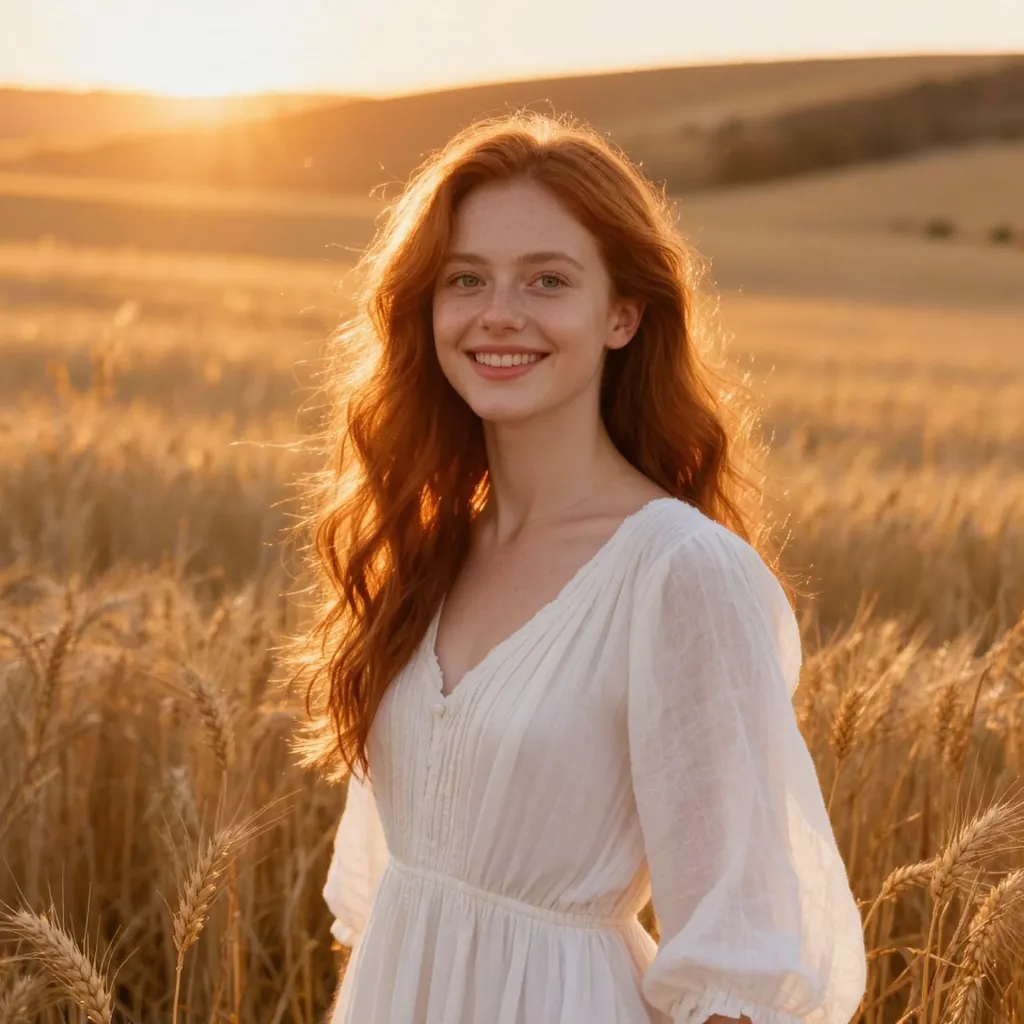
A still photo can become a few seconds of gentle movement: hair lifting in the wind, a slow push toward a face, clouds drifting behind a mountain. AI image-to-video models do this by predicting how the scene might move, then generating new frames from your picture. The result is short, but often enough for a Reel, a TikTok, a YouTube Short or a slideshow intro.
Methodhelm editorial teamLast updated: 5 min read
The quality of the clip depends far more on the photo you start with and the motion you ask for than on any setting. This guide covers how to choose photos that animate well, how to match the motion to the subject, a step-by-step workflow, what to do with the clip afterwards, and where AI animation still falls short.
On this page
Choose a photo that will animate well
An image-to-video model has to invent whatever is not in the frame, such as the background revealed when the view moves. The less it has to invent, the more natural the movement looks.
- One clear subject. A single person, an animal, a building or a landscape works better than a crowded scene where the model has to decide what moves.
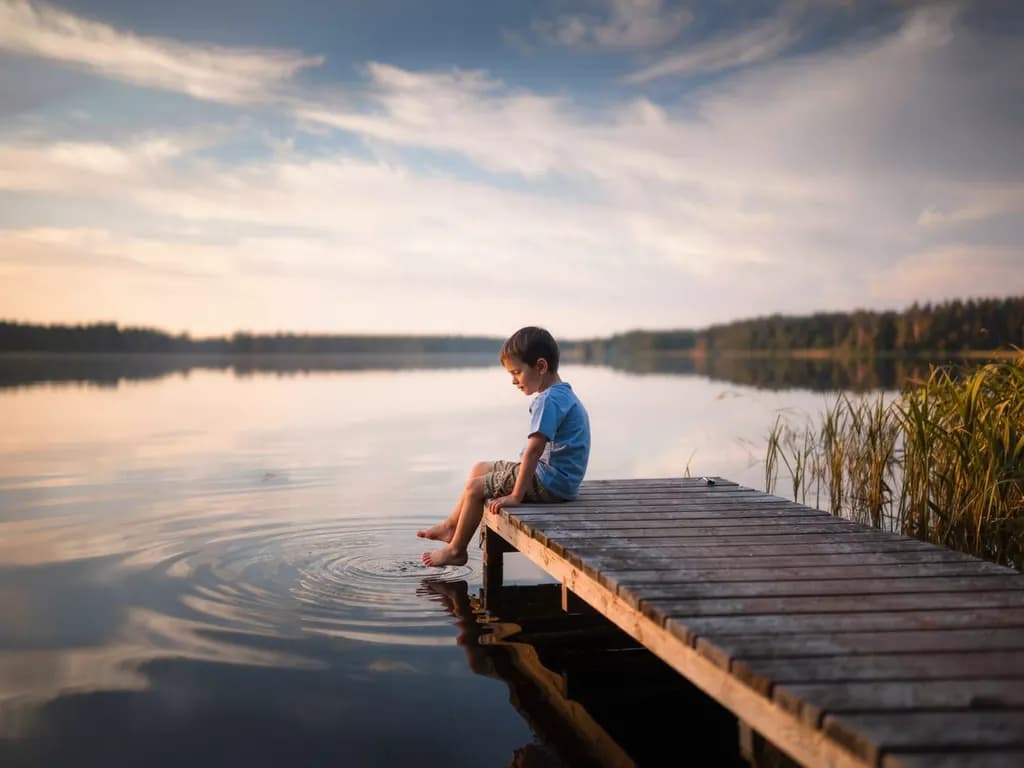
- Some depth. A foreground, a middle ground and a background (a branch in front, a person in the middle, hills behind) give push-ins and parallax something to work with.
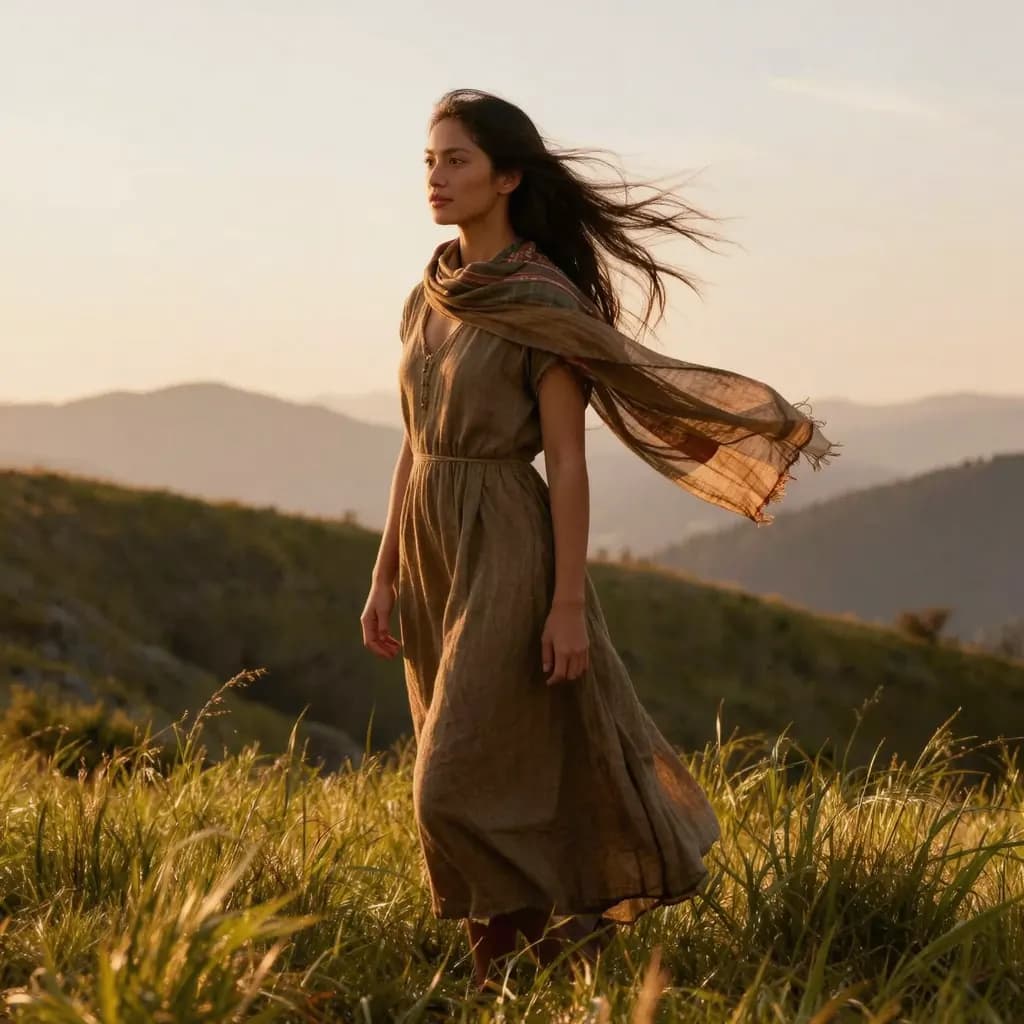
- Natural moving elements. Hair, loose clothing, water, smoke, grass, flags and clouds already suggest movement, so they tend to animate convincingly.
- Good light and focus. A sharp, well-exposed photo gives the model real detail to keep. If a photo is blurry or faded, fix that first.
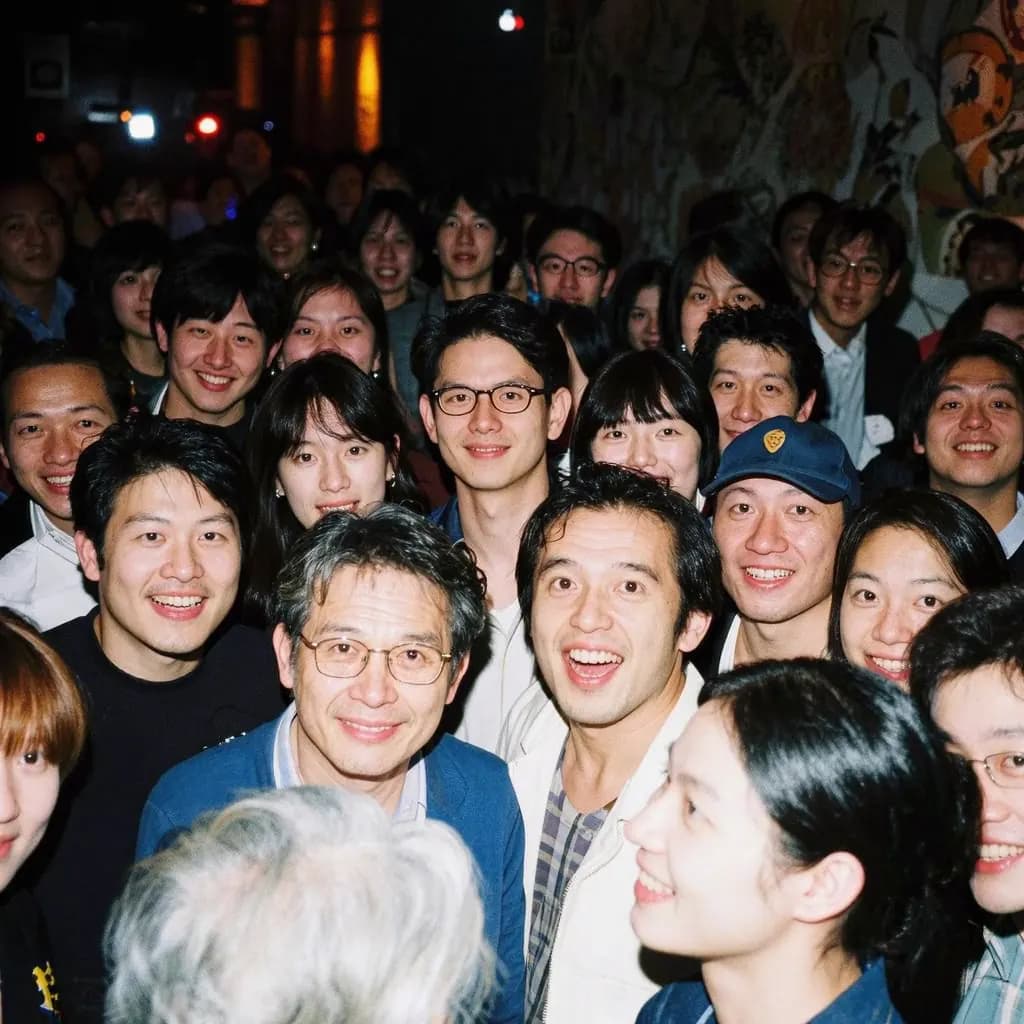
- Avoid small text, signs and logos, which often warp. Group photos with many faces, and hands held close to the camera, are also hard to keep consistent.
Match the motion to the photo
Most tools offer a choice of camera moves or subject motions. Pick one that the photo can plausibly support. A slow push-in suits a portrait or a single object and draws attention to it. A slow pan suits wide landscapes, city skylines and long interiors. A zoom out feels cinematic when the edges of the frame hold something worth revealing. Parallax, where the foreground and background move at different speeds, works best when there is clear separation between layers.
For portraits, a subtle smile and blink or hair moving in the wind usually looks more believable than a big head turn. For scenes with water, sky or trees, a general natural-motion option lets the elements move on their own while the camera stays calm. If the result looks too busy, choose a gentler motion.
Think about where the clip will be shown before you start. Vertical platforms such as Reels, TikTok and Shorts want a tall frame, while a website banner or a presentation wants a wide one. If your photo has the wrong shape, extend it first with an image expand tool so the subject is not cropped away later.
Step by step: animate a photo with Methodhelm
- Prepare the photo
Pick a sharp photo you have the rights to. For an old print, repair or colorize it first; for a vertical video, extend a horizontal photo to a taller shape.
- Open Photo to video and sign in
Go to Photo to video and sign in. Upload a JPG, PNG or WebP that is at least 300 px on each side and no wider than 2.5:1 or taller than 1:2.5; larger photos are resized to at most 1600 px before upload.
- Choose a motion
Pick one of the motions: Natural motion, Slow push-in, Slow pan, Cinematic zoom out, Smile & blink for portraits, Hair & clothes in the wind, or 3D parallax.
- Check the price and start
The exact credit price is shown before you run it. Failed generations aren't charged — if the run fails or the photo is refused, the held credits come back automatically. Your clip is kept for 24 hours to download.
- Wait or come back later
Generation usually takes 1 to 4 minutes and sometimes longer when the service is busy. You can leave the page; the finished clip appears in your History.
- Review and download
Watch the 5-second MP4 a few times, paying attention to faces, hands and edges. If something looks wrong, try a calmer motion or a cleaner photo.
Finish the clip in a video editor
The clip you get is short and silent, which is often exactly what you want as raw material. Bring it into any video editor, such as CapCut or the editors built into Instagram and TikTok, to add music, captions or a title. Captions help, because much short video is watched muted.
A few other techniques work with any tool. To make a seamless loop, play the clip forward and then reversed, or crossfade the end into the start.
Limits: what AI animation cannot do
The motion is generated, not recorded. So faces can shift slightly, hands can gain or lose fingers, text can melt and small details such as jewellery or patterns can change between frames. Results vary from run to run, and some photos simply do not animate well however you prepare them.
It also cannot recover what a moment really looked like. An animated photo of a grandparent is an impression, not footage, and it should not be presented as a real recording. Some platforms ask creators to label realistic AI-generated or altered content, so check the current rules of wherever you post.
Only animate photos you have the rights to use, and do not animate real people without their consent. For photos of relatives who have passed away, be sensitive: some family members find a moving image comforting and others find it unsettling, so ask before sharing it widely. Sexual, violent or harmful content is not allowed, and a safety filter may refuse a photo.
Frequently asked questions
How long is the video made from a photo?
On Methodhelm's Photo to video tool, each run produces a 5-second MP4 clip without sound. Its size follows the AI model and stays close to the shape of your photo.
Can I animate an old family photo?
Yes, but prepare it first. Repair scratches and fading with a restore tool and add colour if you want, then animate the cleaned-up version. The guides on restoring old photos and colorizing black-and-white photos cover those steps. Ask the family before sharing an animated photo of someone who has died.
Why do faces or hands look strange in my clip?
The movement is generated by AI, which has to invent detail that was not in the photo. Faces, hands, text and small details are the most likely to change or look unnatural. A sharper photo, a single subject and a gentler motion such as a slow push-in usually help.
How do I make a vertical video for Reels or TikTok from a horizontal photo?
Extend the photo to a tall shape such as 9:16 before animating it. You can do this with an image expand tool, then animate the extended photo.
What does it cost and what if it fails?
You see the exact credit price before you start. Failed generations aren't charged — if the run fails or the safety filter refuses the photo, the held credits come back automatically. Your clip is kept for 24 hours to download. Current credit packs are listed on the pricing page.
Related guides
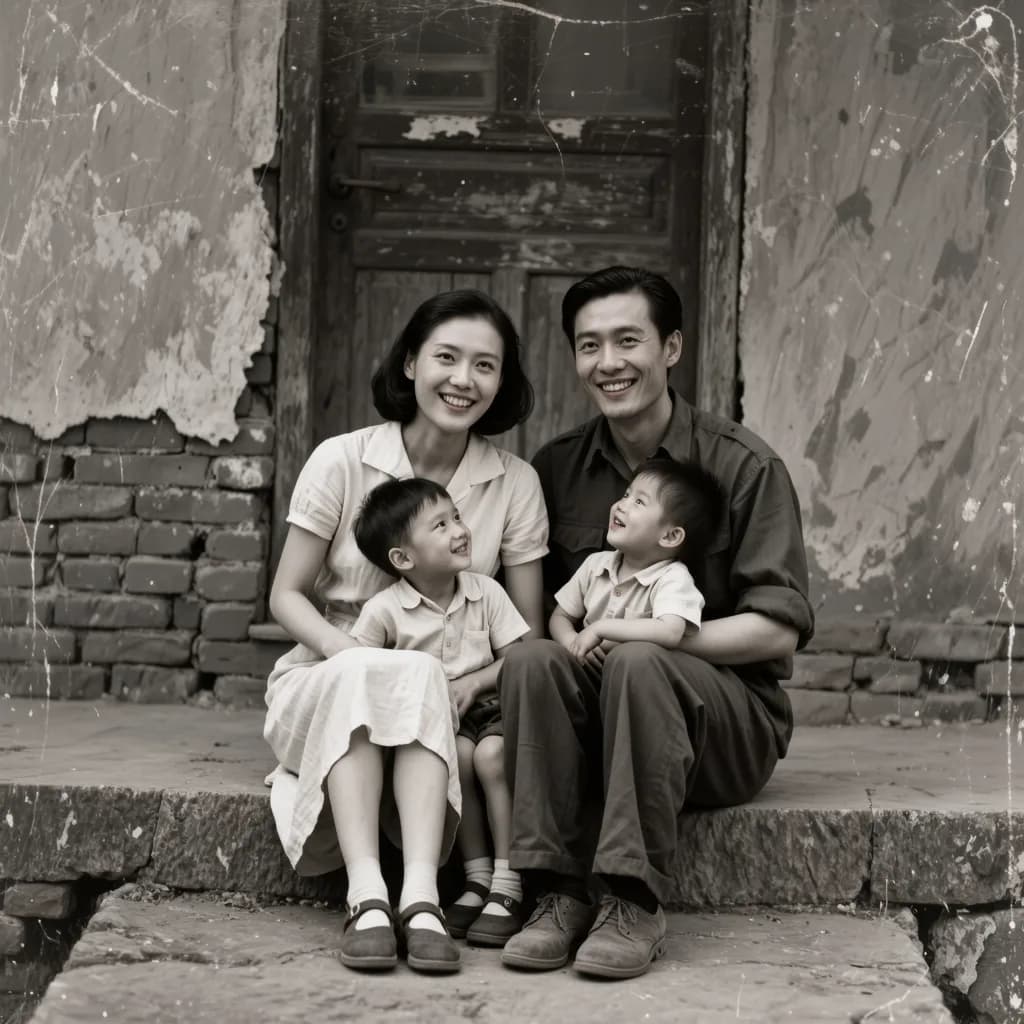
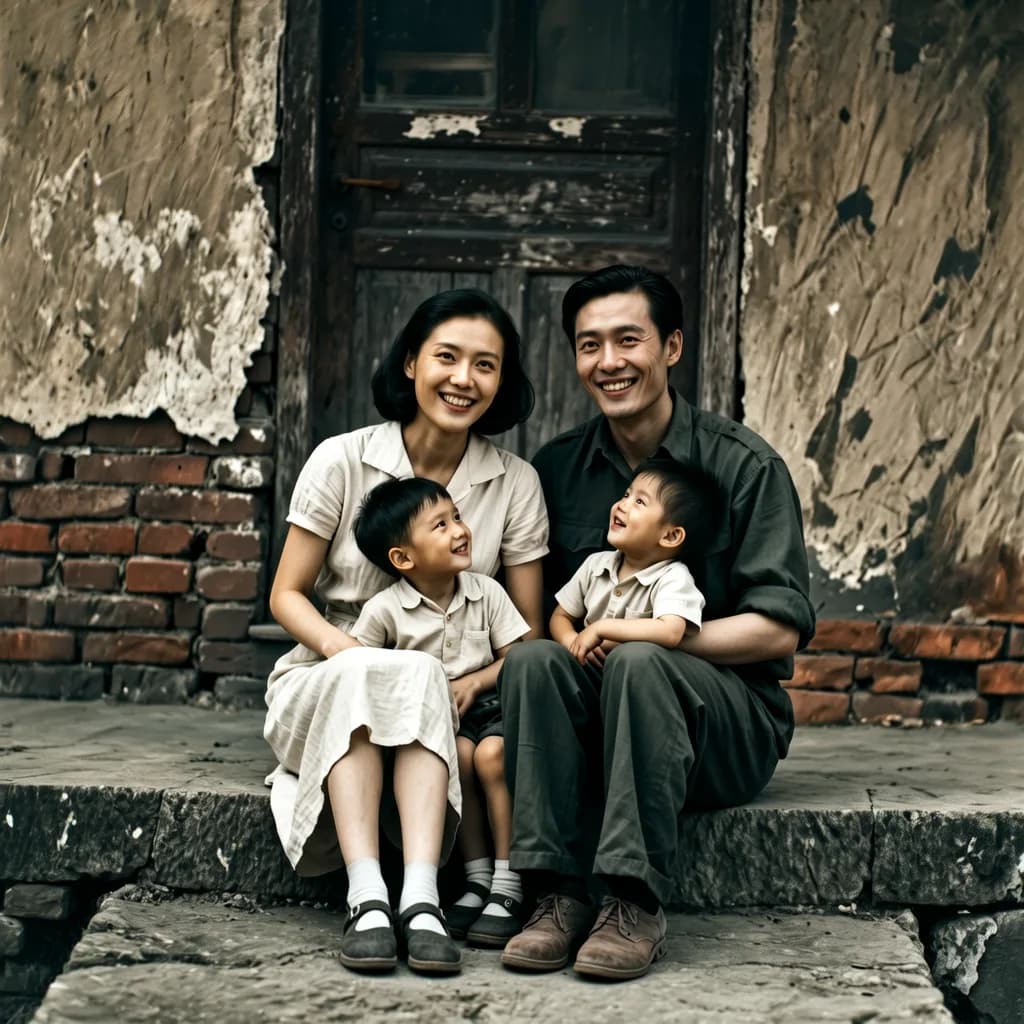 How to colorize black and white photosScan an old photo well, add believable colour with AI, then check what you know and label the result as colorized.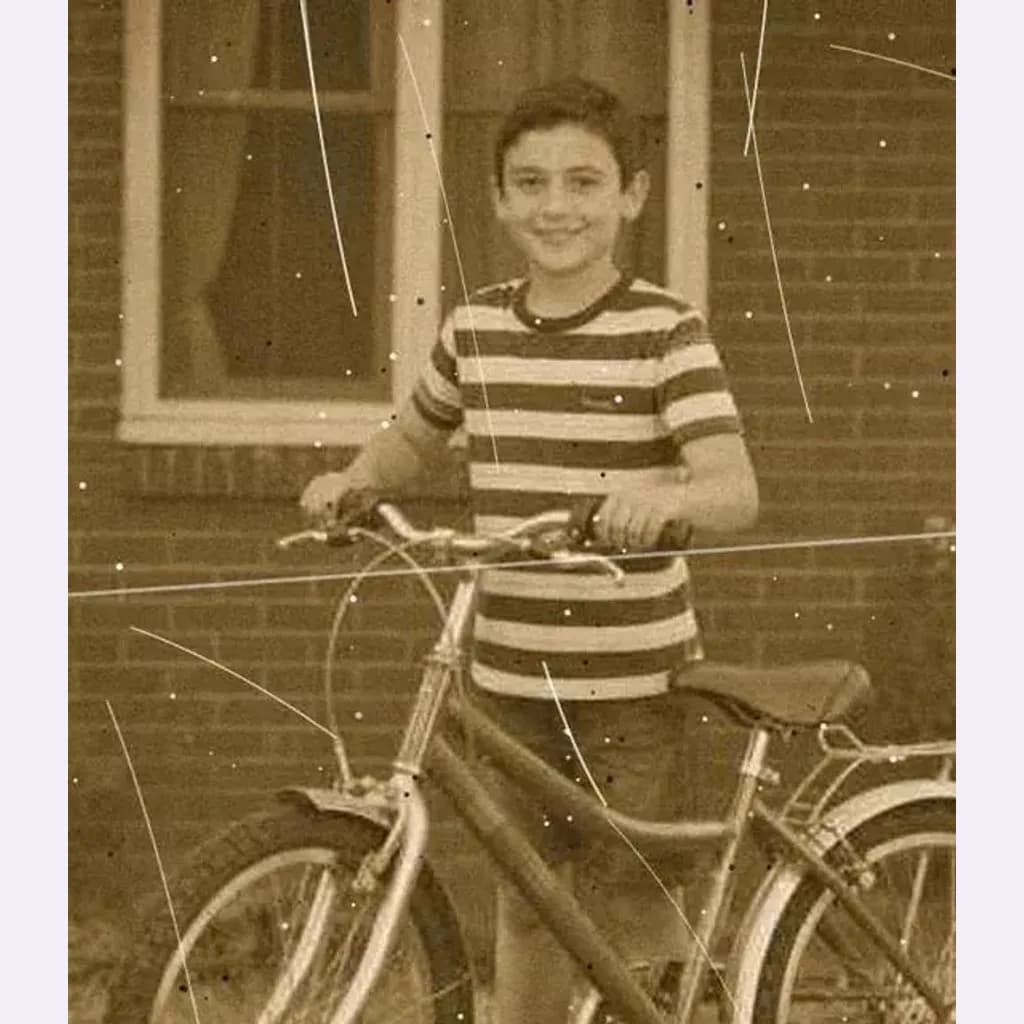
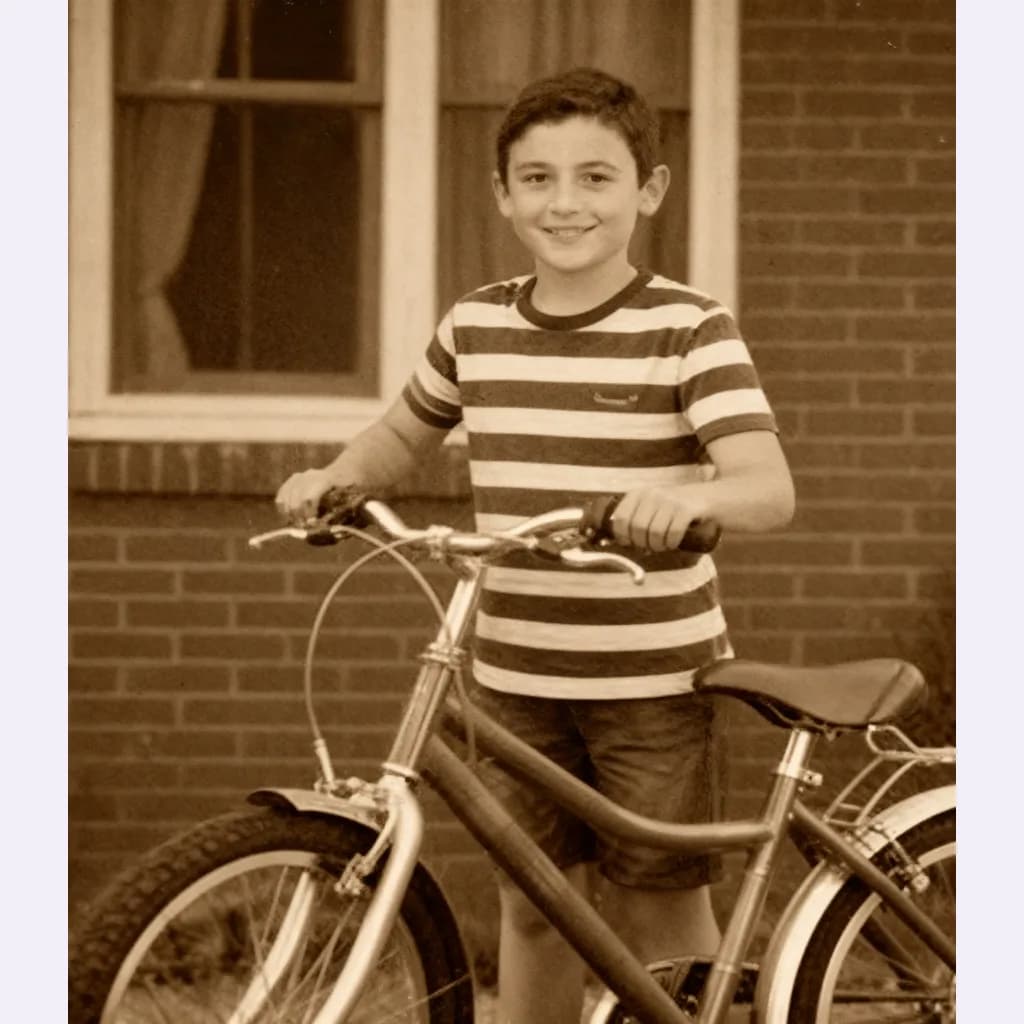 How to Restore Old Photos Without Losing the OriginalHandle, scan and repair scratched, torn or faded family photos, and keep an untouched copy of every original.
Related tools

Animate your photo
Upload a photo, pick a motion and see the exact credit price before you run it. Failed generations aren't charged.