
Cinematic Photo: How to Pick a Photo and Check the Result
A cinematic look gives an everyday photo the light, colour and mood of a film still. The Cinematic photo tool does this with one run: you upload a photo and get one new image back.
Methodhelm editorial teamLast updated: 3 min read
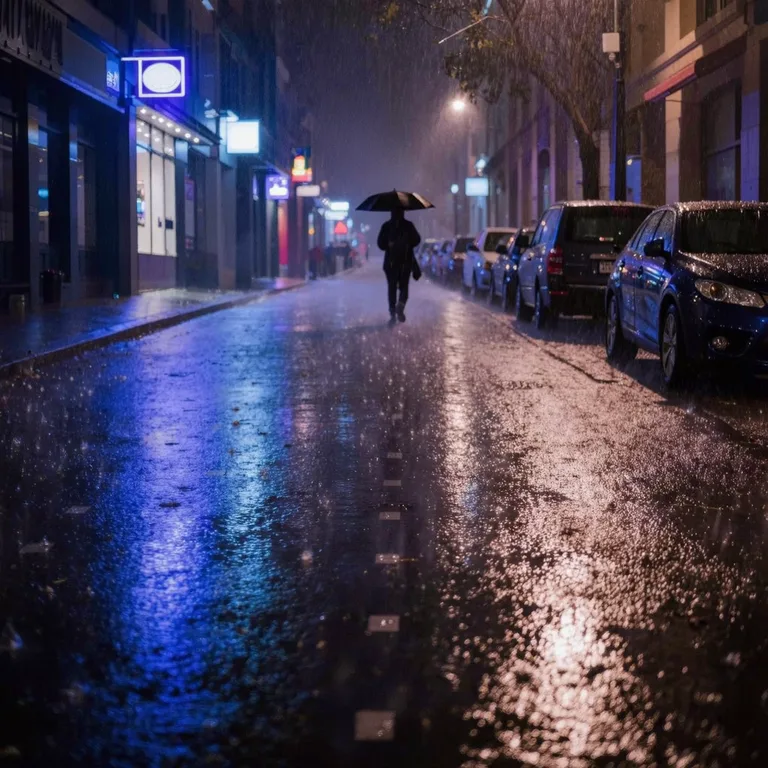
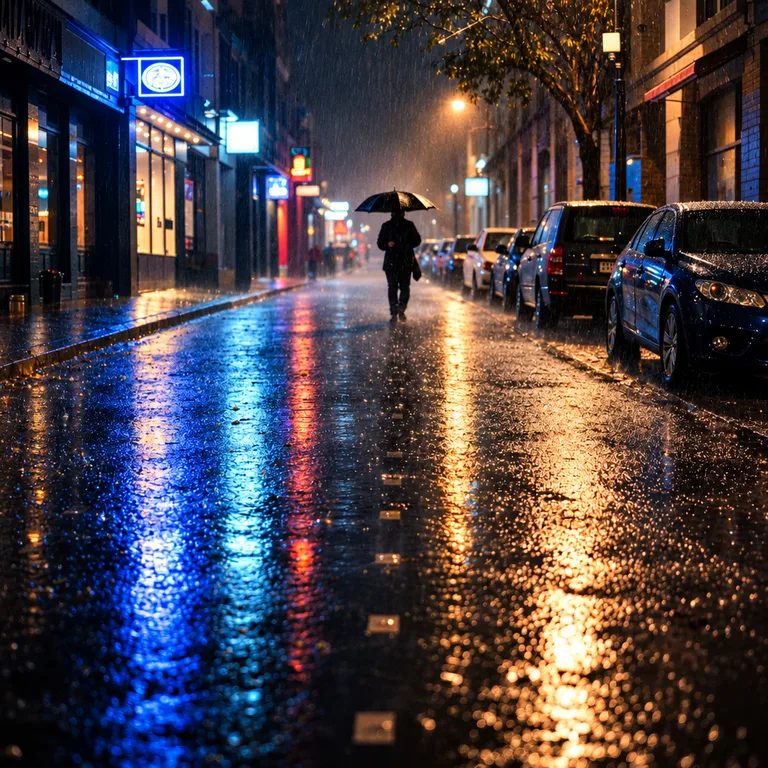
The site warns that small details may change, so this guide is mostly about how to choose a photo and what to check in the result.
On this page
What the tool does
- You upload one photo, see how many credits the run uses, and then run it.
- The site says it gives the photo film-style light, colour and mood. Small details may change.
- You get one image of about 1 megapixel, in the shape closest to your photo. For example, a 4:3 photo gives 1152 × 864.
- The site lists travel photos, portraits and social posts as typical uses.
How to give a photo a film look
- Choose a photo
Use a JPG, PNG or WebP of 10 MB or less. Pick a photo where the subject is clear and the light is not extreme.
- Open Cinematic photo and sign in
Go to Cinematic photo and upload the photo.
- Check the price, then run the film look
The credit price is displayed before the film look is applied. If the run fails, the held credits are released automatically, and while the result is unconfirmed they may remain held until the check is done.
- Set the film look beside the original
Open the result next to your photo and zoom in. Look at faces, hands, text, logos and thin lines.
- Save the film-look photo within 24 hours
Your film-look photo stays in storage for 24 hours, so save it to your device in that time. The Privacy Notice says results are fully deleted from storage within 7 days.
Which photos to try first
We have not tested this for the guide, so treat these as starting points, not promises.
- Travel photos with a clear scene.
- Social posts: one cinematic look across several photos, with the shape of each result checked.
- Portraits with an even, front-facing view. Because small details may change, check that the person still looks like themselves before you use it.
- Photos you already like. A cinematic style changes the mood; it is not a rescue for a blurry photo. If the original is too blurry, try Photo deblur first.
What to check in the film look before you save
- Faces. The site says details may change a little. Do eyes, nose, mouth and age still look like the person?
- Small details. Jewellery, buttons, signs, text and fine patterns.
- Edges and hands. Check where the subject meets the background.
- Colour. Is the mood what you wanted, or did skin tones go too far from the original? Keep the original file.
- Shape. The result follows the shape of your photo, so check the crop for social posts.
Keep the film look believable
- If a photo of a person is shown as a record of what happened, say it was edited with AI.
- Only use photos of people who agree to it.
Frequently asked questions
Is the result the same size as my photo?
No. The result is about 1 megapixel in the shape closest to your photo.
Will faces stay the same?
The site says small details may change, so check every result.
Do I get credits back if the film look fails?
A film-look run that fails costs nothing and the credits held for it return automatically. Credits can stay held until the check finishes if the result is not confirmed yet. A film look you do not like is not a failed run.
Can I see the price before the film look runs?
Yes. The credit price is shown before the film look runs.
What file types work?
JPG, PNG and WebP photos work, as long as the file is 10 MB or smaller.
Related guides

 How to Fix Flat or Dull Lighting in a PhotoUnderstand why a photo looks flat, fix what you can when shooting, and relight the rest with golden hour or soft light.
 How to retouch a portrait photo and keep it naturalStart from a good portrait, soften blemishes and uneven skin with AI, and keep the texture and features that make a face look real.
Related tools



Try one photo first
Upload one photo, see the credit price before it runs, and check faces and details before you download.