
Stuck on an Alarm Task? Backup Tasks and Emergency Close
Last updated:
An alarm challenge only helps if you can get out of it when you really need to. Maybe the task will not work at 6 a.m. Maybe something came up.
RiseCheck has two ways out. This guide explains both. RiseCheck needs iOS 26.1 or later.
Backup task: when the task keeps failing
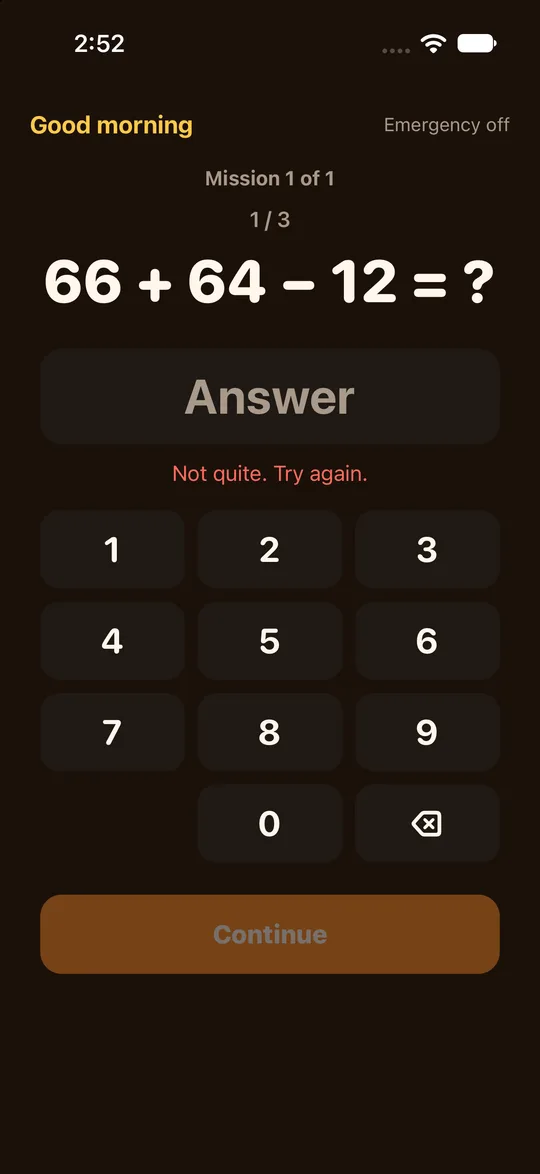
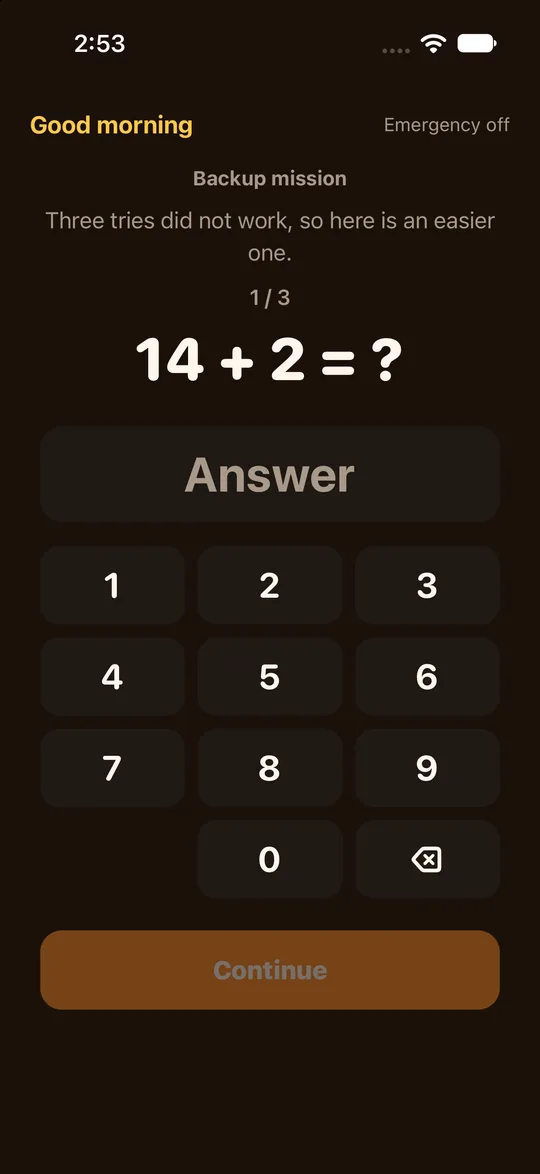
- If you fail the task 3 times, RiseCheck switches to an easier backup task.
- The idea is that you do not get stuck on a task you cannot finish while half asleep.
- You still have to do the backup task. It is easier, not skipped.
Emergency close: when something urgent comes up
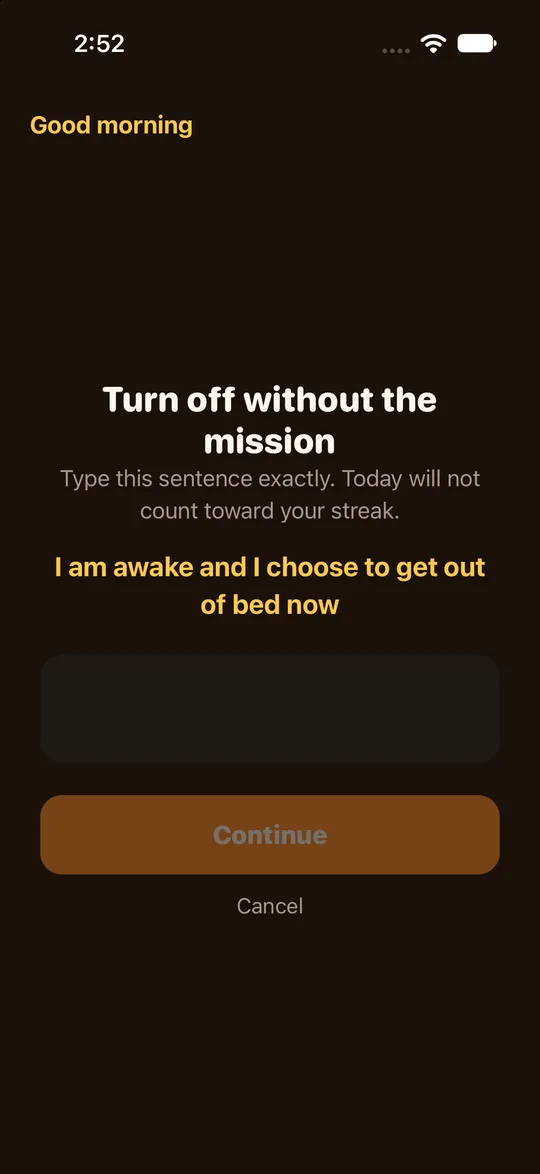
- The emergency close is always available.
- To use it, type one sentence and the alarm closes.
- A day closed this way does not count towards your wake-up streak.
- Example: you are called away in the night to deal with a problem at home. You should not have to solve sums.
Why the app is built this way
- Alarms that only ring are easy to switch off and fall back asleep.
- A task that keeps the alarm going adds one more step, but it should never trap you.
When you are stuck
- If the task keeps failing, keep trying. After 3 failures you get an easier task.
- If it is a real emergency, use the emergency close and type your sentence.
- Next morning, check your streak. An emergency-close day does not count.
- If a task is too hard in general, change the task for that alarm. See how to set a task alarm.
Frequently asked questions
Can the app lock me into an alarm?
There is always an emergency close, so no.
Does an emergency close break my streak?
That day does not count towards the streak.
Is a backup task the same as the original?
No, it is easier.
Does it use Apple's alarm system?
Yes, so silent mode and focus modes still ring.
Where do I download it?
RiseCheck's download link is on the home page of this website; install it before you set up your backup task.