
How to Preview a Hair Color or Haircut on Your Photo Before the Salon
Changing your hair is easy to imagine and hard to undo. A short cut takes months to grow back, and a big color change can mean several appointments. Seeing a rough version on your own face first helps you decide whether you actually like the idea, and it gives you something concrete to show your stylist instead of describing a shade in words.
Methodhelm editorial teamLast updated: 6 min read
This guide covers how to take a photo that previews well, how to try styles and colors with an AI tool such as the Methodhelm Hairstyle changer, how to compare shades fairly, and how to turn a preview into a useful salon consultation. Most of it works with any preview app, or with a printout and a stack of magazine pictures.
 Before
 After
AfterOn this page
Start with a photo that previews well
A preview is only as useful as the photo it starts from. Face a window in daylight so the light falls evenly on your face rather than from one side. Avoid strong overhead lamps and colored lighting, which tint your skin and make every hair color look slightly off.
Wear your hair down and away from your face, so your hairline, length and natural parting are visible. Take the photo at eye level, with your face and hair fully in frame and nothing on your head: no hat, hood, headband or sunglasses pushed up. A plain top and background keep the attention on the hair.
Also take one photo from the side and one of the back. You won't need them for the preview, but they show your stylist your real length, thickness and any old color still in the ends.


Step by step: try a new hairstyle or color on your photo
- Choose your clearest photo
Pick a sharp, front-facing photo of one person with the whole face and hair visible. The Hairstyle changer accepts JPG, PNG or WebP at least 128 pixels on each side; larger photos are resized to at most 1600 pixels before upload.
- Sign in and upload
Sign in to Methodhelm, open the Hairstyle changer and upload the photo. Only use photos of yourself, or of someone who has agreed to it.
- Pick one style and one color
Choose from 12 hairstyles (short, bob, pixie cut, buzz cut, medium length, long, straight, wavy, curly, bangs, high ponytail, bun) and 10 colors (natural, black, dark brown, light brown, blonde, platinum blonde, auburn, red, silver, pink). Change one thing at a time at first, so you know what you are reacting to.
- Check the price and run it
The exact credit price is shown before you run. Failed generations aren't charged — held credits come back automatically. It usually takes 20 to 60 seconds, and your result is kept for 24 hours to download. See pricing for how credits work.
- Compare results side by side
Results come back at up to 2048 pixels on the long side. Save each one and view it next to your original photo on the same screen, then narrow it down to two or three favorites.
- Take them to your consultation
Show your stylist the shortlist together with real photos of hair you like, and ask what is realistic for your hair and what it would take to get there.
How to judge a color against your skin and eyebrows
- Look at previews in daylight, not late at night with your screen dimmed or a night mode on. Warm night settings shift every color and can make ash blonde look golden.
- Screens differ. A phone and a laptop can show the same auburn quite differently, so compare on one device and treat the color as a direction, not an exact shade.
- Check your eyebrows. Very light hair with dark brows, or black hair with very light brows, can be a deliberate look, but decide whether you like that contrast before committing.
- Notice your skin: some shades make redness or under-eye shadows stand out, others warm up a pale complexion. Your own reaction matters more than any color chart.
- Try the extremes once. If you are torn between dark and light brown, also run black and blonde; seeing both ends often makes the middle choice obvious.
- Sleep on it. A preview that still looks good the next morning is a better sign than one that only felt exciting at first.
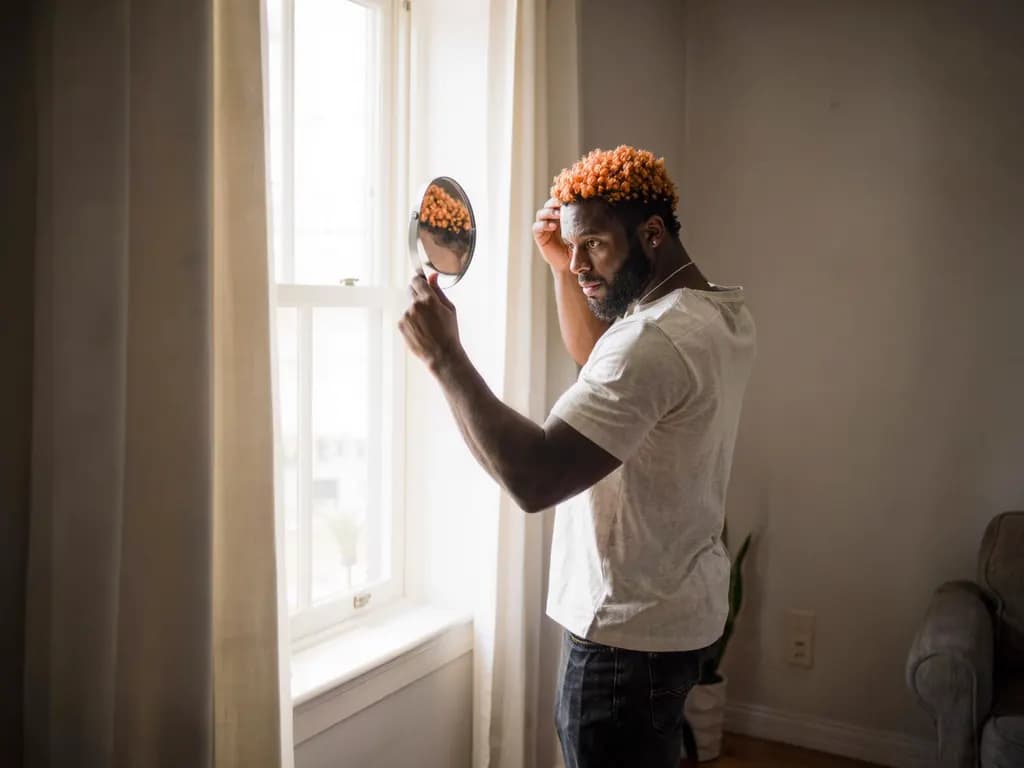
What to tell your stylist
A preview shows the destination; your stylist also needs the starting point. Be specific and honest, because an undisclosed history is a common reason a color turns out differently from what was expected.
- Your hair history for the last few years: box dye, salon color, bleach, highlights, henna, perms or chemical straightening.
- How much maintenance you want: how often you can return for roots or trims, and how long you style your hair each morning.
- Your budget, including follow-up visits. Going much lighter often needs bleaching and may take more than one appointment, so ask your stylist to explain the plan and cost first.
- Rules at school or work, such as limits on bright colors.
- If you dye at home instead, follow the allergy patch-test instructions on the product every time, even with a brand you have used before.
What an AI hair preview cannot tell you
The new hair is generated by AI. It aims to keep your face, but it can change other details of your appearance, so judge the hair rather than the whole picture. A real haircut or dye may turn out differently; use the preview for ideas and as inspiration for your stylist.
It also cannot see your hair's texture, density or previous color. Curls on fine straight hair, or platinum on hair dyed black many times, can look effortless in a preview and take far more work in real life, if they are achievable at all. Only someone who sees and touches your hair can judge that.
If a result looks wrong, the cause is usually the photo: something covering the head, a tilted face, harsh shadow or more than one person. Retake it facing the light. For a polished photo of your new look later, try photo retouch or the guide to a LinkedIn headshot from a selfie; for outfits, see virtual try-on for clothes.
Frequently asked questions
Can I try a hair color on my own photo before dyeing it?
Yes. Upload a clear, front-facing photo to a hair preview tool such as the Methodhelm Hairstyle changer and pick a color. The result is AI-generated, so use it to decide whether you like the idea, then ask a stylist what is realistic for your hair.
How do I find out which haircut suits me?
No tool can decide that for you. Try several cuts on the same photo, compare them side by side in daylight, and discuss your favorites with a stylist, who can also consider your hair texture, cowlicks and how much styling you want to do.
Will the salon result look exactly like the preview?
Probably not exactly. The preview is generated and does not know your hair's texture, condition or color history, so a real cut or dye may turn out differently. Treat it as inspiration and a starting point for the conversation.
Why does the same color look different on my phone and laptop?
Screens are tuned differently, and features like night mode change color warmth. Compare previews on one device in daylight, and confirm the shade with your stylist using real hair swatches.
What does a hairstyle preview cost on Methodhelm?
Runs use credits. The exact credit price is shown before you start. Failed generations aren't charged — held credits come back automatically. Your result is kept for 24 hours to download. Current details are on the pricing page.
Related guides
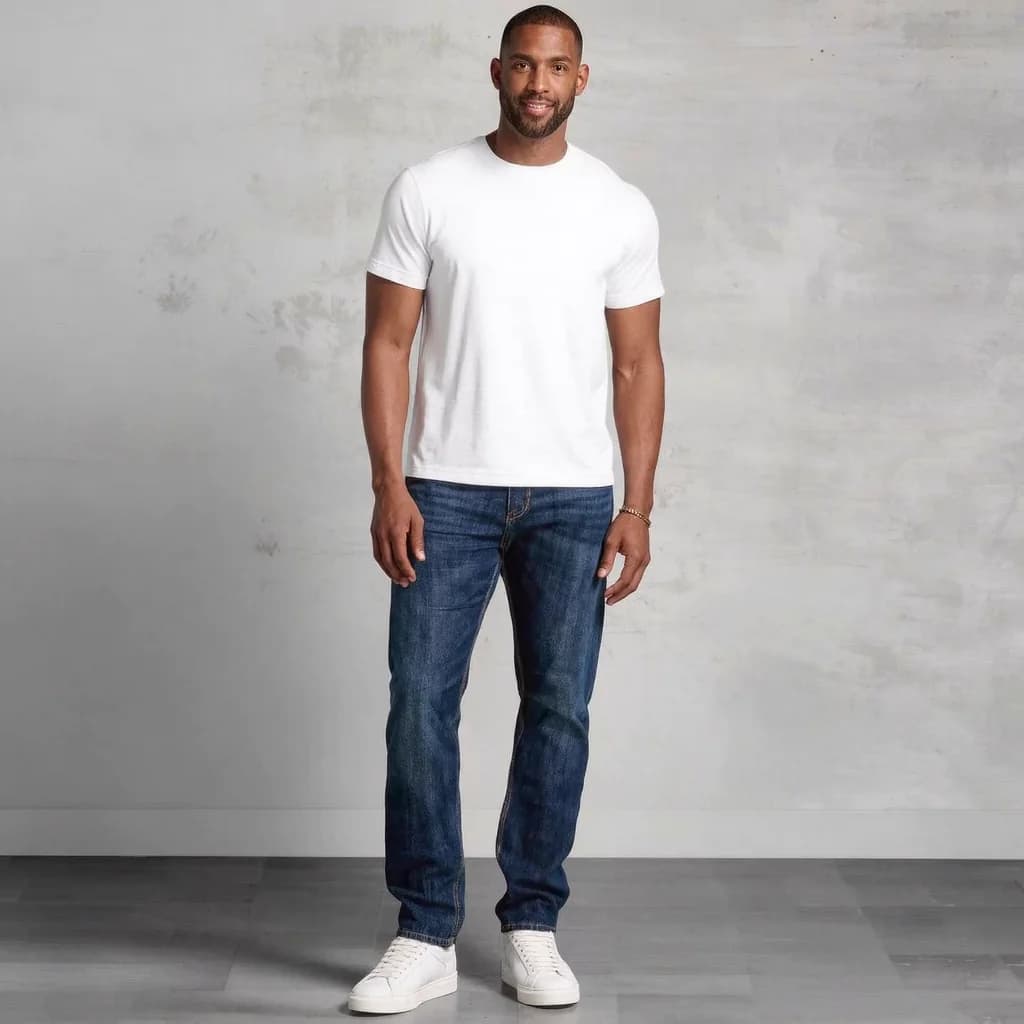
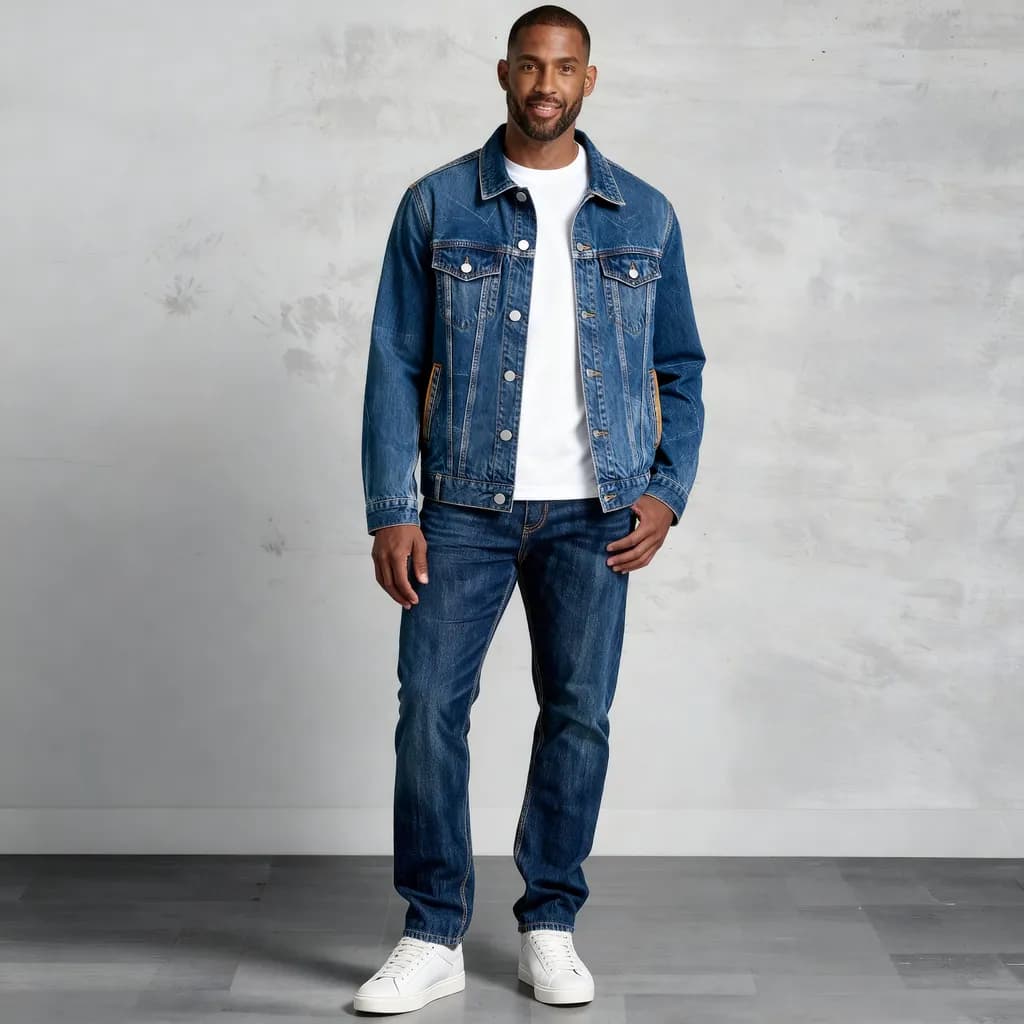 How to try on clothes virtually: see the look before you buyTake a usable full-body photo, choose a clean garment image and read an AI try-on preview for style and colour, not for size.
 How to Turn a Selfie Into a Professional LinkedIn HeadshotTake a selfie that works as a profile photo, decide whether an AI headshot helps, and check the result still looks like you.
Related tools


Try a new hairstyle on your photo
Upload one front-facing photo, choose from 12 styles and 10 colors, and see the exact credit price before you run it.