
How to try makeup looks online on your own photo
Makeup is hard to judge on someone else. A bold red lip looks striking on a model in a campaign photo, but will it suit your face, your skin tone and the dress you are wearing to a wedding? Testing in a shop means wiping products on and off your skin, and booking a trial with a makeup artist takes time and money.
Methodhelm editorial teamLast updated: 4 min read
A virtual makeup try-on applies a look to a photo of your own face, so you can compare several directions in a few minutes. This guide shows how to take a selfie that gives clean results, how to try looks step by step with Virtual makeup on Methodhelm, which look to try for which occasion, and how far you can trust the preview.
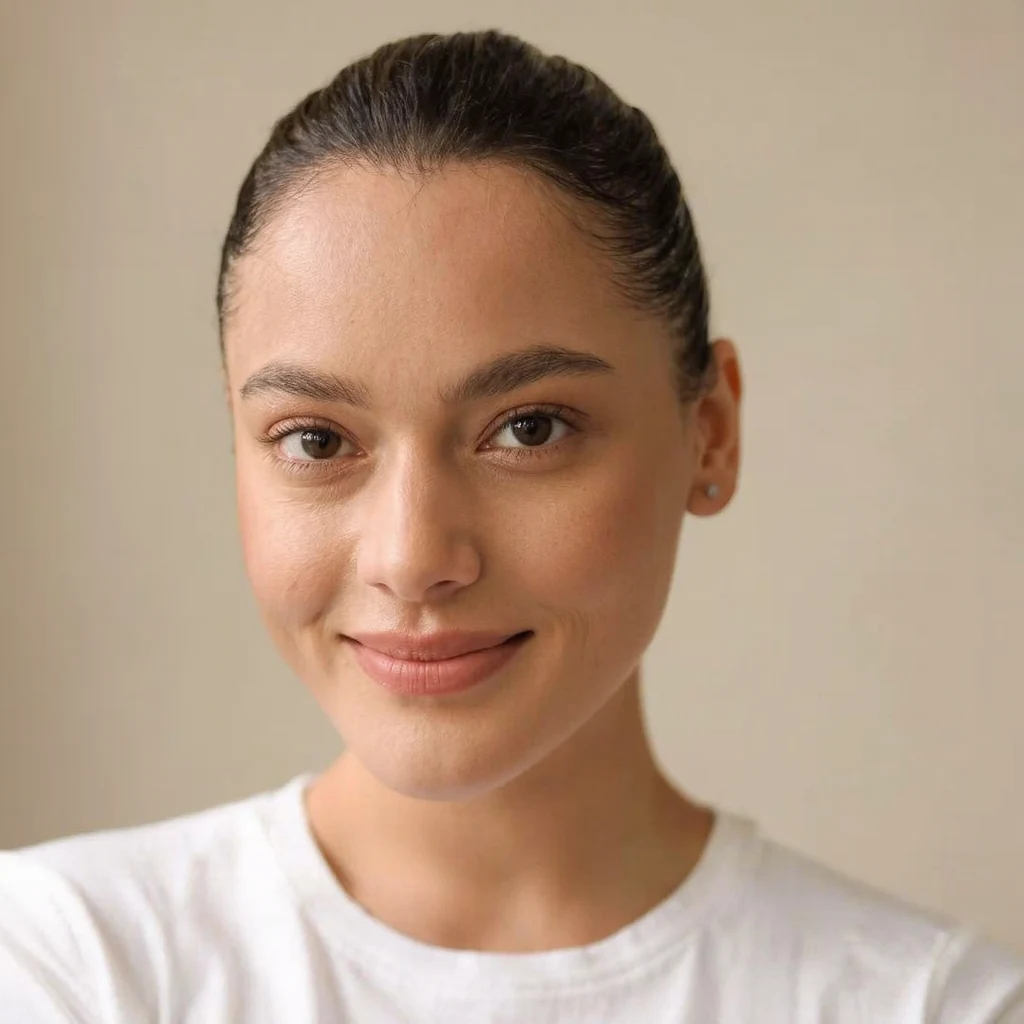 Before
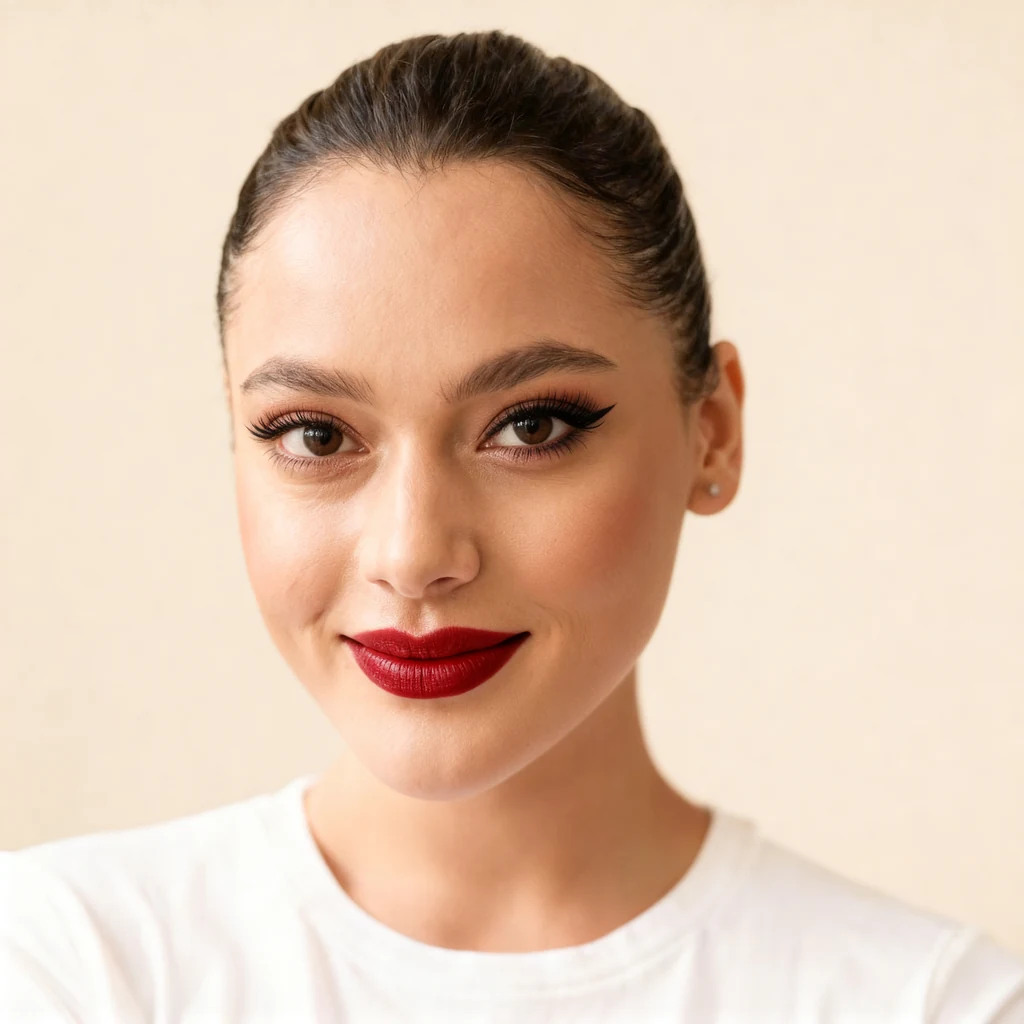 After
AfterOn this page
Why preview makeup before you buy or book
A preview is most useful for decisions that are hard to undo or expensive to test: a new lipstick shade you would buy in full size, a stronger eye look you have never worn, or a bridal or event look you want to discuss with a makeup artist. Seeing two or three options side by side on your own face makes it easier to say what you like and what feels like too much.
It is also a quick way to explore. Many people stick to the same routine for years simply because trying something different takes effort. A preview costs a few seconds, so you can try smoky eyes or a K-beauty look just to see, and keep only the ideas that work.
Take a selfie that works for a makeup try-on
- Face the camera straight on, with your eyes open and the whole face in frame. Side angles and closed eyes make eye looks harder to place.
- Use soft daylight from a window in front of you. Strong side light or a yellow bulb changes how colours look on your skin.
- Start with a bare face or very light makeup, so the preview is not stacked on top of an existing look.
- Pull your hair back from your face and remove glasses if you can; both cover the areas where makeup goes.
- Turn off beauty filters and portrait effects. They smooth skin and shift colours before the try-on even starts.
- Use a sharp photo of one person only: your own, or someone else's with their consent.
Step by step: try a makeup look with AI
- Upload your selfie
Open Virtual makeup and upload a JPG, PNG or WebP of at least 128 px a side. Larger photos are scaled to at most 1600 px before upload.
- Choose a look
Pick one of 8 looks: Natural, Glam, Bold lips, Smoky eyes, K-beauty, Bridal, Office or Dramatic.
- Set the intensity
Choose Light, Medium or Full. Medium is a good first try; go lighter for everyday looks and fuller for evening or photos. After signing in you see the exact credit price before the run.
- Run the try-on
It usually takes 20 to 60 seconds. Failed generations aren't charged — if a run fails or the result cannot be used, the held credits come back automatically after a short hold. Your result is kept for 24 hours to download.
- Compare and try a second look
Drag the slider to compare with and without makeup. Then run the same selfie with another look or intensity and keep the versions you want to compare.


Which look to try for which occasion
- Everyday and work: Natural or Office at Light or Medium intensity.
- Evenings and parties: Smoky eyes, Glam or Bold lips at Medium; Full if you will be photographed under strong light.
- Weddings and formal events: Bridal, and compare it with Natural before a trial with a makeup artist.
- Something new: K-beauty for fresh, glowing skin and soft colour, or Dramatic for a strong, editorial look.
- Choosing a lipstick: run Bold lips at Light and Full to see how much colour feels right before buying a shade.
From preview to the mirror: what to keep in mind
The result is an AI-generated preview, not a match to any real product. Colours on screen differ from real cosmetics and from one screen to another, and besides the makeup the AI can slightly change skin texture, face details, hair or the background. Use the preview to choose a direction, then test the actual shades on your skin in daylight.
- Show the preview to a makeup artist as a reference for the mood you want, not as an exact recipe.
- It is not a skin analysis and gives no medical, dermatological or product advice. For skin concerns, ask a qualified professional.
- The result is up to 2048 px on the long side, in the standard shape closest to your photo, so the edges may be slightly trimmed or extended.
- If you also plan a new hair colour, preview both; see how to preview a hair colour before the salon.
Frequently asked questions
Can I try makeup on my own photo online?
Yes. Upload a clear, front-facing selfie to a virtual makeup tool, choose a look and intensity, and you get a preview of that look on your own face.
Will the colours match a real lipstick or eyeshadow?
No. The preview is generated and not linked to any product, and screens show colour differently. Use it to choose a style, then test real shades on your skin.
Which photo gives the best result?
A sharp, front-facing selfie of one face in soft daylight, with eyes open, hair away from the face, little or no makeup and no beauty filter.
Can I try makeup on a friend's photo?
Only with their consent. Upload your own photo, or a photo of someone who has clearly agreed.
Does the AI change my face?
It aims to add only makeup, but skin texture, face details, hair or the background can change slightly. Compare carefully; for natural skin retouching instead of makeup, see how to retouch a portrait naturally.
Related guides
 How to Preview a Hair Color or Haircut on Your Photo Before the SalonTake a usable reference photo, try hairstyles and colors on it, judge the results honestly and turn them into a clear brief for your stylist.
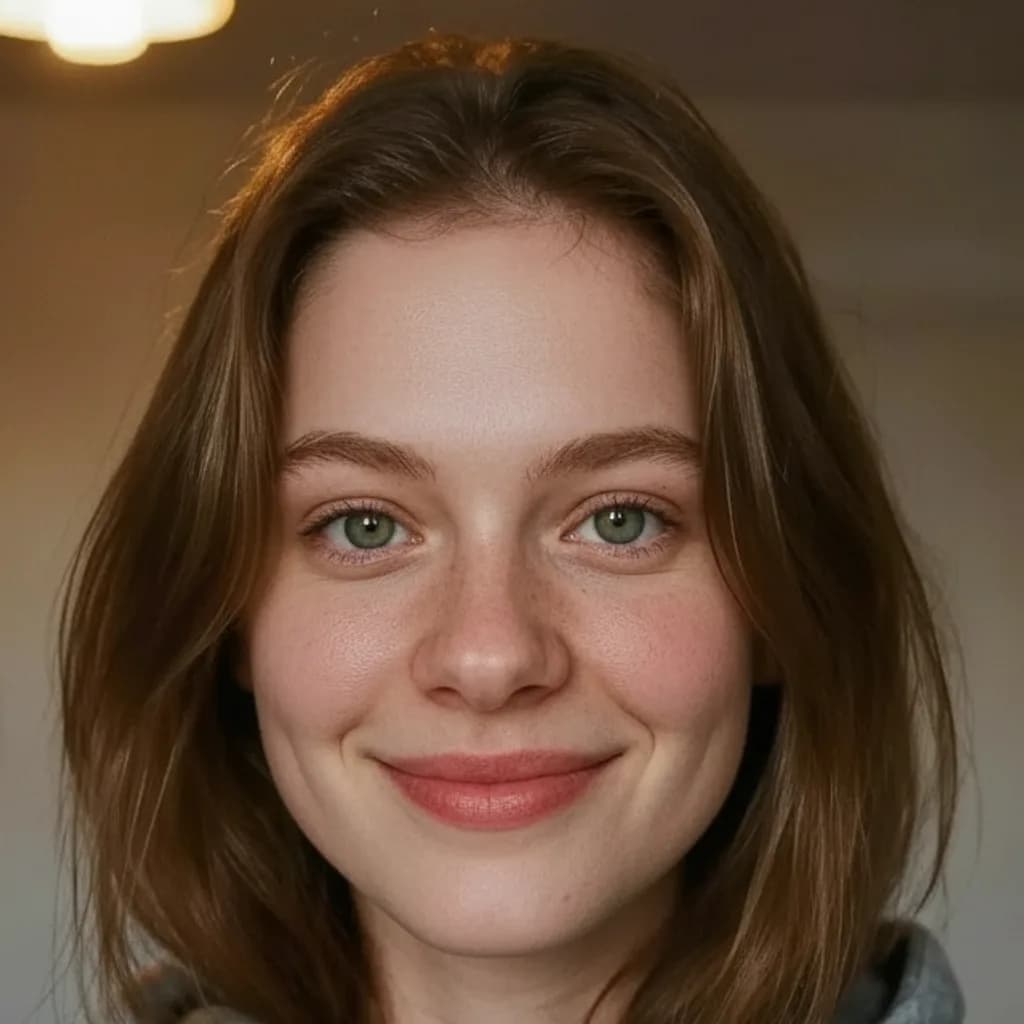 How to retouch a portrait photo and keep it naturalStart from a good portrait, soften blemishes and uneven skin with AI, and keep the texture and features that make a face look real.
Related tools
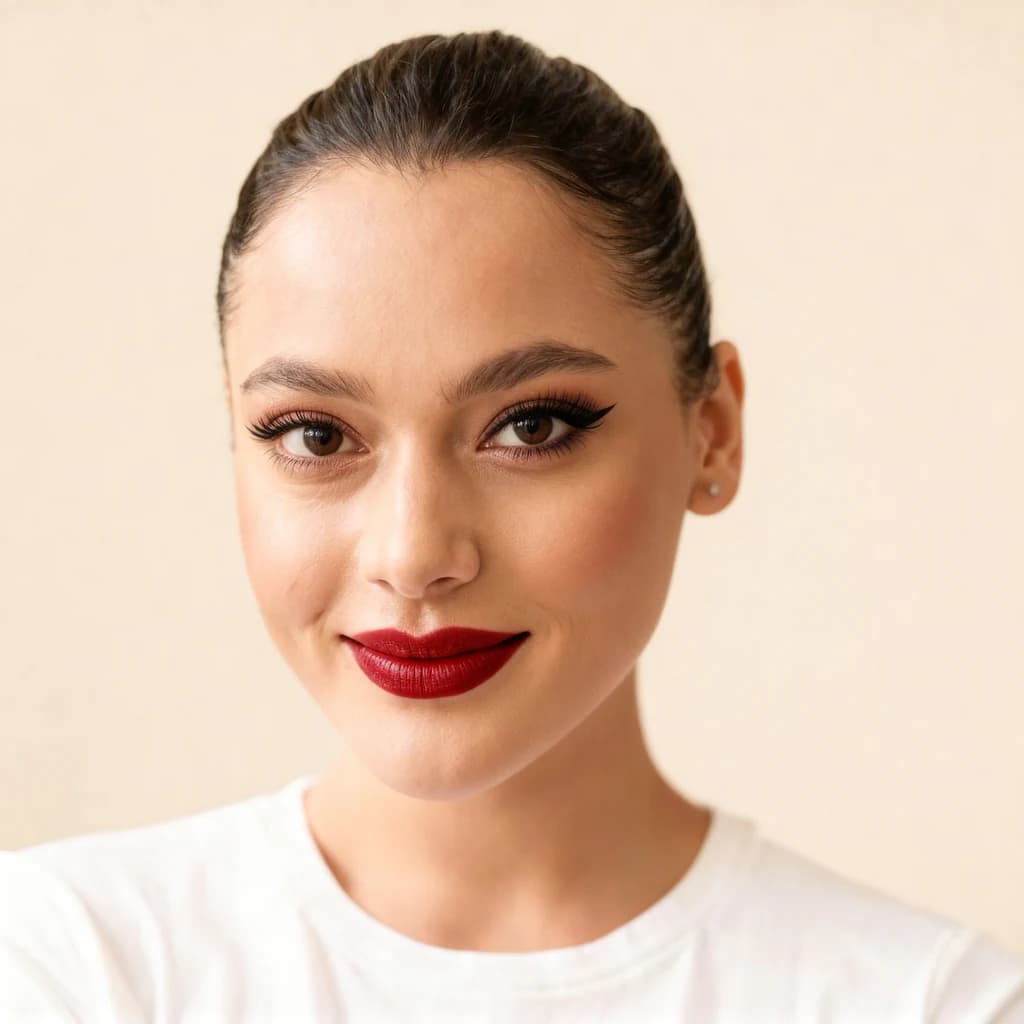
Try a makeup look on your selfie
Upload a clear selfie, choose from 8 looks and 3 intensities and compare with and without makeup. You see the credit price before it runs.